Run a Trello project from a board that tells the team what can start, who owns the next move and what’s waiting for review. For a website launch, use Backlog → Ready → In progress → Review → Done. Give each card a person responsible for it and a finish condition the reviewer can check.
Trello’s board, list and card model fits projects that depend on visible handoffs. It works for a launch or an editorial schedule. Check how you’ll handle budgets, dependencies and staffing first if those decisions drive the project.
Give each list a job before adding tasks
I’d keep the launch on one board because design, copy and approval share the same handoffs. These stages are a proposed working agreement, not Trello rules that enforce themselves:
| List | What belongs here | What lets a card leave |
|---|---|---|
| Backlog | Possible launch work, not yet committed. | The outcome, priority and acceptance criteria are clear. |
| Ready | Agreed work that someone can pick up. | A responsible person takes it on and can name the next action. |
| In progress | Work actively being done. | The deliverable is available and ready for another person to check. |
| Review | A deliverable waiting for acceptance. | The reviewer confirms the stated acceptance criteria are met. |
| Done | Accepted work. | No further move is required for this workflow. |
Approve the homepage copy belongs in Review only when the draft is attached or linked and the reviewer knows which version to read. If approval is refused, move the card back to In progress with a concrete change request. Keep the card in its actual stage while someone resolves a blockage; a named label and a written next action can explain why it has stopped.
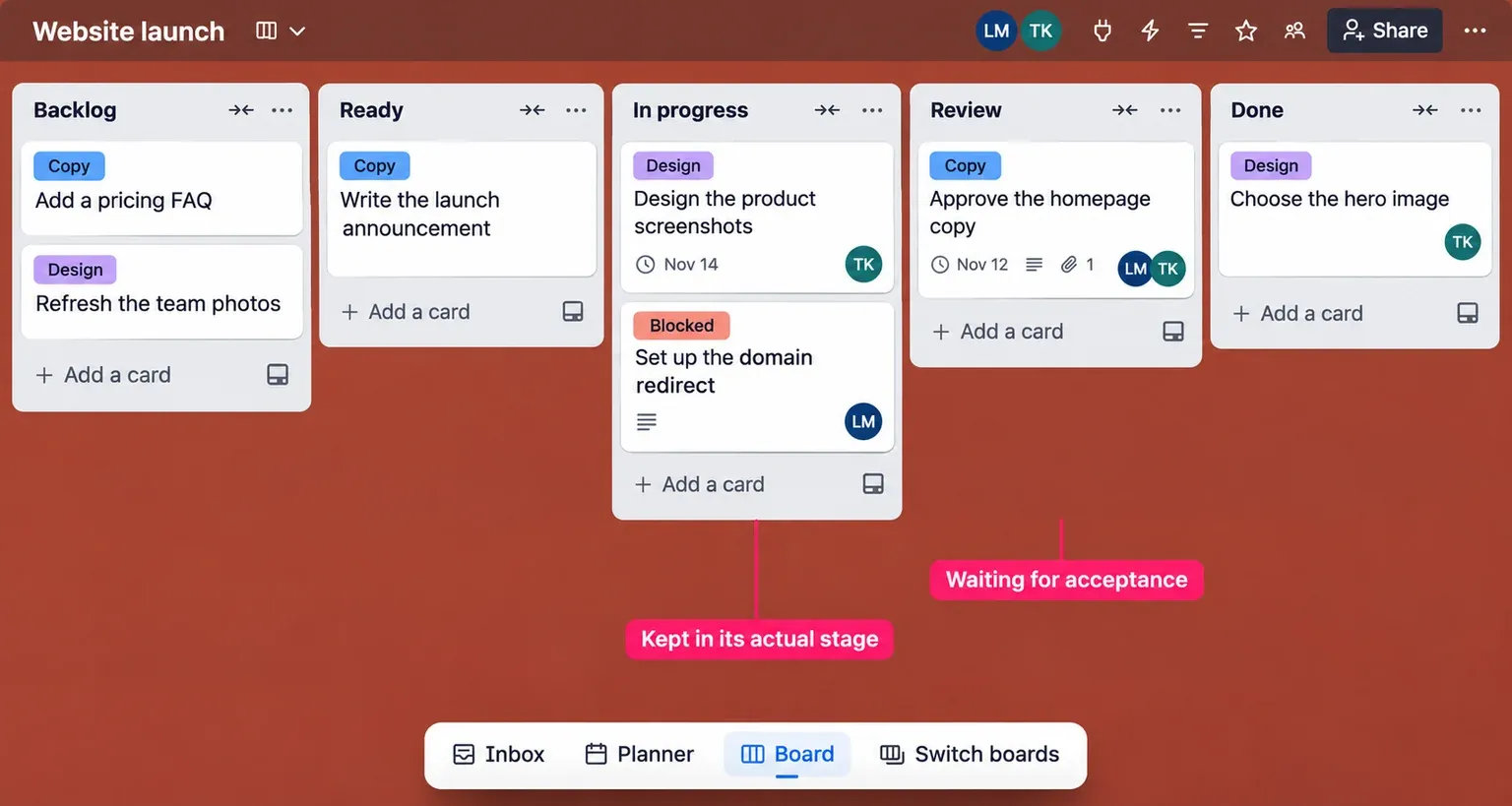
In Trello on the web, create the board from Create > Create Board and select the intended Workspace; every board belongs to one. New boards default to Workspace visible, so check that setting before adding project information. Do not make a client project Public merely to make sharing easier.
Use Add another list to add a list on the right, then build the stages above from left to right. Keep the list names about status. “Design” and “Copy” describe kinds of work, so they would split this project into separate queues instead of showing the same handoff. Use labels for those categories.
Get people onto the board before assigning their cards
On Free, members, guests and pending invitations all count toward the Workspace's 10 collaborators, so check the Free Workspace limits before inviting a larger team. To invite each colleague, select Share on the board and choose Member as their role. Someone invited directly to the board without joining its Workspace becomes a guest, and as a board member still sees every card on it. Confirm that each person can open the board before assigning work.
Make one card specific enough to finish
In the launch board's Ready list, select Add a card… at the bottom of the list and name it Approve the homepage copy. Click the card to open it and customize its details.
Take Approve the homepage copy. Give it a short description with the draft location, the decision needed and the acceptance criteria: headline agreed, product claims checked and final copy approved for the launch. Choose one accountable person for the next move and a due date tied to that decision. “Homepage” alone is a topic; “Approve the homepage copy” is work someone can finish.
Once the person can open the board, open the card and use Add for Members, Dates and Checklist.
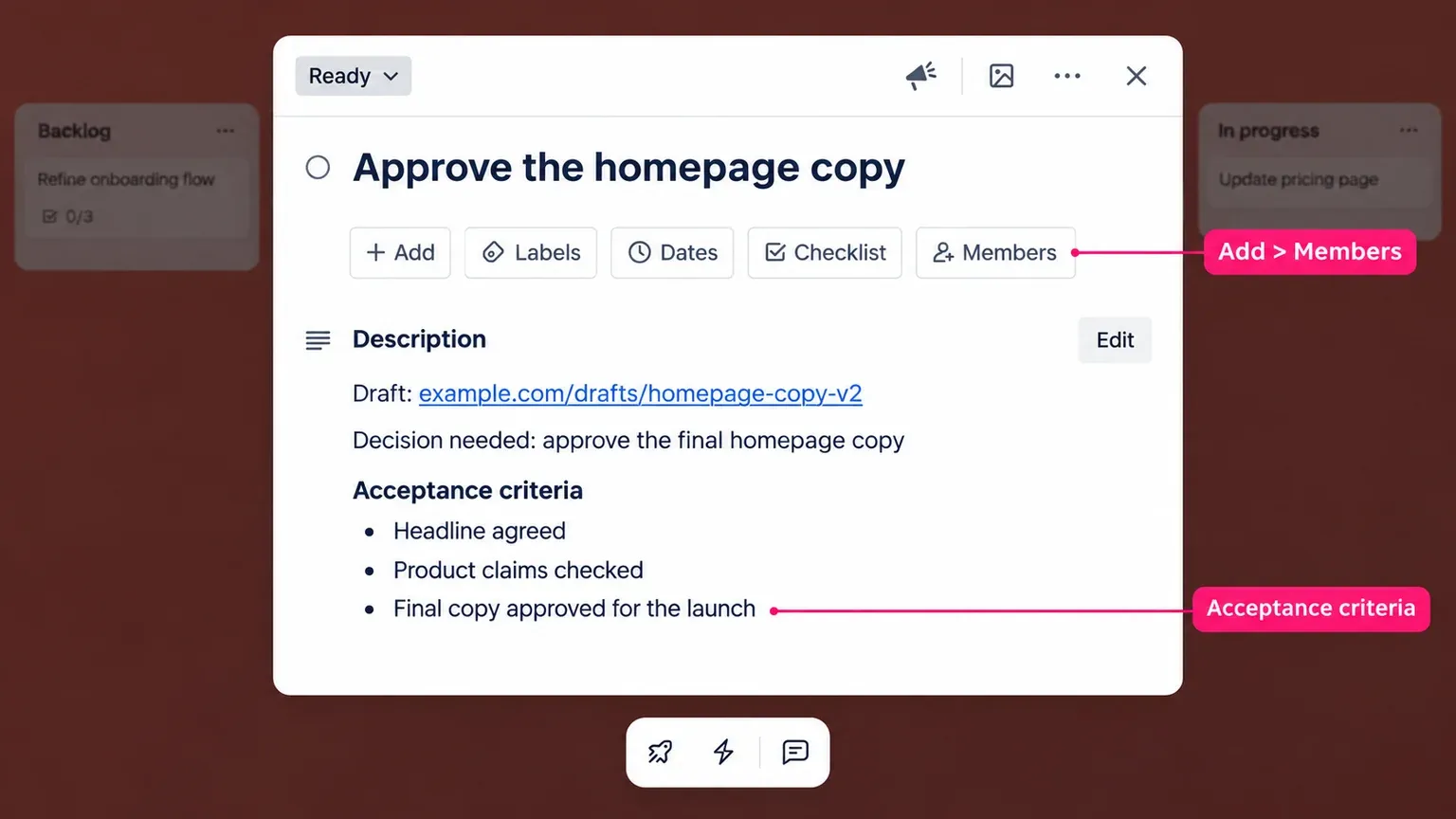
One accountable person is a team convention, not a Trello limit on the number of card members. Other members can participate, including the reviewer. Agree who moves this card next so two avatars don't become two people each waiting for the other.
A basic checklist can hold the homepage checks. Keep its items small enough to inspect. If each item needs its own assigned person and due date, Advanced checklists provide item-level members and dates, and they require Standard or higher, as do Custom Fields. Card-level members and dates are separate from those advanced checklist features. Don't design a Free board around paid item-level controls.
Use labels for categories, not a second status system
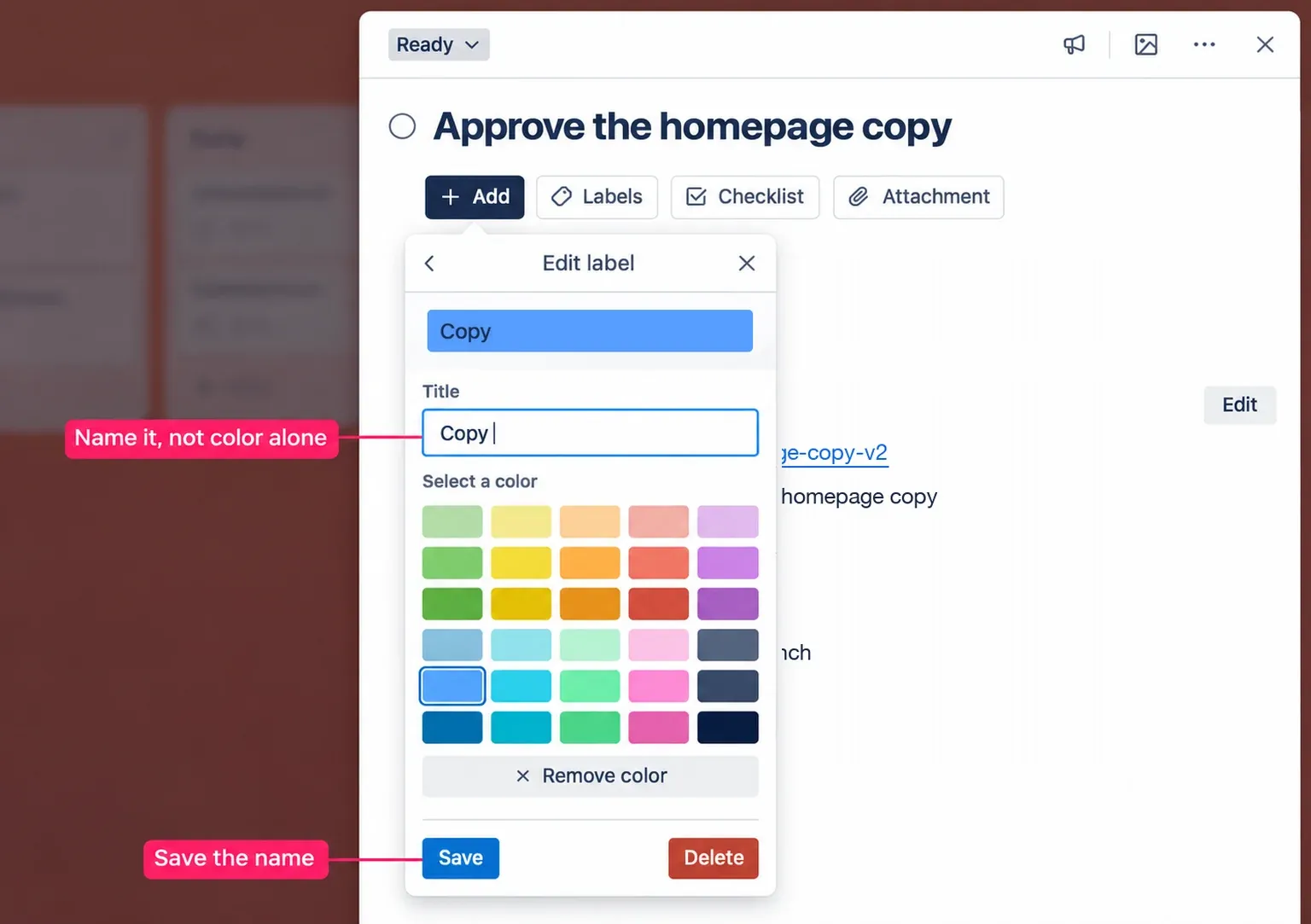
For the launch, start with named labels such as Copy, Design and Blocked. The list says where a card is; the label answers a different question about it. Before adding a priority label, agree which decision it changes. A board full of “Urgent” cards doesn't tell the team what to start.
Labels categorize cards on a board; use Add > Labels on the card and name them rather than relying on color alone. On the board, click a colored label to toggle its name on the card front, as with Copy above. Custom Fields, on Standard and higher, are the alternative when the project needs consistent structured information. Start with the field somebody will read during review.
Pay for the view that answers a real question
The Board view is the working surface for this launch. Upgrade when the question changes, such as “Which launch dates collide?” or “How does this schedule stretch across the month?” Trello's native Calendar, Timeline, Table, Dashboard and Map views require Premium or Enterprise.
Keep the scope of the view clear. Single-board Table shows one board; Workspace Table combines cards from multiple boards. The Calendar Power-Up puts a board’s dated cards on a calendar, while Planner helps schedule time for tasks beside your calendar. Full Planner access requires Standard or higher. Compare the exact route you need rather than buying a plan because two features share the word “calendar.”
If launch deadlines become the main decision, evaluate Timeline against the schedule you need to explain. For a recurring editorial project, keep the same handoffs and choose card dates around publication. Neither choice replaces the agreement about what Review and Done mean.
Automate the review handoff, then watch it
Start with a card button called Ready for review. Its proposed actions are to move the card to Review and add the reviewer. Trello's automation guide documents moving a card to the next list and adding the person responsible for the next step as a card-button workflow. This adds a reviewer; it doesn't remove the existing members or prove that the reviewer has accepted the work.
A card button runs when someone presses it. It isn't an event rule that fires just because a card changed lists. To build it on the web:
- Open the board menu and select Automation, or use the Automation lightning button at the top of the board.
- Choose the Card button type, then Create button.
- Name it Ready for review and configure its actions to move the card to Review and add the chosen reviewer.
- Select Save to save and activate it.
Buttons aren't shared with other people by default. For this one-board handoff, including board guests, set Enabled by default on, Show on all Workspace visible boards off and Anyone in Workspace can enable this button on. These are the settings Trello’s support page gives for sharing a button on one board. Inspect any shared button before enabling it: an automation can transfer private information to another board. Keep this handoff on the project board.
Plan for the monthly Workspace command-run allowance: Free has 250, Standard 1,000, and Premium and Enterprise are unlimited. Each button press counts as one run, and the quota usage sits under the board menu at Automation > Activity > Workspace activity. Each action also draws from a separate operations quota on every plan. Check both counters before making the button part of a required handoff.
After the team begins using it, open View log in the automation builder and disable the automation if it's making the wrong changes. Check the trigger, actions and any errors before enabling it again. The reviewer still decides when the card meets its acceptance criteria and may move to Done.
Add a Power-Up only for a named gap
Write down the missing decision first. Two common gaps have their own guides: a WIP warning on busy lists, covered with the kanban board, and a time record attached to each task. Check that requirement, who can access the data and the partner’s terms before selecting an add-on. Keep the basic card flow working before adding more integrations. If you need hours by card or person, compare Trello time-tracking options before choosing a service.
When an add-on has been selected, enable it from the board header through Power-Ups > Add Power-Ups, search, then select Add and follow that Power-Up’s own instructions to finish adding it. Free includes up to 10 boards per Workspace, unlimited cards and unlimited Power-Ups per board, but some partner Power-Ups charge for their own subscription.
Finish the week by changing the board
Use a weekly review as a working meeting, not a tour of every card. For the launch, follow the work from the stalled cards toward the next commitment:
- Read the dates and blockages. For each overdue or blocked card, agree a next action, a responsible person and whether the deadline still means what it did.
- Resolve Review. Accept the homepage copy against its written checks or return it with a specific change request. Move only accepted work to Done.
- Challenge In progress. If nobody is actively advancing a card, decide whether to resume it or return it to Ready. Don't keep it there to imply progress. If In progress keeps filling up, a kanban board in Trello puts an agreed cap on it.
- Choose the next Ready cards. Compare them with the team's available attention. Clarify missing owners and acceptance criteria before taking on more work.
- Check the board's machinery. Read automation errors and allowance, inspect the review button's sharing, and retire labels or fields nobody uses to make a decision.
End the review with a next move on each active card, a named reviewer on cards awaiting approval and a short list of work ready to start. Give anyone who needs a launch update the decisions from that review:
Finished: The team approved the hero image. At risk: The domain redirect is waiting for a staging test. Decision: The site owner will approve the homepage copy or return it with changes by Thursday.
Link to the cards for people with board access. For an outside stakeholder, send only the approved details. If the same decision is late every week, change the handoff or reduce how much work starts at once.