To run a kanban board in Trello, make each list a real stage of work, write down what allows a card to move, and agree how much unfinished work the team will accept. Pull the next card only when there's room to finish it. I'd begin with a small board and manual policies, because a crowded Doing list needs a decision about what to stop starting before it needs another Power-Up.
Build a board around the work your team finishes
Trello's lists and movable cards can visualize a workflow. Running Kanban also means defining work items, start and finish points, WIP controls, transition policies and a service level expectation, as set out in the Kanban Guide. A board with To Do, Doing and Done supplies the columns; your team supplies those agreements.
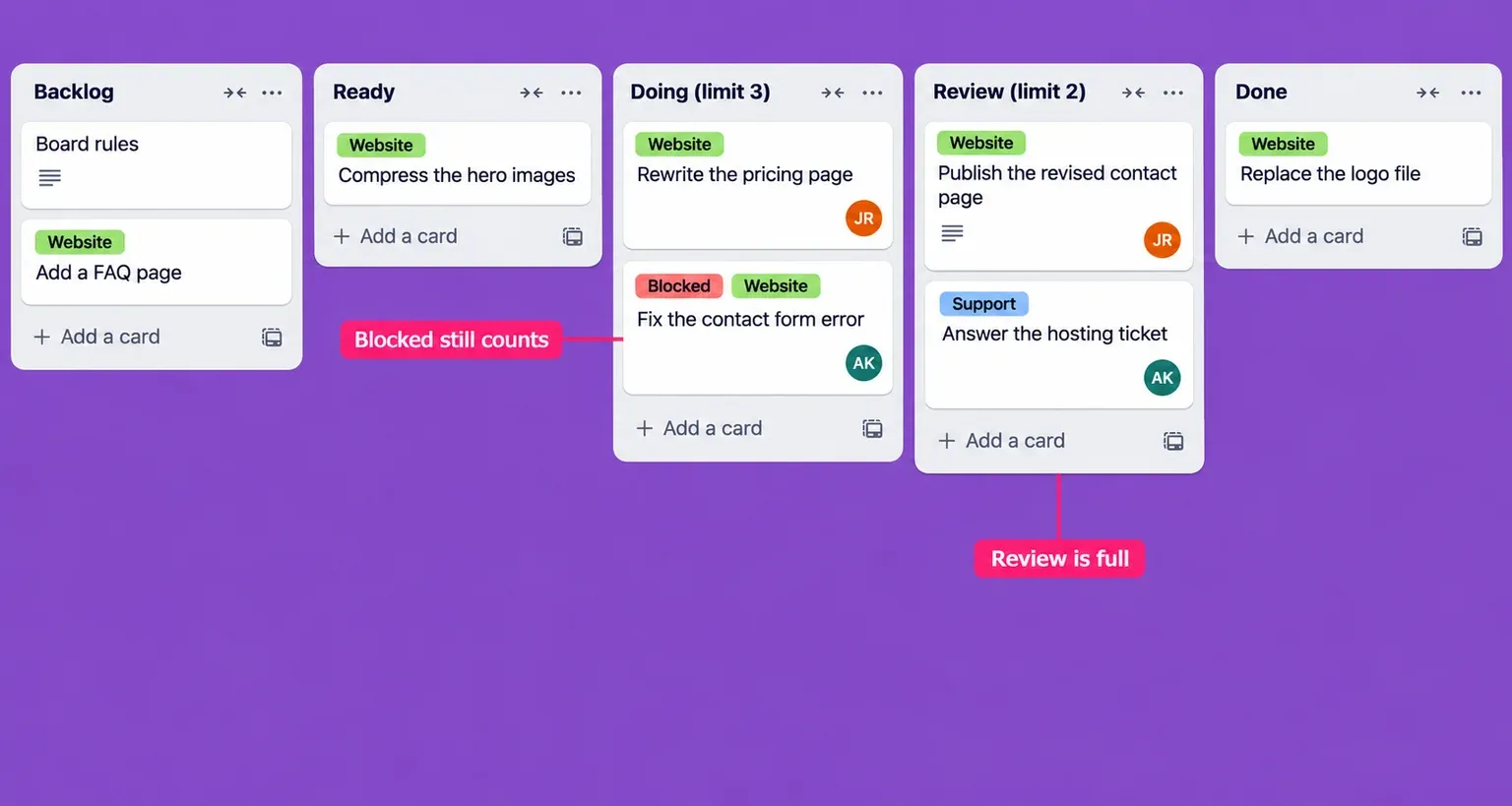
For an example website team, use Backlog, Ready, Doing, Review and Done, left to right. Backlog holds possible work; Ready holds work the team understands and has ordered. Work starts when a card enters Doing and finishes only when its reviewer accepts it into Done. A card waiting for review is still unfinished.
Use the web Board view on a board you can edit. Click Add a list and name each stage. Then use Add a card in Backlog for each piece of work. Trello's project setup instructions describe adding lists, opening cards for their details, and dragging cards between lists. After setup, the board should show the same stages your work passes through.
A card such as Publish the revised contact page might carry a named member, a Website label, a due date when there's a real deadline, and a checklist for the agreed acceptance checks. Put the scope and the person who accepts the result in its description. Keep the work small enough that everyone knows what finishing that card means; a card called Website rebuild is too broad for this workflow.
Dates, the Premium Timeline view and the wider project setup belong to Trello for project management; the kanban board itself only needs the stages and the rules for moving between them.
Write the rules before moving the first card
Create an ordinary card called Board rules in Backlog and keep the agreements in its description. Exclude that reference card from your work-item counts. These are team policies written in a card, rather than a special Trello policy setting.
- Ready: the request is clear, the acceptance check is written and the next card is ordered above the others.
- Doing: a named person takes responsibility and records when work starts.
- Review: the work is ready for its acceptance check and the reviewer knows it is waiting.
- Done: the agreed check has passed and the result is available to the person who requested it.
On this board, the person doing the work moves the card to Review; the reviewer moves it to Done. A failed check returns it to Doing with a note about what needs changing. Discuss how rework counts against the limits before it happens. Don't move a card to Done merely because somebody stopped working on it.
Count every started card against a WIP limit
Work in progress, or WIP, means started but unfinished work. The Kanban Guide includes everything between your defined start and finish points. Here, count Doing and Review together, including cards waiting on a reply or blocked by another task.
As a starting agreement, the website team could cap Doing at 3 and Review at 2, five started cards at most. Writing each cap into the list name, Doing (limit 3) and Review (limit 2), keeps it in view on any plan. Trello won't enforce either number; change them when the flow log gives you a reason.
If Review already holds two cards, help review or unblock one before starting another. A free slot in Doing isn't permission to ignore a full downstream stage. The Guide's pull-system rule is to start work only when there's a clear capacity signal, with any exceptions made explicit. For an urgent exception, record it in Board rules and decide which existing card will wait.
Trello lists have no built-in WIP limit. The free List Limits Power-Up, made by Trello, adds a warning: add it from Power-Ups > Add Power-Ups in the board header, then set a limit on each list you want to watch. The card count and limit appear at the top of the list, and, as a Nave guest post on Atlassian's blog describes, a list over its limit turns yellow. The color doesn't block a card move or add Doing and Review into one total, so the team agreement still does that job.
Keep a blocked card in the count. Add a named Blocked label and write what must happen next, who will chase it and when to check again. Moving it to a separate parking list doesn't make it finished; if you use such a list, include its started cards in WIP. Otherwise the board can appear to have capacity while the same work is still waiting.

Send a ready card to Review with a button
Once the team follows those policies, add an optional personal card button called Send to review. It can move a ready card from Doing to Review. Keep the reviewer responsible for accepting the work and moving it to Done.
- In the web board menu, open Automation. In the builder, choose Card button, then Create button.
- Name it Send to review and add an action that moves the card to this board's Review list. If you put the cap in the list name, select Review (limit 2) as the destination.
- Select Save to activate it. Leave it personal; buttons aren't shared with other people by default.
The person doing the work presses the button only after checking that the card meets the Review policy and that Review has room. Confirm that the card appears in Review. The button only moves the card; it doesn't check the WIP agreement or accept the work. If the card stays in Doing, open the automation's log to check for an error.
Each press counts as one automation run against a monthly quota shared by the whole Workspace: 250 Workspace command runs on Free, 1,000 on Standard and unlimited on Premium, per Trello's plan comparison. On a busy Free Workspace, check that count before the whole team starts using a button like this.
Use named labels to inspect a stream of work
For work types such as Website and Support, use labels on the same board. A swimlane usually means a horizontal band across workflow stages; the label-and-filter method below selects a subset of cards within the existing lists. It doesn't create horizontal rows. Keep a separate board for a genuinely separate workflow or access group, rather than splitting every work type into its own board.
On the web, open a card, choose Add > Labels, then select a label. To name it, hover over the card, click the pencil, choose Edit Labels, and click the label's pencil. Trello's label controls support colors and names; click a colored label on a card front to show its name. Use names so a green strip doesn't have to carry the meaning on its own.
Choose Filter cards and select Website to inspect that stream across the stages. Trello's board filters stay active until cleared. Choose Clear filters before counting total WIP, so hidden Support cards don't disappear from your capacity decision. On mobile, open the board, select Filter cards, choose the label and select Return; use the X beside the filter to clear it.
Before adding another category, decide who will filter by it and what decision it will support. The Trello labels guide covers naming and maintaining that set. A service label can help you find a card; its place in Doing or Review should still tell you the stage.
Measure flow from start to finish
Dashboard view is included with Premium and Enterprise. Its documented default tiles count cards by list, due date, member and label, using bar graphs or pie charts. Those counts can show a crowded Review list or uneven assignments. A count of cards per person doesn't tell you how many hours that person has available, and a current Done count alone doesn't tell you how many cards finished this week.
For a small board, start a manual log with one row per work card: card link, work type, started time and finished time. Record started when it first enters Doing and finished when it meets the Done policy. Use consistent timestamps and one time zone. The Kanban Guide defines four flow metrics:
- WIP: the number of cards started and not finished.
- Throughput: the number finished in a chosen period, such as a week.
- Work-item age: elapsed time from a still-open card's start until now.
- Cycle time: elapsed time from a finished card's start to its finish.
Elapsed time includes the waiting between start and finish. A card that starts Monday at 9 a.m. and finishes Thursday at 9 a.m. has a cycle time of three days in this example. Active hours entered with a time-tracking tool answer a different question. Keep the same start and finish definitions when comparing periods; otherwise a changed column policy can look like a change in delivery performance.

Use the finished cards' cycle times to set a service level expectation: a period of elapsed time with a probability of finishing within it. The Guide recommends historical cycle-time data; with none, begin with an explicitly provisional estimate and replace it when you have enough history. Write that expectation in Board rules so the team has a reference when checking the age of open cards.
Consider an analytics Power-Up when maintaining that log becomes the work you keep postponing. Before choosing one, check how it maps your started and finished lists, handles blocked cards and rework, and counts cards across boards. Confirm its current subscription cost, requested access and removal route separately. Buy the report you need to make a decision, rather than assuming a chart carries the same definition of cycle time as your board.
Review the week from the oldest unfinished card
I'd schedule a weekly flow review because it gives the team a regular chance to change the agreement, while still checking blocked work between meetings. The Kanban Guide calls for regular review of active items but doesn't require a weekly ceremony. Start with the oldest unfinished card: what is keeping it from Done, and who can help? Then look at time spent waiting in Review, the cards finished during the week and any limit exceptions.
Choose one policy to adjust for the next week, name the person responsible and write down the change in Board rules. If the reviewer is repeatedly overloaded, agree time for review before raising the limit. At next week's review, check whether that change helped the waiting cards move.
Finish the review by checking that each accepted Done card has its start and finish times in the log. Then archive completed cards you no longer need on the board. On the web, hover over a card and press c, following Trello's card archiving instructions. Archived cards wait in the board's Archived items, so a reopened request can be restored from the archive instead of rewritten. Keep the log for throughput and cycle-time calculations as the visible Done list empties.