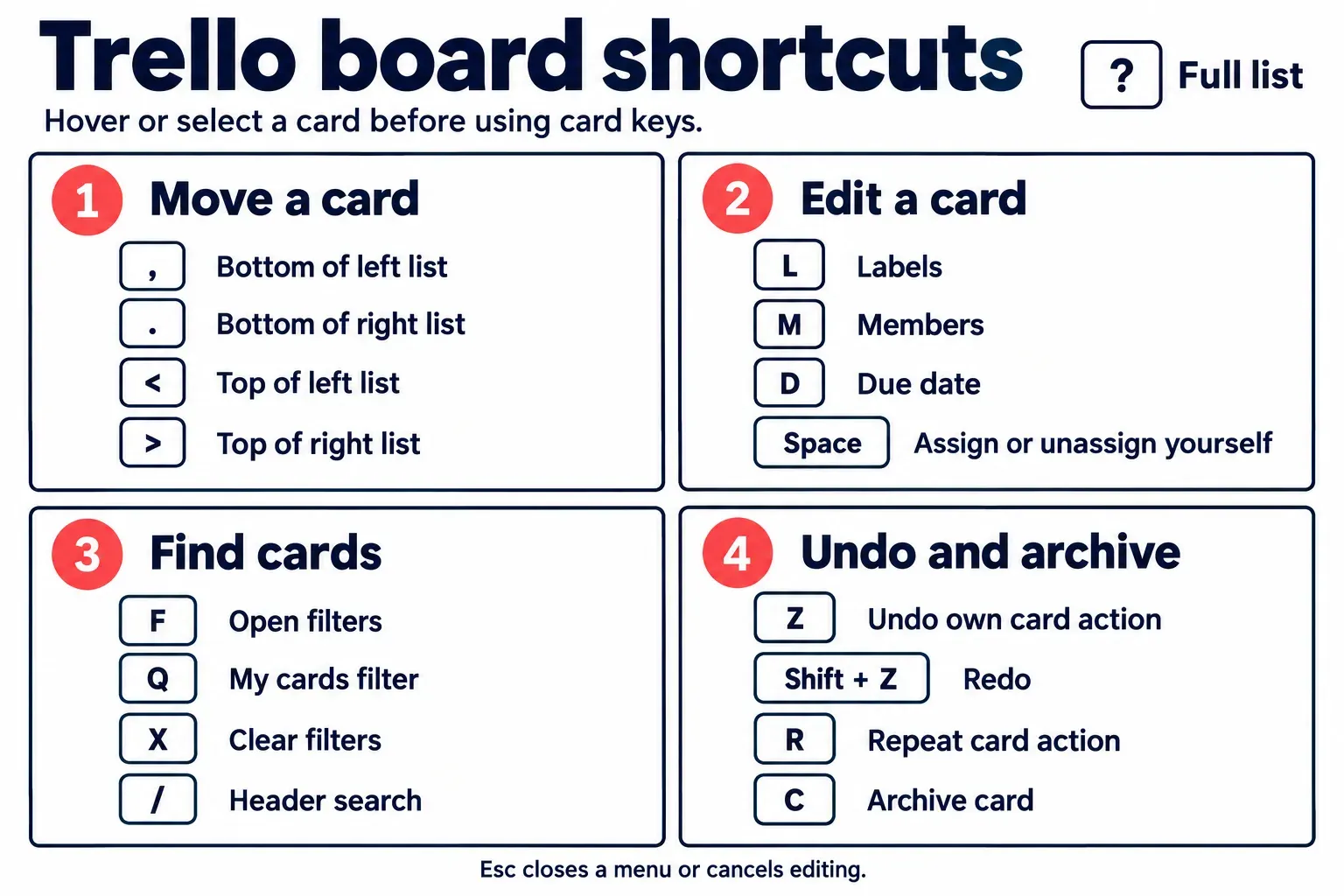
Trello keyboard shortcuts let you move and edit cards without opening their menus: , and . move a selected card left or right, l opens labels, and f opens filters. Press ? to see the full list. I’d learn comma and period first, because moving a card between lists is the status change on a board built around stages.
This guide covers Trello in a computer browser and the Mac and Windows desktop apps. Board keys, text-editor keys and desktop-only combinations have separate sections below. Save or cancel an edit before trying a board shortcut, and check which card is selected or under your pointer.
Open the full list with ? and check the keys are live
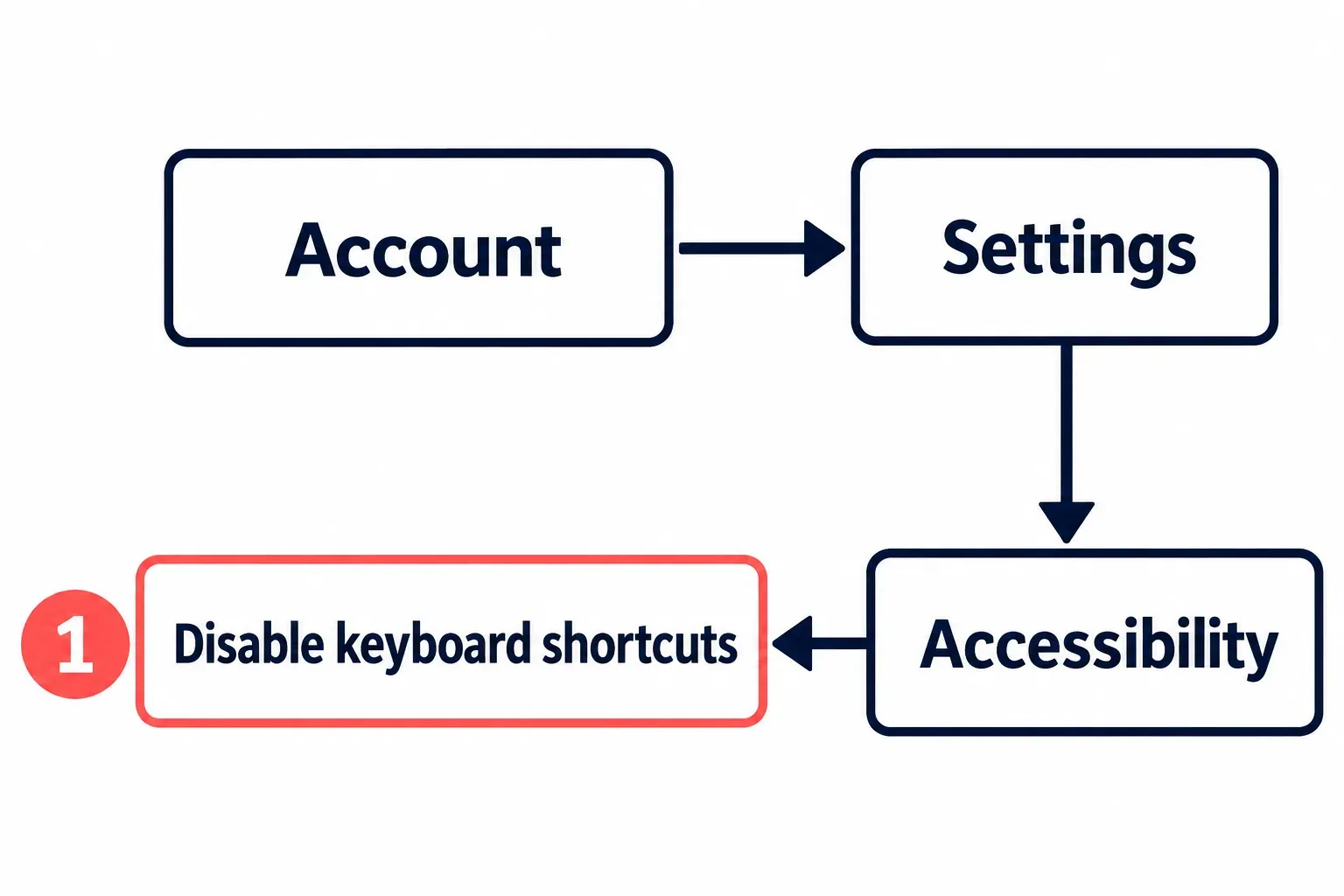
Press ? on a board to open Trello’s Keyboard shortcuts list. On a keyboard where the question mark shares a key, use the modifier needed to type it. The page has a Shortcuts enabled or Shortcuts disabled switch: check that first if keys do nothing. The keyboard settings in Account → Settings → Accessibility provide another way to turn shortcuts off.
Two more conditions decide whether a letter reaches the board:
- A target. Select a card with the navigation keys, hover over it, or open it before using a card key. For list keys, hover over or focus the intended list.
- No text box in the way. While you type a title, description or comment, letters are text.
Esccancels the editing or closes an open menu first.
Because one letter is enough, a stray key can act on a card you did not mean to touch. A c pressed over a card archives it, for instance. The undo section below explains how z brings it back, and the last section shows how to switch single keys off if stray keys cost more than the shortcuts save.
Get around the board
Selecting comes first, because most card keys need a card. The arrow keys select the neighbouring card in that direction, j selects the card below and k the card above. Enter opens the selected card. With a card open, the left and right arrow keys open the neighbouring cards in the same list, so you can read through a whole list without going back to the board in between.
Three keys reach past the current list:
bopens the boards menu. Type part of a board's name, pick it with the arrow keys and pressEnter, or pressEscto stay where you are./puts the cursor in the search box in the header.]opens or closes the board menu sidebar, the panel older cheat sheets still send you to withw.
On a board wider than the window, hold Shift while you scroll and the lists move sideways.
Inbox, Planner and the board with g
Press g, then i for Inbox, p for Planner or b for the board; repeat the pair to close that panel. Trello’s navigation guide describes these as a sequence, so release g before the second key. A lone b opens the board switcher instead.
Fold one list or all of them
Hover over a list and press \ to collapse or expand it. Shift + \ does the same for all lists when that shortcut is available. Collapsible lists are a Standard, Premium and Enterprise feature; on a Free Workspace, check the list controls and shortcuts page before relying on those keys.
Push a card to the next list
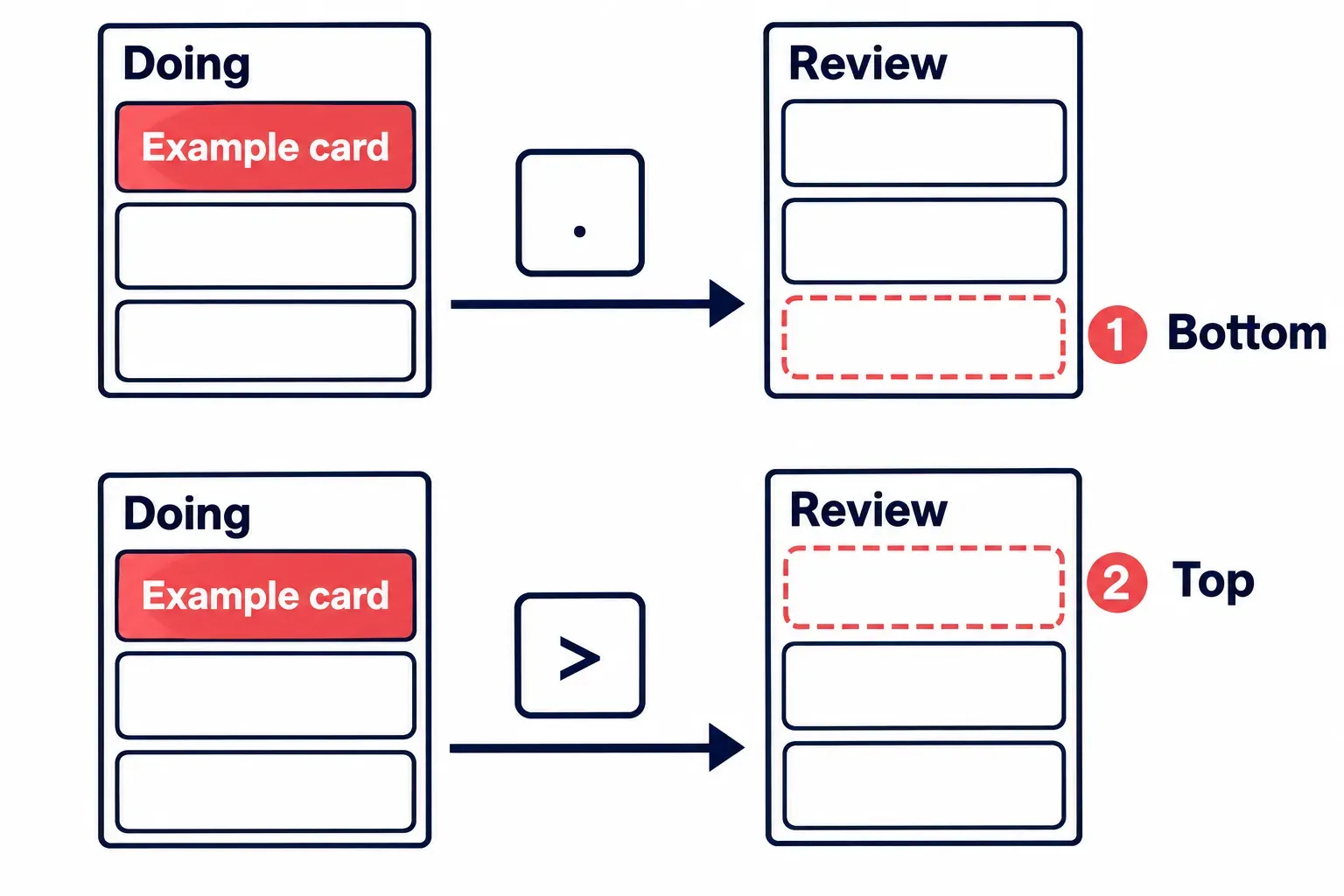
The list a card sits in is its status, so these are the keys that change what the board says. On an example board with To do, Doing, Review and Done lists, a card selected in Doing goes to the bottom of To do with , (comma) and to the bottom of Review with . (period). < and > send it to the top of those neighbouring lists instead, which suits a board where the top of a list is what gets picked up next. The result is easy to check: the card now sits at the bottom, or the top, of the next list over.
For a longer trip, cut and paste. Hover over the card and press Cmd + X on a Mac or Ctrl + X on Windows (C instead of X copies it), then hover over the destination list and press Cmd + V or Ctrl + V. This works between boards, so a card can jump from a team board to your own without a menu. Pasting also builds cards from scratch: paste text or a link on the board and Trello makes a card from it, while a link pasted with a card open is attached to that card.
To add a card, n inserts a new one after the selected card, or into an empty list. Finish its title with Shift + Enter rather than Enter and the card opens as soon as it is created, ready for a label or a date.
Select several cards at once
Shift + click a card to start a selection, on the current board or in Inbox. A second Shift + click on a card further down the same list selects everything between the two, and holding Cmd (Ctrl on Windows) while you click picks cards one at a time. Atlassian's copying guide lets you select up to 20 cards either way. Press e or right-click a selected card for the bulk actions menu. Whatever you choose there applies to every card in the selection, so look over the selected cards first; Esc drops the selection without changing anything.
Edit a card without opening a menu
The card back has an Add menu right below the card title, and Atlassian's guide to the new card back lists quick add for labels, dates, checklists and members there. The keys below reach the same places from the keyboard, on a card you hover or have open unless the line says otherwise.
tedits the title, andeon a hovered card opens quick edit.lopens the labels menu. The number keys apply a label by colour: 1 green, 2 yellow, 3 orange, 4 red, 5 purple, 6 blue, 7 sky, 8 lime, 9 pink and 0 black. Pressing the same number again removes that label.;shows or hides label names on the board.madds or removes members, andSpaceassigns you to the card.dopens the due date picker, andswatches the card or stops watching it.-(minus) adds a checklist while the card is open.vadds or removes your vote, on boards where the Voting Power-Up is enabled.@in a comment suggests member names; choose one with the arrow keys and insert it withEnterorTab.Cmd + Enteron a Mac orCtrl + Enteron Windows saves a comment, a card or list title, or a description.
The same number key applies or removes a label, so check the card front after pressing it. If a board has several shades or labels of the same colour, open the label menu with l and choose the named label you intend to apply.
Filter the board down to your cards
f opens the card filter menu with the cursor already in its title search, so you can type a word and watch the board narrow to matching cards. q switches the cards assigned to me filter on or off, which leaves only your cards on the board. x clears every filter at once. If a list later looks thinner than it should, a filter is the first thing to rule out, and x rules it out in one press.
Undo, repeat and archive
Before relying on z, know its limits. Undo only reverses your own card actions, and only these: joining or leaving a card, adding or removing a member, moving, adding or removing a label, archiving, unarchiving, renaming, updating a description and setting a due date. Other actions are ignored. Deleted cards, lists, labels and custom fields cannot be brought back this way. One case touches other people's work: undoing your own description edit can drop changes a collaborator made after you, so on a shared card read the description before you press z.
Inside those limits, z right after a wrong move undoes it, and Shift + z redoes it. Each press steps back one card action, so check the board after each one rather than pressing several times in a row.
r repeats your last card action on another card you view or hover, which saves a trip through the same menu when, for example, three cards in Review all need the same label. Repeat works for the same fixed set of actions as undo; for a longer sequence, Atlassian points to an Automation card button or rule instead.
c archives the hovered card, taking it off its list while keeping it recoverable. If that was your last supported card action, z reverses it. Archiving preserves the card; permanent deletion cannot be undone with a shortcut.
Keys inside a description or comment
Once the cursor is in the text editor, two keys change meaning. / opens the quick insert menu instead of the header search, and Cmd + Z or Ctrl + Z undoes automatic formatting in the text, while plain z on the board undoes a card action. The formatting keys follow the editor's own formatting keys in Atlassian's text guide:
| Format | Mac | Windows |
|---|---|---|
| Bold | Cmd + B | Ctrl + B |
| Italic | Cmd + I | Ctrl + I |
| Strikethrough | Cmd + Shift + S | Ctrl + Shift + S |
| Link | Cmd + K | Ctrl + K |
| Heading 1 to 6 | Cmd + Option + 1 to 6 | Ctrl + Alt + 1 to 6 |
| Blockquote | Cmd + Shift + 9 | Ctrl + Shift + 9 |
| Numbered list | Cmd + Shift + 7 | Ctrl + Shift + 7 |
| Bulleted list | Cmd + Shift + 8 | Ctrl + Shift + 8 |
| Inline code | Cmd + Shift + M | Ctrl + Shift + M |
| Divider | Cmd + Shift + - | Ctrl + Shift + - |
| Clear formatting (highlight the text first) | Cmd + \ | Ctrl + \ |
| Line break inside a paragraph | Shift + Return | Shift + Enter |
A code snippet and emoji have no key of their own. In the Trello phone apps, Markdown is the only way to format text, so this table is for typing in Trello on a computer.
What the Mac and Windows desktop apps add
The Mac and Windows desktop apps add combinations beyond the board keys. Two work from other apps: Cmd + Option + T on a Mac or Ctrl + Alt + T on Windows brings Trello up, and Control + Option + Space or Ctrl + Alt + Space adds a card from anywhere. Both are changeable in the Trello app’s settings. Atlassian’s desktop shortcut table lists these and the combinations below.
| Action | Mac | Windows |
|---|---|---|
| Open the Boards page | Cmd + Shift + B | Ctrl + Shift + B |
| Open the My Cards page | Cmd + Shift + M | Ctrl + Shift + M |
| Set the current board as default | Cmd + Shift + D | Ctrl + Shift + D |
| Go to the default board | Cmd + D | Ctrl + D |
| Jump to a starred board (first nine) | Cmd + 1 to 9 | Ctrl + 1 to 9 |
| Copy the URL of a board or card | Cmd + Option + C | Ctrl + Alt + C |
| Open the URL of a board or card | Cmd + Option + V | Ctrl + Alt + V |
| Go back to the previous board | Cmd + [ | Ctrl + [ |
When a key does something else, or nothing
Check the app, the editing state and the target card before changing a shortcut.
- A desktop key pressed in a browser. Browser shortcuts can use the same combinations. Safari uses Command-1 through Command-9 to select tabs, and Edge uses Ctrl + D to save a favourite. Use the desktop table inside the Trello app; use board keys and menus in a browser.
- A Mac global key overlaps macOS. Control-Option-Space switches input sources in macOS, while the Trello app uses it to add a card. Give Trello a different combination in its app settings if you use the system shortcut.
- An older cheat sheet gives another key. Use
]for the board menu andmfor members. Some lists still printwanda, including the member help page’s olderainstruction. - Nothing happens. Check that Shortcuts enabled is on, save or cancel any text edit, then select or hover over the card you mean to change. For list folding, check your Workspace plan and whether
\andShift + \appear in the shortcuts list.
Turn single-key shortcuts off
Open Account in the top-right corner, choose Settings, and in Accessibility select Disable keyboard shortcuts. Trello offers this setting for accessibility and to avoid unintended actions. Use the same setting, or the switch on the Keyboard shortcuts page, to enable them again.