
To see archived cards in Trello, open the board's Menu → Archived items. Find the card and select Restore to return it to the board. For a whole missing list, select Switch to lists → Send to Board instead. Archived cards do not expire, so start in that panel even if the card disappeared months ago.
Who can bring a card back, and from which screen
A normal board member, guest or board admin can restore an archived card when the board is editable. Board permissions apply to guests too, and Workspace admins on paid plans have board admin permissions. Observers on Premium have read-only access, so a normal member or admin must make the change for them.
If you can see the board but cannot change it, check that you have joined the board itself, rather than only its Workspace. A Free Workspace with more than 10 collaborators becomes view-only; removing collaborators or moving to a paid plan restores editing.
The steps below follow Trello in a browser. If your desktop or phone app has different controls, open the same board URL in a computer browser. Phone search options appear alongside the relevant steps.
Restore an archived card from the board menu
Before you start, sign in with an account that is a member of the board and open the board. A word from the card's title is all you need to remember. The steps follow an example website relaunch board with the lists Backlog, Doing, Review and Live, where the card Redirect old URLs was archived by mistake.
1. Open Archived items
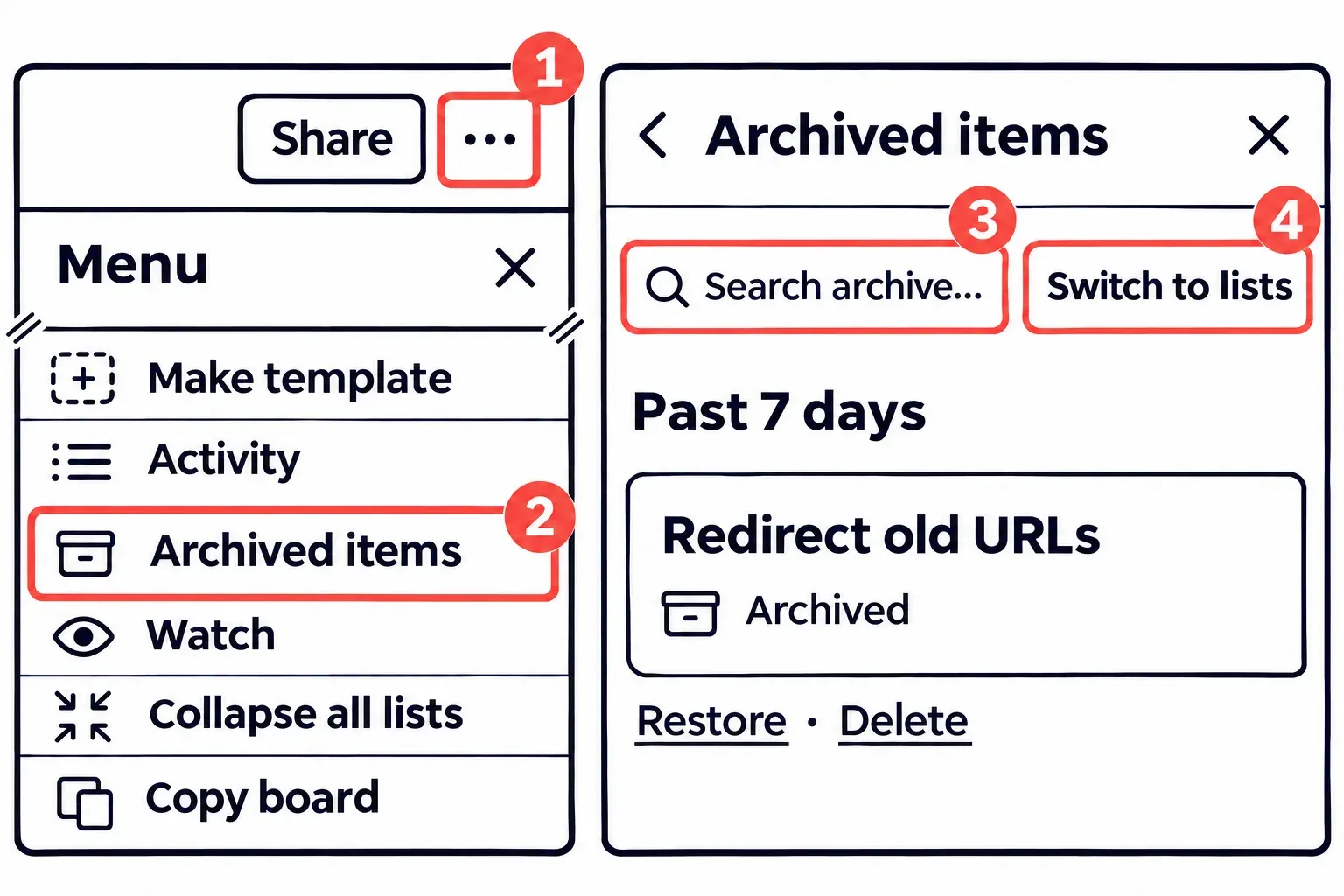
Select the Menu button, the three dots at the right end of the board header beside Share; Atlassian's board menu guide also gives a key for it, ], pressed while the board is open. A panel titled Menu opens. Archived items sits near its bottom, between Activity and Watch. Select it.
Plenty of guides, and one line of Atlassian's own card page, still put a More step in front of Archived items. The menu pictured on that same page has no More, so when you can't find one, nothing is hidden: Archived items is already in the list.
What you should see now: the panel's title reads Archived items, with a back arrow on its left and an X on its right. Under it are a Search archive... box and a Switch to lists button, and below them the archived cards, listed under a time heading such as Past 7 days, each with Restore and Delete underneath. Atlassian notes that archived items aren't loaded when a board opens and that archiving helps large boards perform; this panel is where they come back into view.
2. Find the card
On a short archive, scroll until the card shows up. On a long one, type a word from its title into Search archive...; the box lists the archived cards that match and takes the same operators as Trello's main search, which the big-board section below puts to work.
Look before you click, because each card in the panel carries two choices side by side, and only one of them can be taken back. Delete removes the card permanently: no Restore, and no Z. If removing it was the real goal, the page on how to delete a card for good walks through the confirmation and what leaves with the card.
3. Select Restore and look for the card
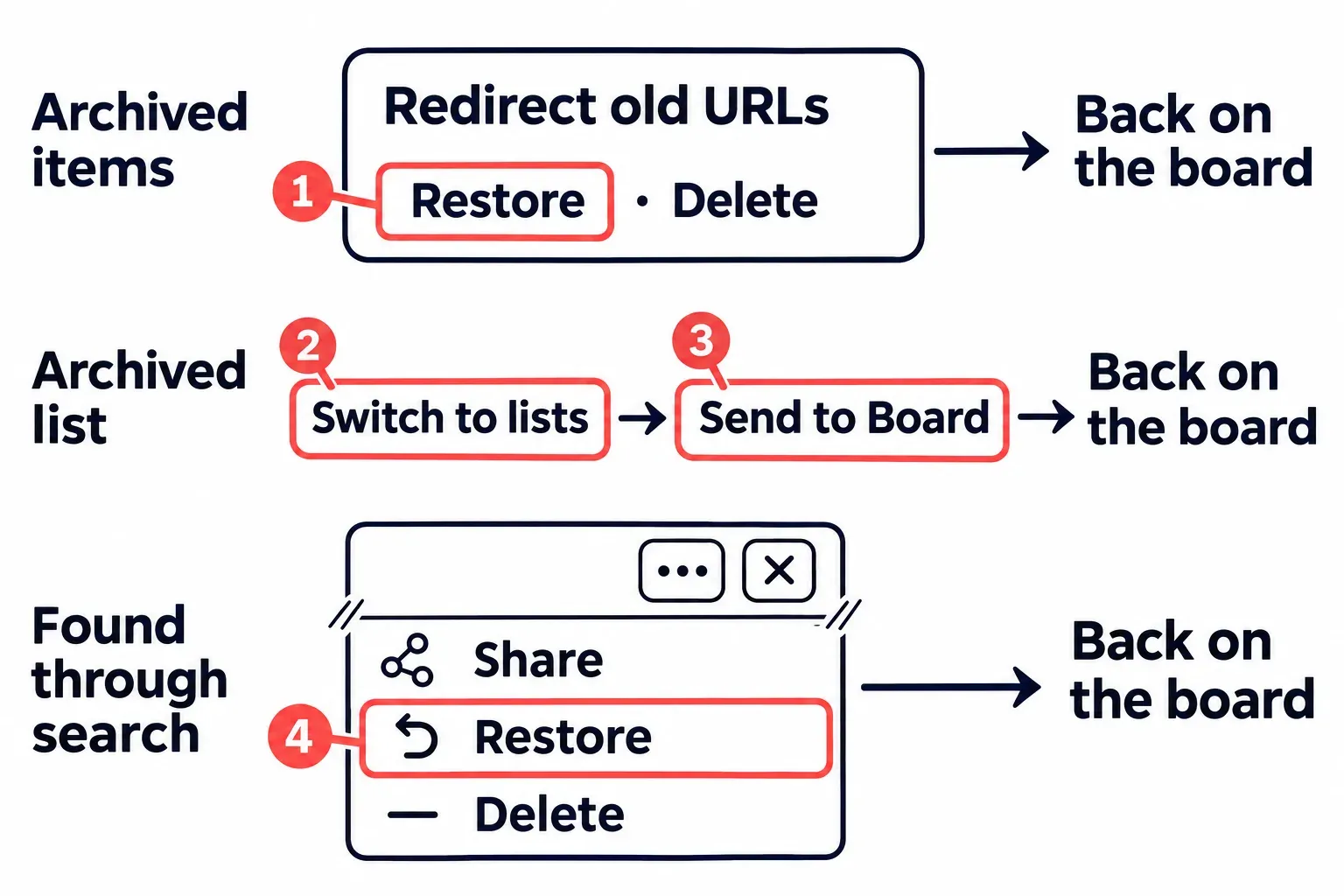
Select Restore under the card. It leaves the archive and is back on the board. Older guides name this button Send to board; in the current panel that label belongs to archived lists, and cards use Restore.
Close the panel with X and look for Redirect old URLs on the board. On a crowded board, use the board filter with a word from the title as the keyword. Clear it afterwards with Clear filters or x, since a filter left on hides cards from you on the next visit too.
If the card's list was archived too, I'd restore the list first so it is visible on the board before looking for the card. The list route is below.
Archived it a moment ago? Press Z
Pressing Z reverses your most recent card action, and Trello's undo list includes Archive a card and Unarchive a card. A card archived by accident seconds ago comes back, and a card restored by mistake goes back into the archive; Shift + Z redoes. Undo only reaches your own actions, so it cannot reverse an archive a teammate made. By contrast, pressing c while hovering over a card archives it, so check for an accidental archive after a stray keypress.
On an Android phone or an iPhone
On Android, Trello's official app instructions place archived cards in search or in the archive available from the board menu. If your Android, iPhone or iPad app offers Restore in its archive, use that control. If you cannot find a restore option, open the board URL in a computer browser and follow the steps above.
Bring back an archived list
A column that vanished with every card in it points to an archived list rather than archived cards: an archived list leaves the board together with the cards it holds, and those cards won't turn up on the board until the list comes back.
- Open the board menu and select Archived items. The panel opens on archived cards.
- Select Switch to lists. The panel now shows the archived lists, Review among them in the example.
- Find the list and select Send to Board.
Review is back on the board, and the cards that disappeared with it show in it again. This view also lets you delete a list, and that is final: Atlassian's list page says deleting a list can't be undone and permanently removes every open and archived card that belonged to it, including cards archived from that list long before.
Find an archived card on a big board
Search inside the archive
Search archive... takes the operators from Trello's list of search operators, which Atlassian says work in the archive search bar too. The useful ones here:
name:matches words in the card title, soname:redirectnarrows to the example card.label:andlist:match a label or a list by name.edited:takes day, week, month or a number of days, which helps when you remember roughly when the card was last touched;created:does the same for when it was made.- A minus sign in front of an operator excludes what it matches.
Combined, name:redirect edited:month asks for archived cards with "redirect" in the title that changed within the last month. Older forum answers add an operator for archived status that Atlassian's current list doesn't include; inside this box you don't need one, since everything it searches is already archived.
Search every board from the top of the page
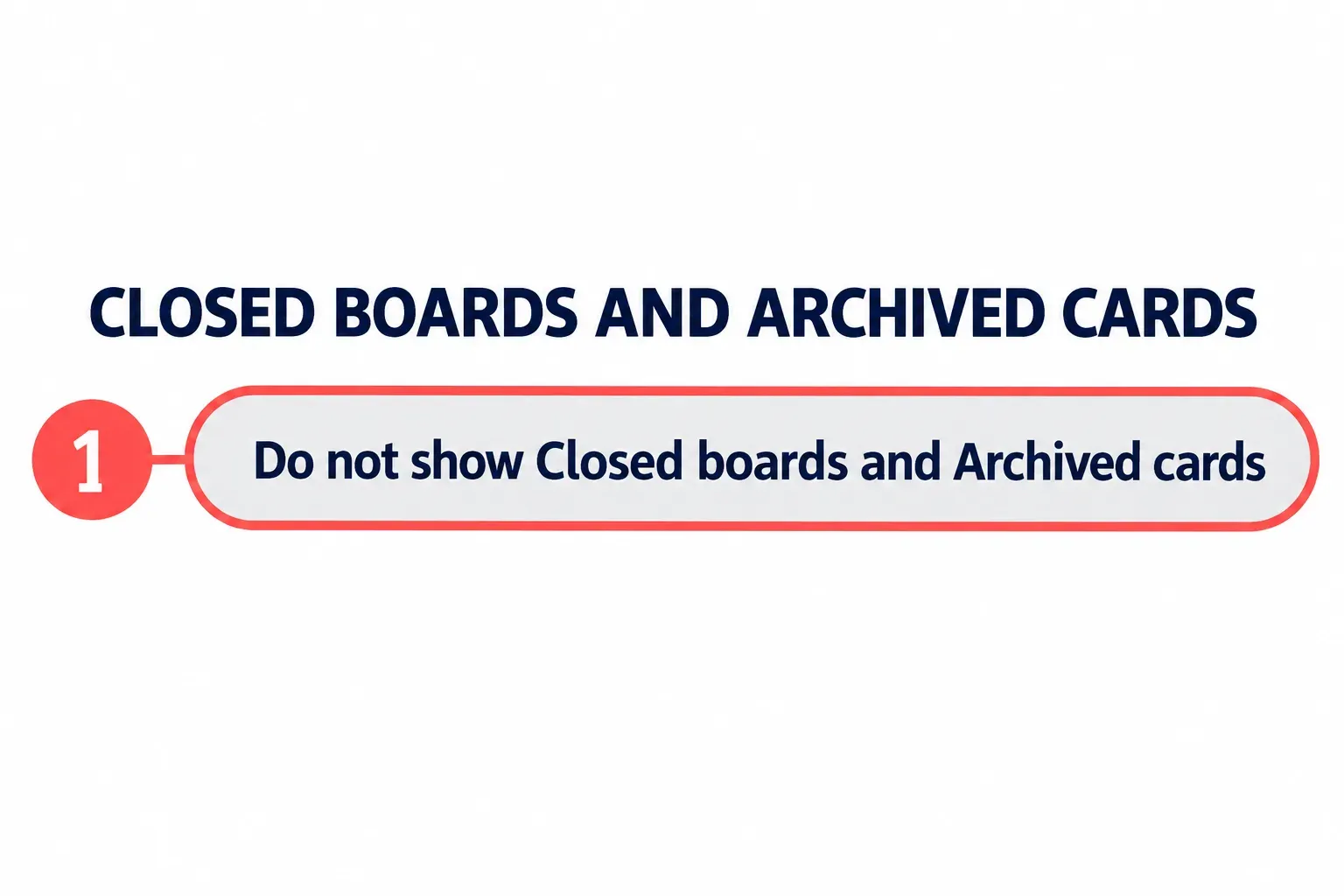
When you don't remember which board held the card, use the search box at the very top of the page. Atlassian's comparison of filtering and searching lists archived status among the things search can find; the board filter's options don't include it. Advanced search, opened from the link at the bottom of the search window, has a filter called Closed boards and archived cards; when it is set to Do not show Closed boards and Archived cards, the card you want stays out of the results, so check that setting before deciding the card is gone.
Open the card from the results. On an archived card, the three-dot actions button in the card back's top-right corner opens a menu that ends with Share, Restore and Delete. Select Restore there and the card returns to its own board without a trip through the panel.
Phones search differently. On Android the board filter shows only open cards, so the Android app board's search advice is to tap the magnifying glass on the app's home screen, which searches all boards. In the iOS app the magnifying glass filters the board you are on, and Atlassian says there is currently no way to search all boards at once there.
Not in Archived items? Where else the card can sit
Match what the board shows to the place the card went, in the order that is quickest to check:
- A whole column is gone, cards and all. Check Archived items → Switch to lists first. If the list appears there, select Send to Board. If it does not, ask a board member whether the list was moved to another board or deleted.
- Cards are missing, yet the archive doesn't list them. A board filter may still be on: a filter stays on the board until cleared, even after a refresh or logging out. Select Clear filters at the top of the board or press
x. - Cards keep disappearing from the same list or when marked complete. Check Automation for a command that moves or archives them. Scheduled automations and board buttons can archive cards by list or label, and a rule can archive a card when it is marked complete. If a command explains the disappearance, change that command before restoring the cards so its next run does not archive them again. Open Automation from the board header or board menu to inspect it.
- A list was emptied in one go. Someone may have chosen Archive All Cards in This List..., which archives every card while leaving the list on the board. Find the cards in Archived items and restore the ones you need.
- A card on your board says its source has been archived. It is a mirror card, a feature of paid Workspaces. Archiving a source card leaves its mirrors in place with that message, so restore the original from the Archived items of the board it lives on.
- A card you kept in Inbox is gone. Inbox has its own archive, apart from any board's. Hover over Inbox, open the Inbox menu, select View archived cards, then Restore, and the card is back in Inbox.
- The whole board has disappeared. Check whether it was closed: look in Boards → View all closed boards. If it is listed and you were a board admin, select Re-open (Atlassian notes an exception for Premium Workspace admins). If it is not listed, ask a board admin to check your access and whether the board was deleted.
- None of these checks finds it. Ask a board member whether the card was moved to another board or deleted before treating it as lost.
When the card was deleted, not archived
A deleted card can't be restored. Atlassian's pages are plain about it: Undo doesn't reverse the deletion of a card or a list, and deleting a list took every card that belonged to it, archived ones included. Atlassian documents no way to bring either back.
Look for a copy saved before deletion. If a board member exported the board as JSON, use it to copy the needed text into a new card. Trello cannot import JSON or CSV to re-create the board, and a board's JSON export carries only its 1,000 most recent actions. If you already use a backup app, check its saved versions for this card.