To delete a Trello board, open Menu in the board header, select Close board and confirm with Close, then choose Permanently delete board and Delete. Only closed boards can be deleted, and deletion cannot be undone. If you just want a finished board out of the way, close it and stop there.
You need to be a board admin, or a Workspace admin in a paid Workspace. On Free, being a Workspace admin does not give you control over someone else's board. Save anything you still need before deleting; the steps below follow the web interface, with phone routes alongside them.
Leave it, close it or delete it: who loses the board
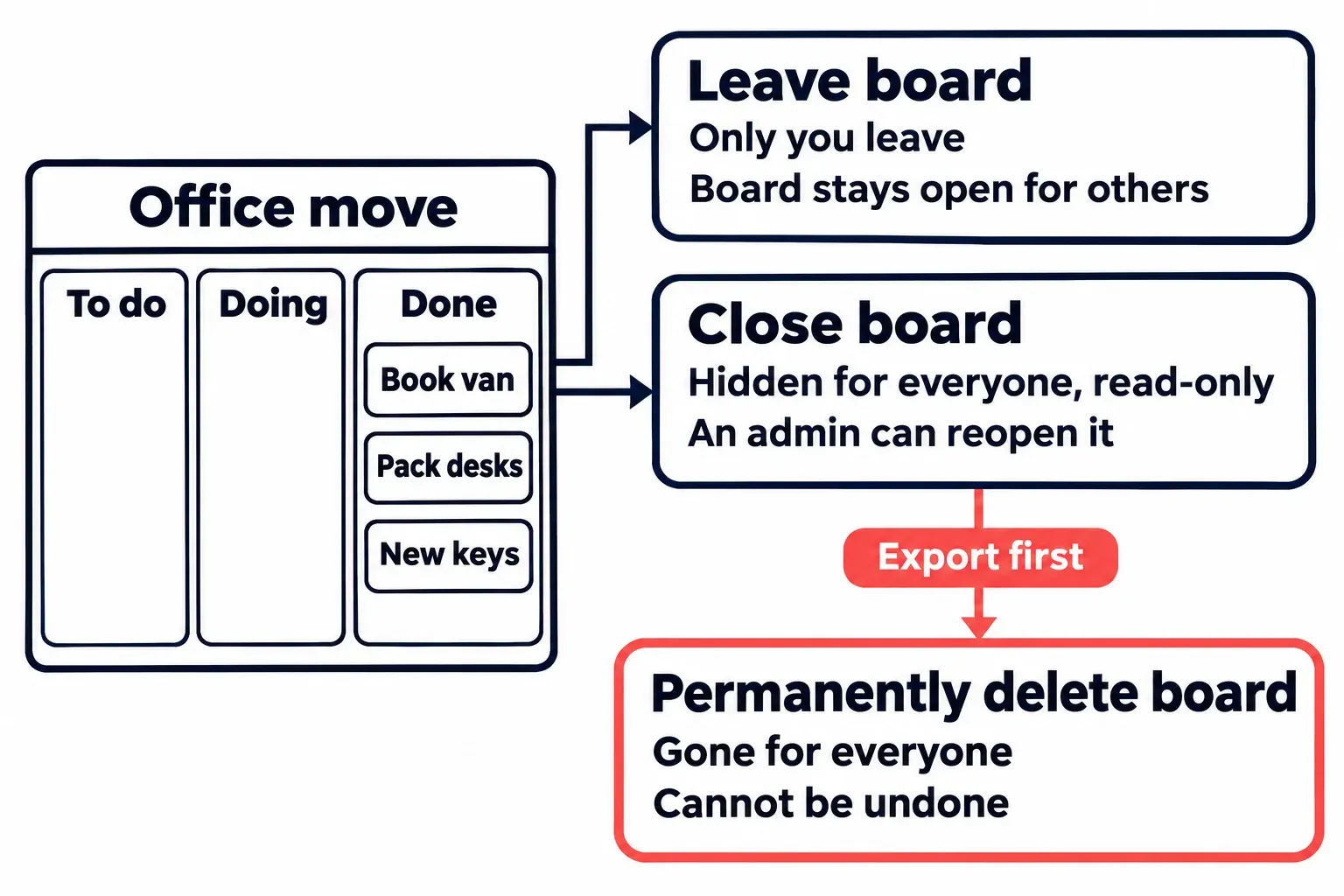
A board has three ways out, and they differ in who stops seeing it. Take an example board called Office move, with To do, Doing and Done lists and the move finished, so every card sits in Done. The question is whether the board should leave your list, everyone's list, or Trello altogether.
- Leave board takes only you off it. Leaving removes you from every card on the board while your comments stay, the board stays open for everyone else, and getting back in may need a board admin. Trello will not let the only admin or the only member leave. If the board should carry on without you, leave a board instead of closing it.
- Close board hides it from everyone. Closed boards are hidden and read-only but not deleted: the board drops out of each member's Boards list, nobody can edit its cards, the other members get a notification, and a board admin can reopen it later.
- Permanently delete board removes it for everyone, and only a closed board offers it. Atlassian states that deleted boards cannot be recovered, and Undo does not bring one back either.
Atlassian's own advice is to close a board rather than delete it when you only want it out of the way. I'd keep a finished board closed until the people who worked on it have had their chance to ask for a card back, because a closed board can still be reopened, copied and exported, and a deleted one cannot.
Who may close or delete it, and why the option is missing
Look at the avatars of the board's members first: board admins carry a small blue and white chevron in the bottom right corner of their avatar. Those are the people who can close and delete the board, whatever plan it is on.
The Workspace plan decides who else can. In a Free Workspace only the board admin can delete the board, and being admin of the Free Workspace does not change that. Standard and Premium Workspace admins have admin status on every board in the Workspace, private boards included, and Enterprise Workspace admins have everything a Premium one has, so on those plans a Workspace admin can close and delete boards they never joined. Premium Workspace admins can also decide who may create and delete boards at each visibility level.
If Close board or Permanently delete board is not where the steps below say, one of these is usually the reason:
- Permanently delete board is missing because the board is still open; it appears in the menu only once the board is closed.
- Close board seems absent because the Menu panel has not been scrolled: it is the last item, below Archived items.
- You are a member but not a board admin, and the Workspace is on Free or you are not one of its Workspace admins.
- A Premium or Enterprise Workspace admin has limited who may delete boards with this board's visibility.
- You are in Trello for iOS, which has no board delete; close the board there and finish in a browser.
If you are not the board admin
Ask a board admin to make you an admin of the board: they select Share at the top of the board, open the dropdown next to your name and choose Admin. Board admins can do this, and so can Workspace admins on a paid plan.
A Workspace admin on a paid plan who is not on the board can still delete it once it is closed, provided they have its URL: open the link, then use Permanently delete board in the board menu. A closed board's link cannot be found unless you are its admin, so Atlassian suggests looking in email notifications and browser history. On Free there is no such route, and the request goes to the board admin.
If the only admin has left, check for another admin or ask the former admin to grant you access. Atlassian also documents company-account recovery and a paid Workspace upgrade as recovery routes. Trello Support cannot change a board's administrators, so a support request does not replace one of those routes.
Before the delete: export or copy what the board still holds
Copy board and Print, export, and share both stay in the board menu after the board is closed, so the export can happen before or after Close board. It has to happen before Delete, because a deleted board leaves nothing to export.
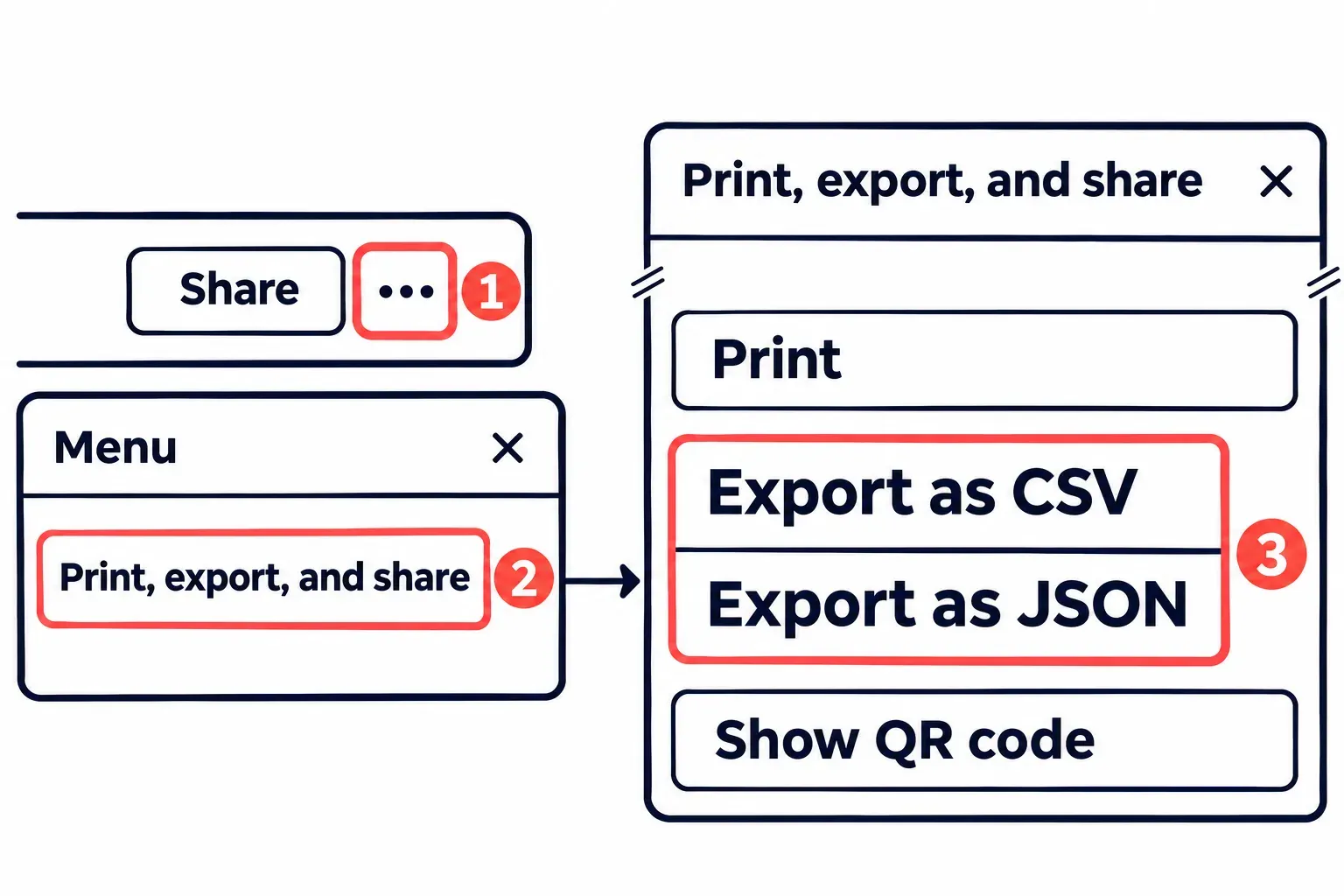
Start by deciding whether to export the board first. Under Print, export, and share in the board menu, every board member can export the board as JSON, and boards in Premium Workspaces can export CSV as well. Neither file can be imported to rebuild a Trello board, so treat an export as a record to read, not a backup to restore. Three gaps decide whether it covers what you need:
- The JSON holds the 1,000 most recent actions on the board, comments included; for every comment on a long-running board, Atlassian points to the Workspace export, which is a Premium feature.
- The CSV leaves archived cards out. Adding
.csvto the end of the board's link downloads open and archived cards together. - Attachments come through as links to files hosted on Trello, unless a Premium Workspace admin runs the Workspace export with Include raw attachments, which packs them into a ZIP. Download any file you still need before the board is deleted.
A copy is the other way to keep the work. A copied board leaves comments, card activity, card members and archived cards behind and keeps the cards with their descriptions. A copy suits a board you will run again, like the next office move; an export suits one you may have to answer questions about later.
Archived cards are the easiest thing to lose here, since they miss both the copy and the plain CSV. If one of them should survive, restore archived cards to a list before you close the board, because a closed board cannot be edited.
Close the board from its Menu panel
Open the board in your browser while signed in with the admin permissions above. Export or copy anything worth keeping first. If you normally use a desktop app, you can open the same board URL in a browser to follow these controls.
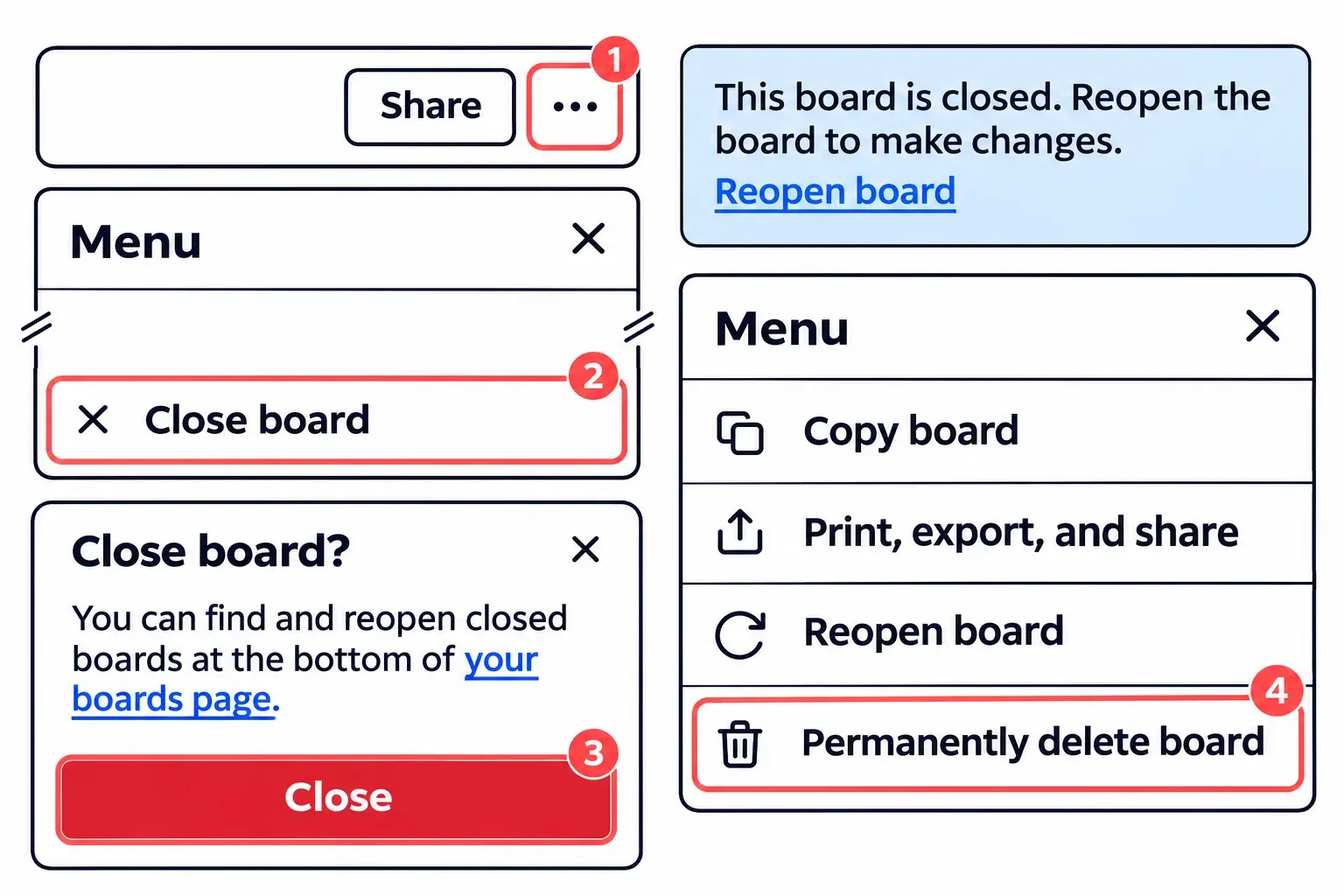
- Select Menu, the three-dot button at the right end of the board header, just right of Share. A panel titled Menu opens on the right side of the board.
- Scroll the panel to the bottom, past Archived items, and select Close board, the last item. A small Close board? popover appears with the reminder "You can find and reopen closed boards at the bottom of your boards page."
- Select the red Close button. On a phone, open the board and tap More actions, then Settings in Trello for iOS or Board settings in Trello for Android, then Close board.
The board now carries the banner "This board is closed. Reopen the board to make changes." with a Reopen board link, and its menu ends with Reopen board and Permanently delete board. To check, go back to your Boards page: the board has left the list, and Atlassian notes that the other members are told it was closed. If you stop here, nothing has been deleted.
Delete the closed board
This step cannot be undone. Deleted boards cannot be recovered, and Undo does not reverse a deletion, so confirm the export or copy you need exists before you go on.
- On the closed board, open Menu again and select Permanently delete board, the last item, marked with a trash can icon.
- Make sure there is nothing on the board you still need, as Atlassian's own step puts it, then select Delete.
For a board closed earlier, start from your boards page instead: select the Trello logo at the top left or go to trello.com/my/boards, choose Boards, scroll to the bottom and select View all closed boards. Find the board and select Delete; that works only on closed boards you are an admin of. Once it is gone, View all closed boards no longer lists it, and that absence is your confirmation. A Workspace admin on a paid plan who is not on the board starts from the board's link instead, as described above.
On iPhone or iPad, close the board in the app and finish deletion in a browser: Trello for iOS has no board-delete option. On Android, Atlassian lists board menu → board settings → Close board → Delete. If Delete does not appear after closing in your Android app, open the board in a browser and use the web steps above.
Changed your mind: reopen the board
A closed board comes back from either end. On the board itself, select Reopen board in the banner or near the bottom of the menu. From your boards page, select View all closed boards, find the board and select Re-open, as Atlassian's steps spell it. Only someone who was an admin of the board can reopen it, and you can pick a different Workspace for it as it reopens. The board returns to your Boards list and its cards can be moved again.
On Free, the board cap can block the way back: a free Workspace keeps 10 boards open at a time, and Atlassian describes a closed board as "essentially archived", able to return only while there is room under that limit. If the Workspace is full, close another board first. Standard and Premium Workspaces have no such cap.
If you were a member rather than an admin and want a closed board off your account, it cannot be left the usual way; Atlassian's page on leaving a board links a Leave closed boards tool for that case.
When the whole Workspace should go
Sometimes the board is one of several from a finished project. A Workspace is the container every board sits in, and its admins can remove it: open Workspace settings from the sidebar of your home page and select Delete this Workspace at the bottom. That delete is permanent as well, and an active Standard or Premium subscription has to be cancelled before it.
The boards inside are treated differently from the Workspace itself: deleting a Workspace closes its boards instead of deleting them, and their board admins can reopen them. Any board that has to be gone for good still needs its own Permanently delete board from one of its admins.
If the board can stay and one card is the problem, delete a single card and leave the rest of the board open for the people still moving cards on it.