
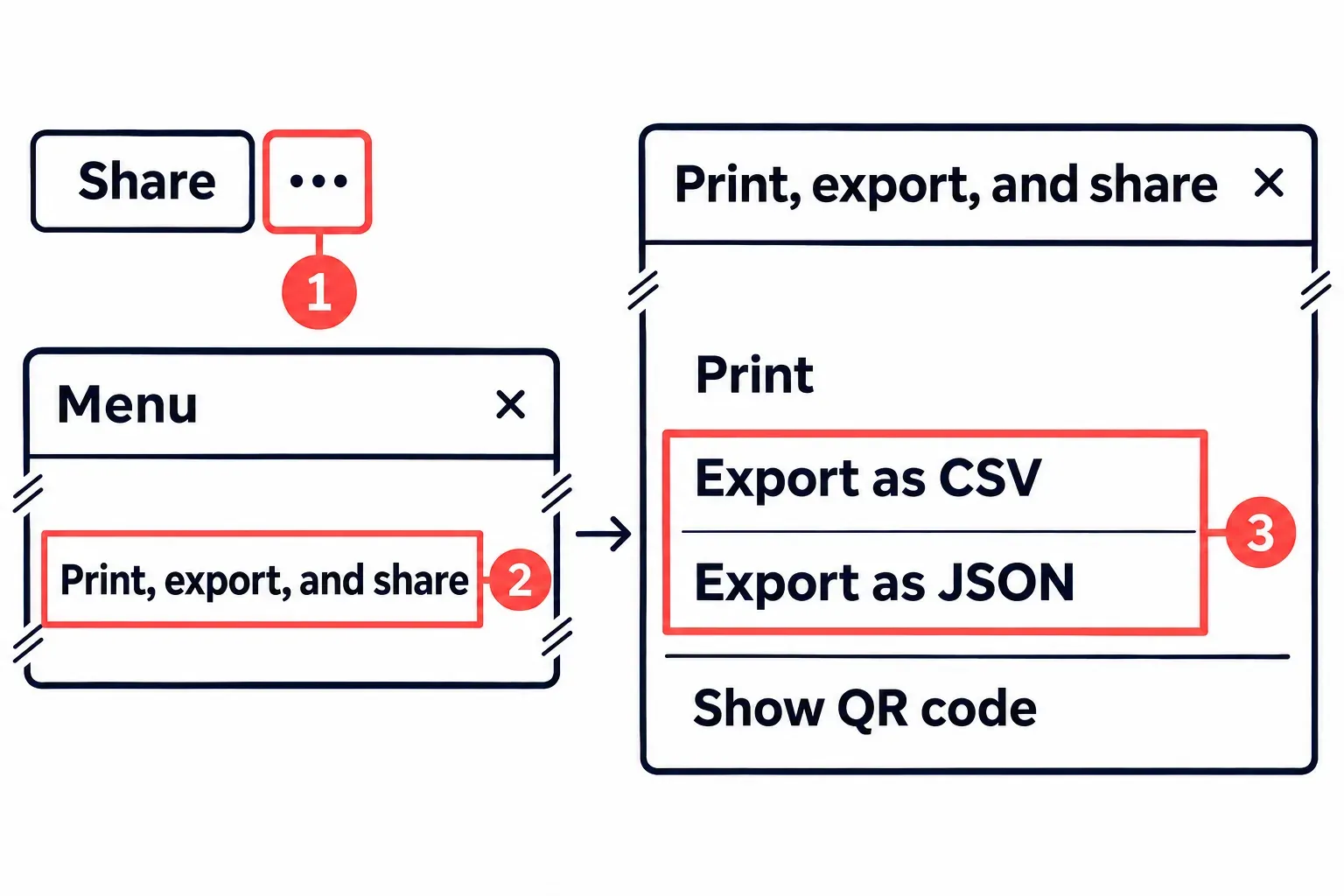
To export a Trello board, open Menu → Print, export, and share → Export as JSON. Any board member can export JSON; CSV needs a Premium Workspace. For all comments and a ZIP of uploaded files, a Premium Workspace admin must run a Workspace export with Include raw attachments selected.
The routes below use Trello in a computer browser. If your iPhone or Android app offers no export option, open the board in a computer browser and use the same routes. Printing is also a web feature; it is not available in the mobile app.
Six ways to take a copy, and what each one keeps
Pick the route by what you will need to read later. A spreadsheet of cards needs rows, a record of who agreed to what needs comments, and a board you might have to rebuild by hand needs its files as well.
| Route | Who, and on which plan | What you get, and what is missing |
|---|---|---|
| Export as JSON | Any board member, every plan | The board's data in one machine-readable file, with the 1,000 most recent actions, comments among them. Older actions fall outside it, and the attachment files are not inside. |
| Export as CSV | Members of a board in a Premium Workspace | Rows a spreadsheet opens directly. No comments, and archived cards only through the .csv link described below. |
| Workspace export | Workspace admins on Premium | Every board in the Workspace as JSON and CSV, the full comment history and, with Include raw attachments, the uploaded files in a ZIP. Earlier exports stay listed. |
| Anyone with the board open on the web | The board as card fronts, or one card back with its comments and activity. Not available in the mobile app. | |
| Download on an attachment | Anyone who can open the card back | One uploaded file at a time. Linked items (cloud files, Confluence pages, Jira issues) stay at their source. |
| A Power-Up export | Added to the board from Power-Ups; terms and billing set by its vendor | Excel, PDF and other formats, depending on the Power-Up. Free tiers are capped, and the vendor may store board data. |
Keep the original board intact if you may need its full history again. Trello cannot import a JSON or CSV export to re-create a board. An export gives you data to read or work with; rebuilding cards and relationships takes separate import work.
Trello’s pricing table marks Simple data export on Premium and Enterprise, and not on Free or Standard.
Export the board as JSON or CSV
Before you start, have the board open in a browser and be signed in as one of its members. Cards still sitting in Inbox are left out of every export, so move any you want in the file onto this board first.
- Find the three dots at the far right of the board header, after the Share button: that is Menu. Select it, or press the
]key with the board in front of you. A panel titled Menu appears on the right, and its first group reads About this board, Visibility, Print, export, and share, and Star. - Select Print, export, and share. The panel that opens starts with Link to this board and a line saying who can see the board, then lists Print, Export as CSV, Export as JSON and Show QR code.
- Select Export as JSON, or Export as CSV if the board sits in a Premium Workspace. On a phone, if the Trello app offers neither, open the same board in a browser and repeat these steps there.
Before you move, archive or delete anything on the board, make sure the file is saved on your computer and opens; the section on Excel and Google Sheets below covers both formats. If it does not open, the board has not changed yet, so export again.
Getting archived cards into the CSV
A plain Export as CSV leaves archived cards out, which matters when the board is about to close and half its history sits under Archived items. Atlassian documents a workaround for boards in a Premium Workspace: with the board open, click in your browser's address bar, type .csv at the end of the board's link and press Enter. That downloads a CSV with the open and the archived cards together. If some of those archived cards belong back on a list rather than in a file, send archived cards back to the board before you export.
No Export as CSV in the panel
Free and Standard Workspaces do not include native CSV export. If your team pays for Premium but the option is missing, first check which Workspace contains the board. Premium applies to the upgraded Workspace; a board in another Workspace does not gain its export features. A board admin can move the board into the Premium Workspace if that is the right place for the project.
Check who the move affects before making it. Board members who are not in the Premium Workspace become guests there, and on paid Workspaces some can become billable Multi-board Guests. The person moving the board must be its admin and a member of both Workspaces: open the board menu, select Settings, select the Workspace name and choose the destination. If moving the board is unnecessary, use its JSON with the spreadsheet route below or consider an exporter Power-Up.
Open the file in Excel or Google Sheets
A CSV needs no preparation. In Excel, File, Open opens the .csv straight away and applies Excel's default data format to each column. For more control, Excel's From Text/CSV import on the Data tab ends with a choice of Load, Load to or Transform Data, the last of which opens the file in Power Query first. Microsoft writes these steps for Excel for Microsoft 365 and Excel 2016 to 2024.
In Google Sheets, File, then Import, brings the CSV in: upload the file, choose Create new spreadsheet or Insert new sheets (Replace current sheet would overwrite the sheet you have open), leave the separator on Detect automatically or set it to Comma, and select Import.
To check the copy, search the sheet for the title of a card you know is on the board, and for an archived one if you used the .csv link. Do not look for comments: the CSV carries none, which is the reason to keep the JSON or a Workspace export next to it.
On Free or Standard the native export is JSON. Atlassian's guide to reading JSON explains its nested structure and suggests searching for the text you need. In Excel, the Power Query JSON connector opens the file and detects tables. Inspect the detected structure and fields before loading it: a Trello board has nested cards, actions and checklists, so it needs more attention than a flat CSV.
For a one-off spreadsheet on Free or Standard, I'd try the JSON in Excel before adding a Power-Up, because the file comes from Trello itself and nothing new gets access to the board. A sheet you need every month is a different case, and the Power-Up section further down covers it.
Attachments: what Trello holds and what it only links
An export of cards is not an export of the files on them, and Trello treats two kinds of attachment differently. Files uploaded from a computer are copied into Trello, up to 10 MB each on Free and 250 MB on the paid plans, while Confluence pages, Jira issues and items from cloud storage are attached as links. A linked item lives at its source, so its backup belongs there too: in the drive, in Confluence or in Jira.
For a private board, uploaded attachment links still require a signed-in account with board access. Attachments on public boards remain accessible without an account. Save a separate copy of any file you need to keep before deleting its card or board; a link in a spreadsheet does not store the file itself.
On Premium, a Workspace admin can take every uploaded file at once: the Workspace export has an Include raw attachments option that packs the files into a ZIP, and without it the export only links to the attachments hosted on Trello. The next section has that route.
On Free and Standard, files come off one card at a time:
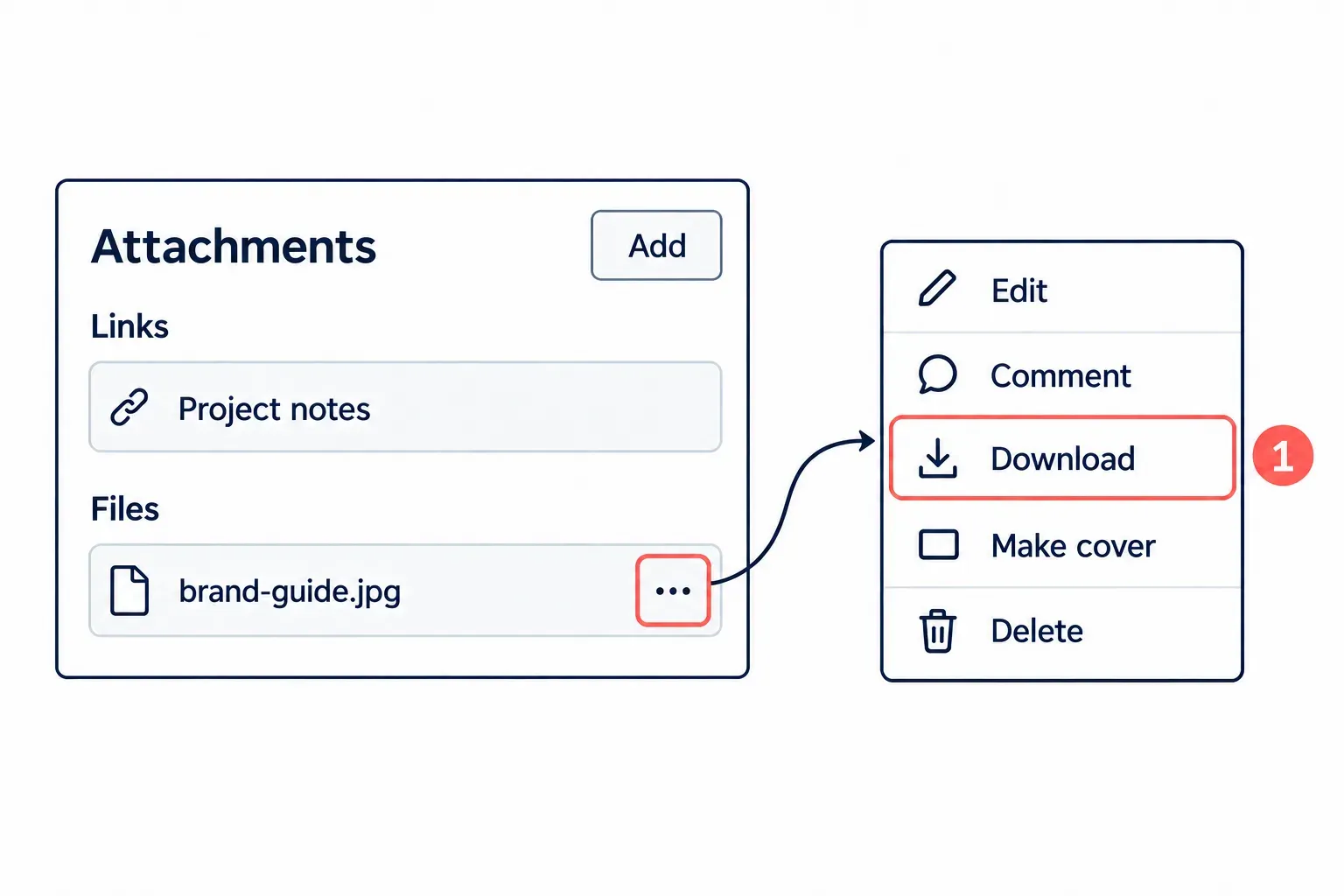
- Open the card and scroll to its Attachments section, where uploads are grouped under Files and links under Links.
- Open the three-dot menu on the uploaded file's row. It offers Download; an image attachment also has Make cover. Avoid Delete, which permanently removes the uploaded file.
- Select Download, then open the saved file once to confirm it is the right one.
Do this before any cleanup rather than after. Deleting a card takes its attachments with it, so the downloads come before a card, a list of cards or the whole board goes.
The whole Workspace in one export, on Premium
Atlassian's Premium guide lists bulk data export with an export history among the Premium features, and only Workspace admins can create and download these exports. Trello's pricing table also marks Simple data export for Enterprise, though Atlassian's export page describes this route for Premium Workspaces.
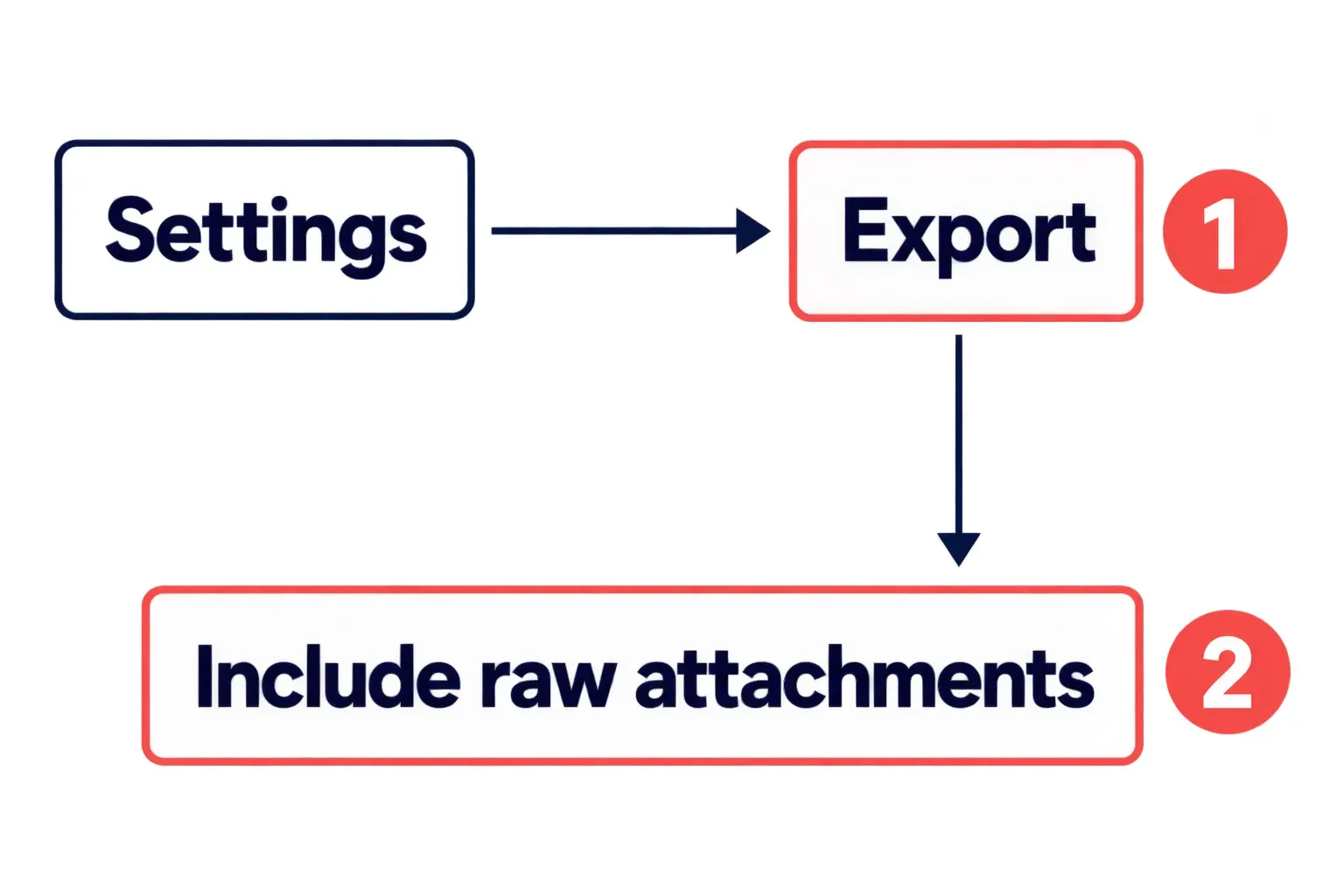
- Select the Trello logo, then Settings for the Premium Workspace, then Export in the sidebar.
- Turn on Include raw attachments if the uploaded files should come as a ZIP; leave it off and the export links to them instead.
- Create the export. Every board in the Workspace comes out in JSON and CSV, with attachments in their own file formats when you included them.
Past exports stay listed on the same Export page, which is where to look for the finished file and for any earlier copy. Because only Workspace admins can create and download these files, anyone else on the Workspace has to ask an admin to run the export.
Your own account is a separate matter. On trello.com/u/my/account, the bottom of the page has Download personal data, which delivers a .json file about your account; it is not a backup of any board.
Print a board, or one card with its comments
Printing works from the web version of Trello and not from the mobile app, and it gives two different results. A board print answers where each card sat that day; a card print answers what was said on it.
- The board: Menu, then Print, export, and share, then Print. Every card prints as its front, the way it looks on the list, and nothing from the card backs comes with it.
- One card: open the card, select the actions menu (
...) at the top of the card back, then Share, then Print. The print carries the card-back details and as much of the description as is showing, so select Show more on a long description, and open the comments and activity section first if those belong on paper too.
If your browser's print dialog offers to save as a PDF, that turns either print into a file you can keep next to the export.
Copy board keeps the cards, not the history
Copy board sits right in the board menu, so it looks like a backup button. It is the quickest copy Trello makes and the thinnest record: a board copy brings over cards and descriptions but drops the comments, the activity, the members on each card and every archived card. Copying a single list keeps more, since its cards come over with their checklists, attachments and comments, only without their history.
A copy also stays inside Trello. It suits a board you plan to run again with fresh cards; when the question is what happened on the old one, the export is the copy that counts.
A Power-Up for the spreadsheet your plan leaves out
Power-Ups are how a Free or Standard board gets a CSV or Excel file without Premium, and the trade is access: a Power-Up can store private or shared data about a board or card. Read the vendor's privacy policy before adding one, and leave the board's visibility as it is. A board holding client names or contact details does not belong on Public, and an export is no reason to change that.
To add an exporter, select Power-Ups in the board header (or Power-Ups in the board menu), then Add Power-Ups, search for its name and select Add. Trello allows unlimited Power-Ups per board on every plan. The three listings below describe different export formats and limits; their subscriptions are separate purchases.
- Board Export (Excel, CSV, PDF, Image) by Kolekti writes Excel, CSV, PDF and image files. Its 14-day trial is limited to 5 cards per export; after that the listing asks $24 a year per user billed annually or $7.50 a month per user billed monthly, and a licence covers one user, not the whole board.
- Exportefy writes Excel, PDF, Word, CSV, JSON and XML and has a switch for archived items. Its free plan allows 10 exports of up to 20 rows each, a 7-day trial allows 20 complete exports, and paid access is $5.99 a month or $49 a year, billed separately from Trello.
- Exports for Trello by Blue Cat creates CSV files to open in Excel or Google Sheets, with Custom Fields support. Its free tier gives 10 exports; $19 a month adds unlimited exports and scheduled delivery by email. The listing's Excel wording refers to opening the CSV in Excel, rather than a native XLSX download.
Set each free cap against the board you need to export: a 5-card trial or a 20-row export will not cover a larger board in one file. If you stop using the Power-Up, disabling it with Keep all Power-Up data unticked removes its data stored in Trello; Remove personal settings clears its private Trello settings. Check the vendor's own policy for copies it holds elsewhere.
From a spreadsheet back into Trello
Trello has no general import tool, and none of the exports above rebuilds a board, so data goes in by pasting or through code. Pasting covers the common case, a column of tasks that should become cards:
- In the spreadsheet, copy a column of card titles, one title per cell.
- At the foot of the target list, select Add a card and paste the titles, one per line.
- Add the pasted titles as separate cards. If Trello asks whether to keep the paste in one card or make several, choose separate cards. Check the list has one new card for every row you copied.
For due dates, labels or descriptions as well as titles, use an import Power-Up or the Trello API. Atlassian points to the API for full control. The same API reads a board out: the REST API's boards group includes Get Cards on a Board, Get Lists on a Board, Get Actions of a Board, Get Checklists on a Board and Get Custom Fields for Board.