Connect Google Calendar in Trello Planner to see meetings beside your cards and schedule focus time. To send Trello due dates into Google Calendar, add a board’s calendar link from Calendar view on Premium or Enterprise; this feed does not send calendar edits back to Trello. I’d start with Planner for planning your own day, because it puts meetings and work together without sharing a board calendar link.
Planner is view-only on Free, with full scheduling access from Standard upward. Choose a two-way sync Power-Up when moving an event in Google Calendar must also change a Trello card. Due dates make cards appear automatically in Planner and in the board’s calendar feed, but you can manually link a card without a due date to a Planner focus time event.
Choose by where you want to plan and edit
Pick the route by the question you want the calendar to answer, then check the plan line in the same row.
| Route | Direction and fields | Access and stopping the connection |
|---|---|---|
| Trello Planner | Your calendar events show beside due-dated cards. Scheduling a card creates a focus time event in the connected calendar; it does not change the card’s due date. | View-only on Free; full scheduling from Standard up. Unlink a card or delete its focus time event. Remove Trello’s Google Account access to stop that calendar connection. |
| The board's calendar link (Calendar view) | Trello → calendar. Due dates become calendar events. Start dates and duration remain in Trello; calendar edits do not update the card. | Premium or Enterprise Workspace. Google updates can take up to 24 hours. Disable the URL under Sync to personal calendar → More actions (…). |
| A sync Power-Up | Vendor-specific: one-way export or two-way updates. Check the field mappings and direction before enabling it. | Power-Ups can be added on every Trello plan; vendor plans and limits vary. Disable the Power-Up and remove the vendor’s Google access when finished. |
Use Planner for “what can I work on between meetings?” Use the board feed for “when is this board’s work due?” in Google Calendar. A two-way connector is useful when the team will reschedule from either app. Keep one route active for the same cards until you have checked the result, so duplicate events are easier to spot.
Planner: your calendar comes into Trello
Trello Planner connects to Google Calendar and Microsoft Outlook Calendar, with up to 10 accounts. Calendar events appear beside the board. Focus time you create in Trello also appears in the connected calendar.
Open a board in Trello’s web or desktop app and choose the Google or Microsoft account that holds your calendar. Review the permissions on the sign-in screen: Planner displays calendar events and can create focus time events.
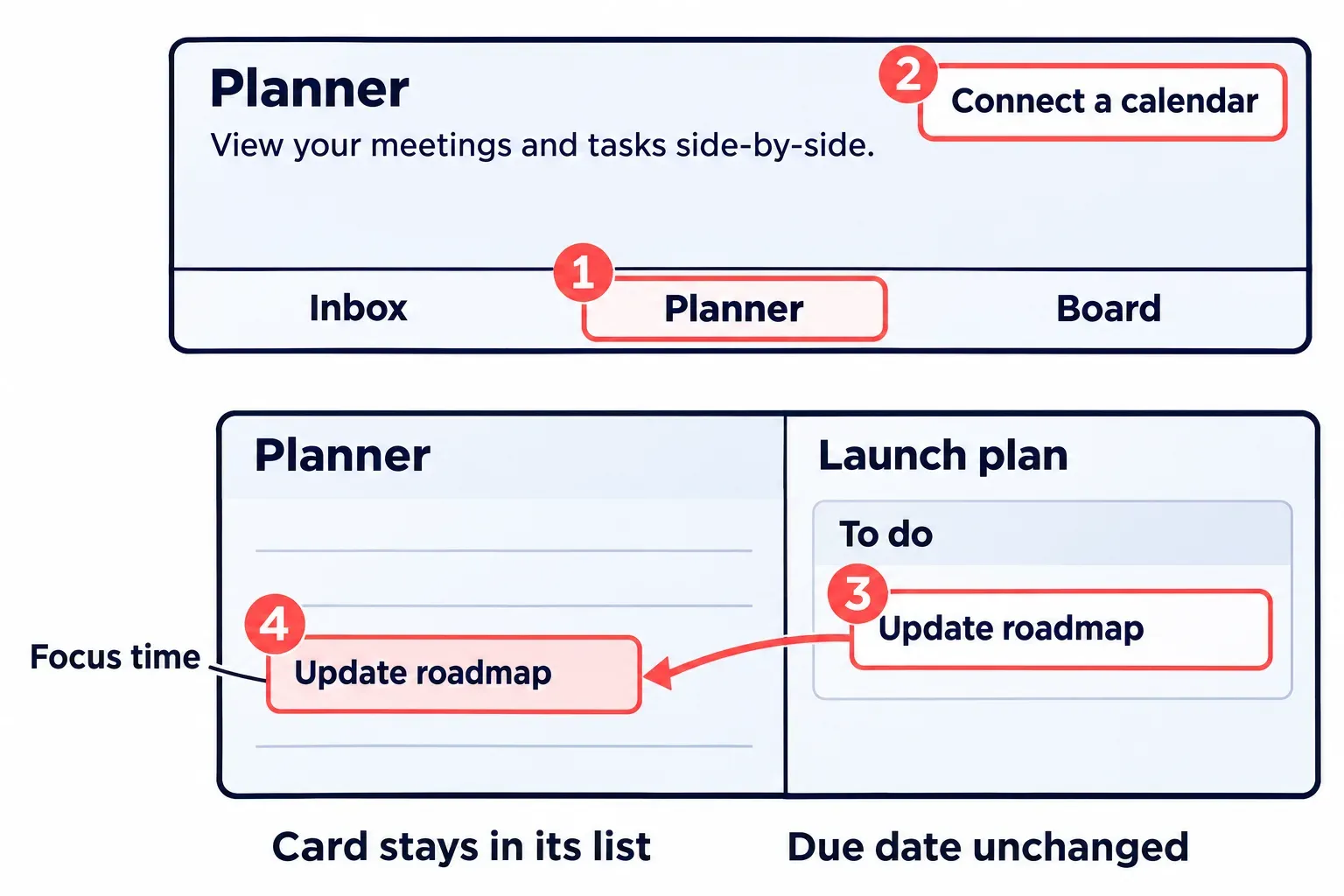
- Select Planner in the navigation bar, the same bar that switches between your boards and Inbox, or press
gand thenp, in that order. Planner appears beside the board and shows one, three or seven days, depending on how wide the window is. On an iPhone or Android phone, Planner sits in the app's bottom navigation bar instead. - Select Connect a calendar and choose Google or Outlook. In the mobile app the button reads Connect a calendar account and offers the same two choices.
- Go through the sign-in screens and allow Trello to view that calendar. Your events from the account's default calendar now fill the grid.
- Switch on any other calendar from the same account in the Calendars menu; in the one-day view that menu sits under Settings, then View connected calendars. A second account goes in under Settings, Add account, and the default account is changed under Manage accounts.
Check for a meeting you know is on your calendar. If it is missing, switch on the calendar that contains it in the Calendars menu from step 4.
Why a card shows up in Planner, or does not
A due-dated card appears automatically in Planner when it sits on a personal board, where you are the only member, or is assigned to you on a shared board. To change that selection, open Planner’s Menu (…) → Filter due cards shown. Cards on personal boards and Cards assigned to me are on by default. Under More, find a board, select Add, then choose Show all cards, Show cards assigned to me or Don’t show cards from this board. Board-specific filters are editable on the web and read-only on mobile.
I'd rather assign each card to its owner than switch on Show all cards for a busy team board, because a Planner crowded with other people's due dates buries the few that are yours.

Block focus time by dragging a card
On Standard, Premium or Enterprise, drag a card from the board or Inbox into an open Planner slot. A focus time event appears there and in the connected calendar. The card stays on its board or in Inbox, and linking it neither adds nor changes its due date. The card link is visible in Planner rather than in the connected calendar. Check the event time in both places.
Standard, Premium and Enterprise users also get Smart Schedule, Planner's AI scheduling option. It needs a connected calendar and AI turned on for the Workspace, and it works on the web and in the desktop app, not on mobile.
What Free gets, and where Standard starts
Trello's pricing table lists Planner as view-only on Free and in full from Standard upward. The wording of the two rows draws the line at the drag: the view-only row is about viewing your scheduled cards on a calendar and synchronizing events from your tools, the full-access row about dragging cards onto the calendar to block available time and syncing more events. On Free, plan to read Planner rather than schedule focus time in it.
The mobile Planner guide offers eligible Free users a 14-day Premium trial and directs them to a paid plan when it ends. Keep the distinction clear: the pricing table promises view-only Planner on Free, not continued focus time scheduling. For users who are both managed and licensed by Enterprise, Planner content belongs to the Enterprise; revoking the licence removes access to that existing content.
Unlink a card, delete an event, or cut access
To detach a card, open its focus time event in Planner, hover over the card title and select Unlink card from event. The event stays. To remove the event, select Delete this event in Planner or delete it in Google Calendar. To stop Trello accessing Google Calendar, open your Google Account’s linked apps page → Access to your Google Account → Trello → See details → Remove access → Confirm. Google distinguishes removing data access from stopping Sign in with Google; choose the access connection.
Send due dates to Google Calendar with the board's calendar link
The board feed sends due dates from Trello to Google Calendar. Make date changes on the Trello cards; this subscription does not write calendar edits back to them. Only the due date syncs through Calendar view’s external feed. Start date and duration stay in Trello.
The link lives in Calendar view, which requires a Premium or Enterprise Workspace. On Free or Standard, check the separate Calendar Power-Up or a vendor connector below.
Before you enable anything, know what the link is: anyone you share it with can view the calendar items of that board, and the popover where you copy it says so. Paste it into your own calendar only.
You need a computer for the Google half. Google adds a calendar from a URL only in a computer browser; its Android, iPhone and iPad apps cannot subscribe to one. Two browser tabs side by side are enough: Trello in one, Google Calendar in the other.
- Open the board and switch it to Calendar view with the view switcher next to the board name. The board's cards with due dates now sit on a calendar grid.
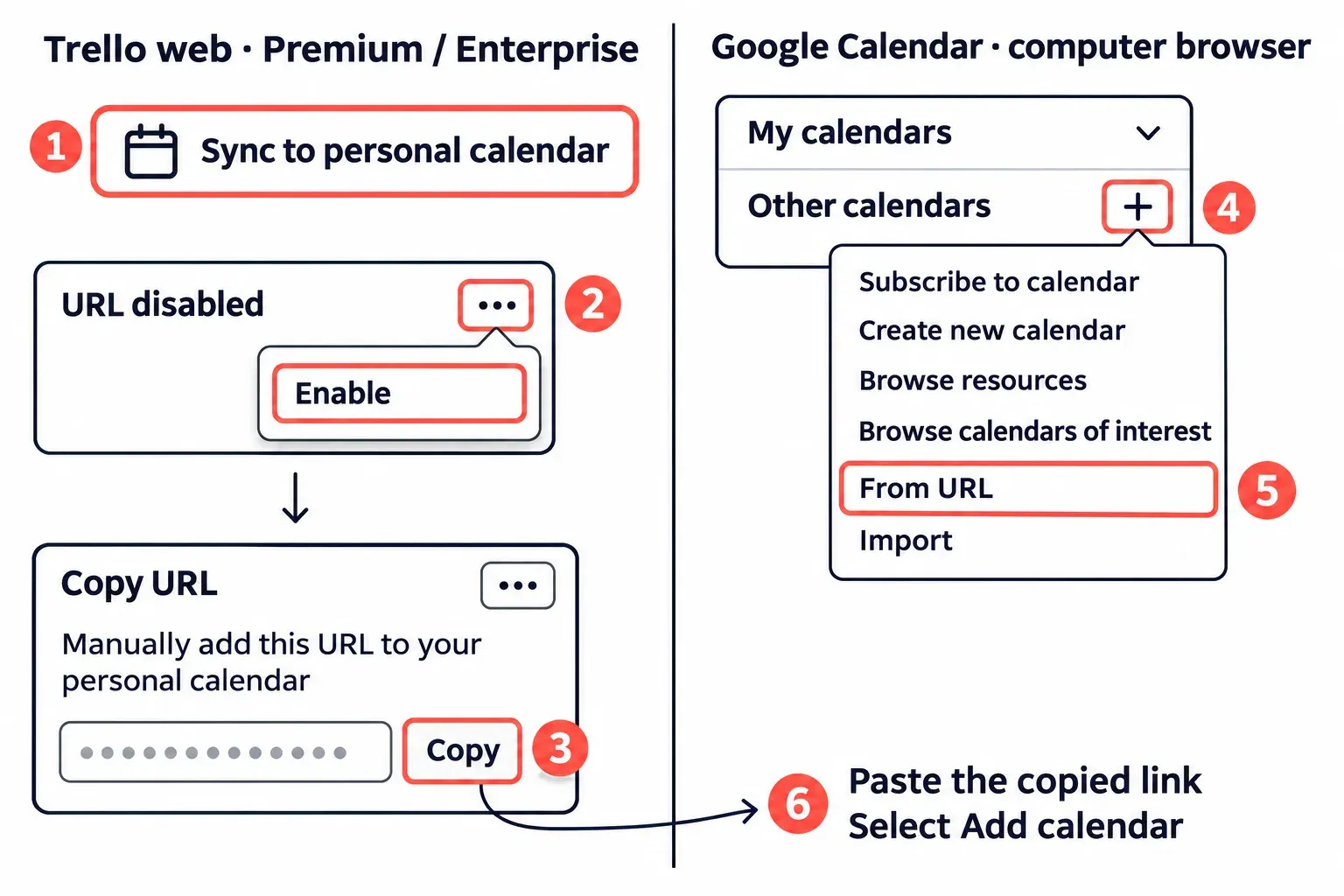
- Select Sync to personal calendar.
- If the popover reads URL disabled, select More actions (...), then Enable. The popover now shows the board's link with a Copy button.
- Select Copy.
- In Google Calendar on your computer, find Other calendars in the left sidebar and select Add other calendars (+) beside it.
- Choose From URL, paste the link into the field and select Add calendar. The board's calendar now appears under Other calendars.
To check it, pick a card due in the coming week and look for it on that day in Google Calendar. If it is not there yet, wait: Atlassian's steps for adding a board's calendar link to Google Calendar warn that changes can take up to 24 hours to show up. The same delay applies to every later edit, so this is a calendar for seeing what falls due this week, not for planning the next hour. Each board has its own link; three boards in Google mean enabling and adding three links, one board at a time.
Switch the link off
In Trello, open Calendar view, select Sync to personal calendar, then More actions (...) and Disable. Events already added stay in Google Calendar, later changes on the board stop syncing, and the address is no longer publicly accessible. The stale events then need clearing on Google's side: to remove the subscribed calendar in Google Calendar, open Settings, select the board's calendar, and under Remove calendar choose Unsubscribe, then confirm with Remove calendar. To hide it for a while instead, untick its checkbox under Other calendars.
Outlook, Outlook on the web and the iPhone calendar
Planner takes a Microsoft Outlook calendar exactly as it takes Google, through Connect a calendar. For due dates going out, the board link works with Outlook too, with the same Premium or Enterprise board behind it and the same one-way crossing. Copy the link in Trello as in steps 1 to 4 above, then add it where your calendar lives:
- Outlook for Windows. Atlassian's Outlook guide goes through the Calendar icon, Add Calendar, Subscribe from web, then paste the link and select Import. Rename the calendar with the three dots beside it and Rename. Outlook refreshes it on its own download interval.
- Outlook.com and Outlook on the web. Select Calendar, Add calendar, Subscribe from web, paste the link and select Import; with a work or school account the last step is Import, then Save. Microsoft refreshes a subscribed calendar about every 3 hours for personal accounts and about every 6 hours for work or school accounts, and says either can take more than 24 hours.
- Outlook for Mac. The same Atlassian guide says Outlook for Mac does not support adding iCal subscriptions; on a Mac, the subscription step documented above runs in Outlook on the web.
- Calendar on an iPhone. Atlassian's page on due dates in the iPhone calendar says to sign in to Trello in the phone's browser rather than the app, open Calendar view, select Sync to personal calendar, Enable and Copy, then subscribe following Apple's directions.
Who can read a board's calendar link
Anyone with a board’s calendar link can view its calendar items. Keep the link out of public pages, shared documents and support tickets. You do not need to make the Trello board Public to add the feed to Google Calendar.
If a link leaks, select Disable in Sync to personal calendar and keep that feed off. Use Planner or a separately authorized connector instead. Disabling the feed stops future updates; unsubscribe from the old calendar in Google to remove its retained events.
Planner uses your connected account rather than a shared board feed. Focus time can still reveal work in its event title, so check your calendar’s sharing settings before scheduling confidential tasks.
Edits in both directions: a sync Power-Up
To add a calendar Power-Up, open Power-Ups in the board header → Add Power-Ups, search for it and select Add. Trello allows unlimited Power-Ups per board on every plan; the vendor may charge for its service. Choose by sync direction and the fields you need:
- Calendar Power-Up. Trello’s Calendar Power-Up displays due-dated cards in week or month views and can export an iCalendar feed. It is separate from the Premium Calendar view. If its settings offer the feed on your board, use that one-way route; if the option is missing, ask the board admin about enabling it. Its feed is generated per board member, allowing Trello to end that member’s access when they leave the board.
- Unito. Unito’s listing describes Trello cards and Google Calendar events syncing both ways under rules you choose, with a 14-day trial. Review the mappings for this connection before starting; a list of supported Trello fields does not mean Google Calendar has a matching field for each one.
- Placker. Placker describes two-way sync by default, with a one-way option. Cards need a due date and can appear as all-day events or timed blocks when a start date is set. Choose the whole board or selected members’ cards. The service uses paid plans after a 15-day trial.
- Google Calendar Sync by Mig. The Mig listing describes a one-way sync from Trello to Google Calendar for cards with a start or due date. The title and description travel; the start date sets the event's start and the due date its end. A 14-day trial comes before the paid plan.
Remove a sync Power-Up and its access
Open the Power-Ups menu in the board header, select the Power-Up's Settings button and choose Disable. A box called Keep all Power-Up data decides what happens to what it stored: leave it checked if the board may need that Power-Up again, and uncheck it only when you want that data gone, then select Disable Power-Up. Remove personal settings clears your own private data for it. Atlassian's guide to enabling and removing Power-Ups lists these controls. To cut the vendor's reach into Google as well, use the same Remove access steps in your Google Account as for Planner above.