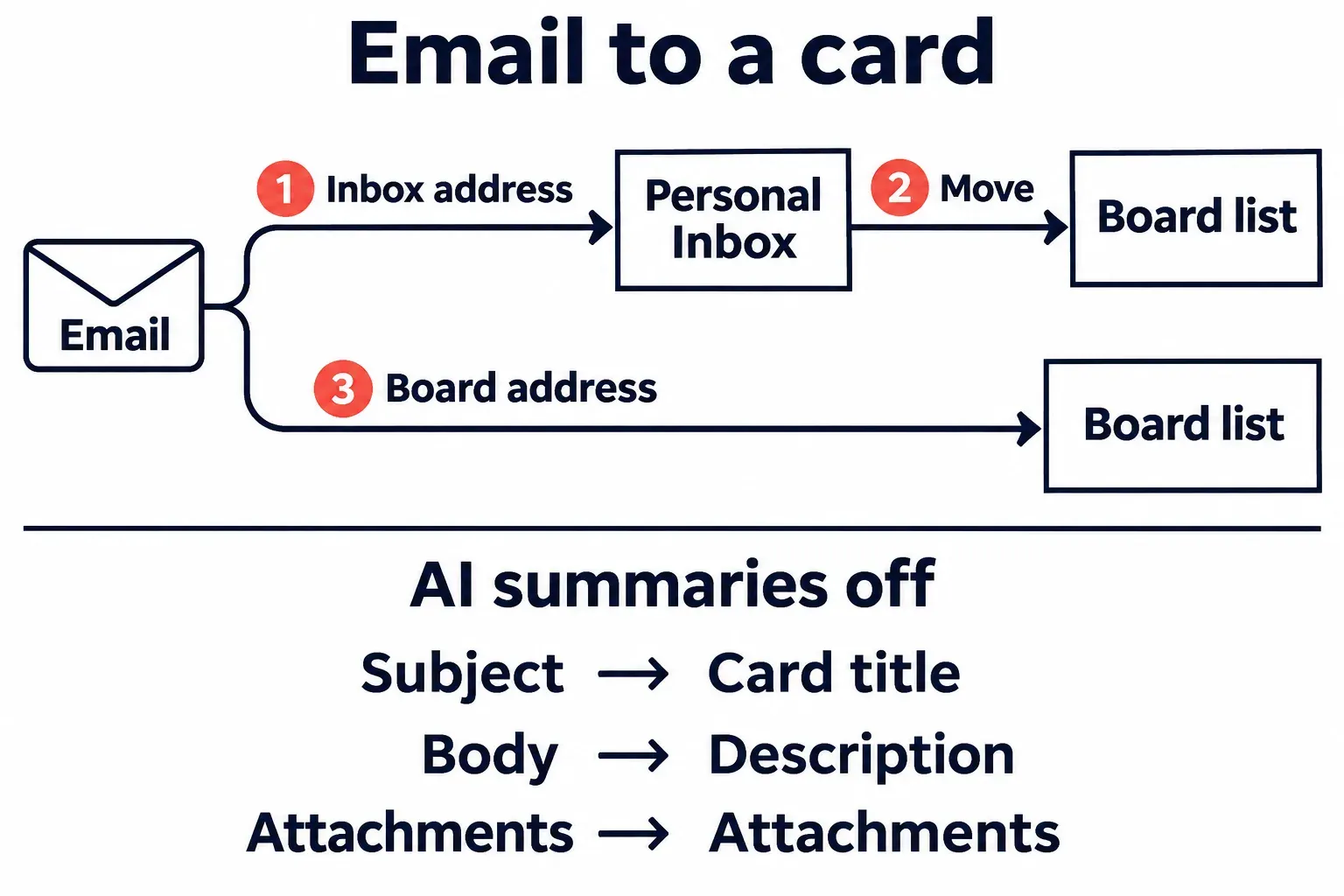
To send email to Trello, forward it to your personal Inbox address or to the unique address for a board. The first keeps the card for your own sorting; the second puts it straight in the team’s chosen list. I’d use Inbox for personal follow-ups and a board address for shared requests, because the destination decides who sees the email.
Both routes are available on every plan: Trello lists email capture and Inbox on Free, while AI summaries start at Standard. With AI summaries off, the subject becomes the card title, the body becomes its description and attachments come along. AI can replace that title and description with summaries. Copy the addresses in a browser; Gmail also has an add-on that creates a card from the message you have open.
Inbox, board list or Gmail: pick by where the card should sit
Choose the address by who should see the card first and how much sorting you want to do by hand afterwards.
- Your Inbox. Each email makes a card in the Inbox only you see. Atlassian describes label and member tags for board addresses only, so in the Inbox you add a cover, dates or a checklist by hand and move the card to a board when it is ready. This suits your own to-dos.
- A board's address. Each email makes a card at the top or the bottom of the list you picked, created as you and visible to everyone who can see the board. Labels and members can ride in the subject line. This suits requests that are work for the whole board.
- Trello for Google Workspace in Gmail. Nothing happens until you open a message and click Add. You choose the board and the list each time and can edit the title and description before the card is made.
Send emails to your Inbox
Your Inbox is personal and separate from your boards. Open it from the navigation bar at the bottom of a board, or press g then i. An emailed card can take a few minutes to appear.
Two Inbox addresses with different sender rules
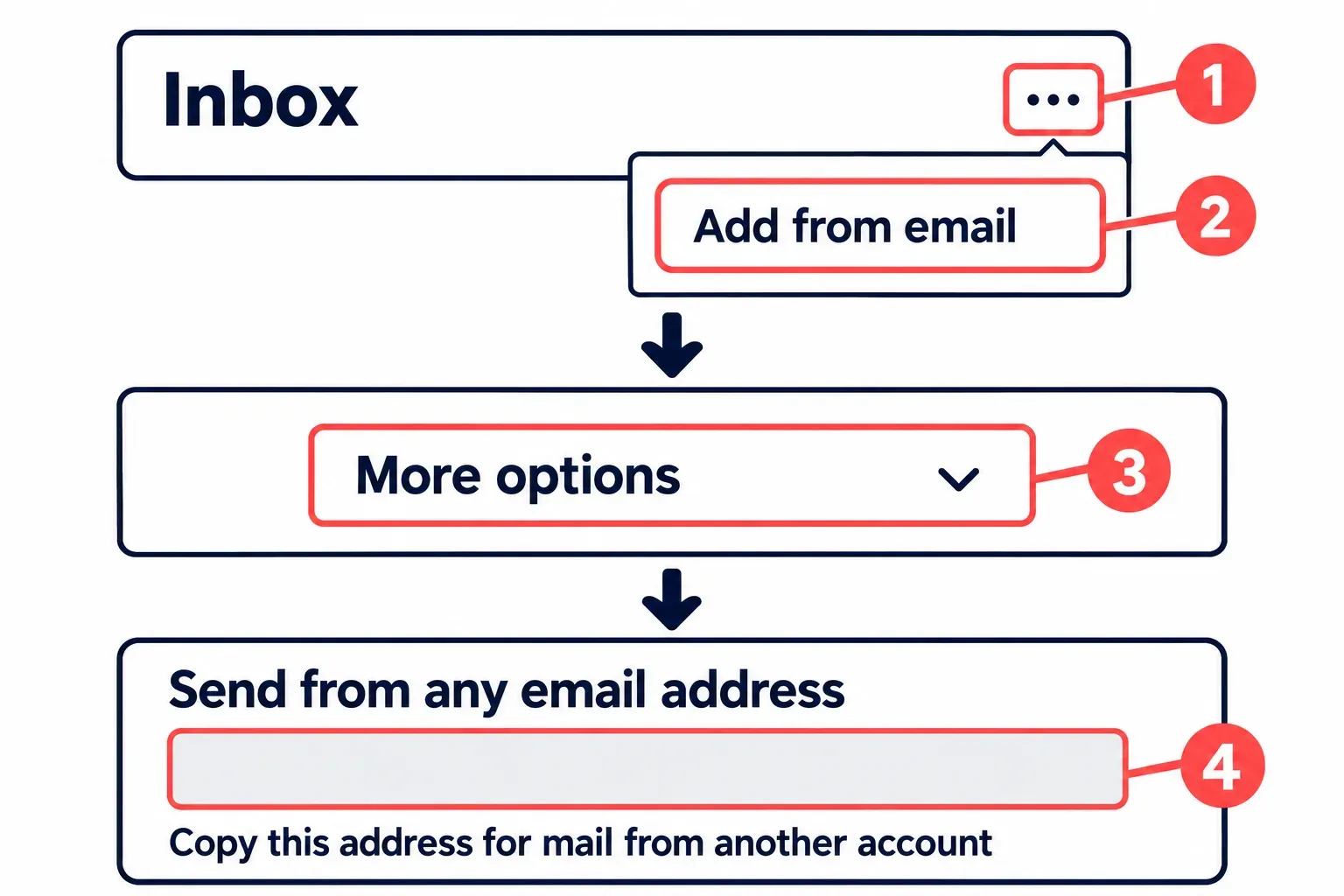
The short address, inbox@app.trello.com, makes a card only when you send from the email address you use for Trello. A message forwarded from a second mailbox, or sent by somebody else, makes no card there. For those, your Inbox has a unique address that accepts mail from any sender. You copy it in a browser:
- Open any board and select Inbox in the navigation bar at the bottom of the page. Your Inbox opens.
- Open the inbox menu and select Add from email. Older Atlassian help pages call this item Email to inbox; it is the same entry.
- Select More options. The panel now shows Send from any email address with your unique address under it.
- Copy that address and save it as a contact in every mailbox you forward from.
Forward one message and check that the card arrives in your Inbox. With AI summaries off, its title should match the subject and its description should contain the body. Use the short address when sending from your Trello account email; use the unique address for another mailbox or if the short address fails. Keep that unique address out of shared documents and signatures: anyone who has it can create cards as you.
Move the Inbox card onto a board
While the card waits in the Inbox it can already take a cover, dates, checklists and attachments. Members, mirroring and Custom Fields appear only once it sits on a board, so a card that needs a teammate has to move first.
- Open the board the card belongs on, then select Inbox in the navigation bar so the Inbox and the board are on screen side by side.
- Drag the card from the Inbox into a list. Or right-click the card, select Move and choose where it goes; keyboard shortcuts work as well.
- Look at the list: the card now sits there, and everyone on that board can open it.
If you sort your Inbox every morning, Atlassian's suggestion of a personal board with three lists, Today, This week and Later, gives every emailed card an obvious next place.
Email cards straight onto a board
A new email sent to a board address creates a card directly in that board’s chosen list. Each member has a separate address for each board, and mail sent to yours creates cards and comments as you. Keep it in a private contact or forwarding rule, away from shared documents and signatures that clients see.
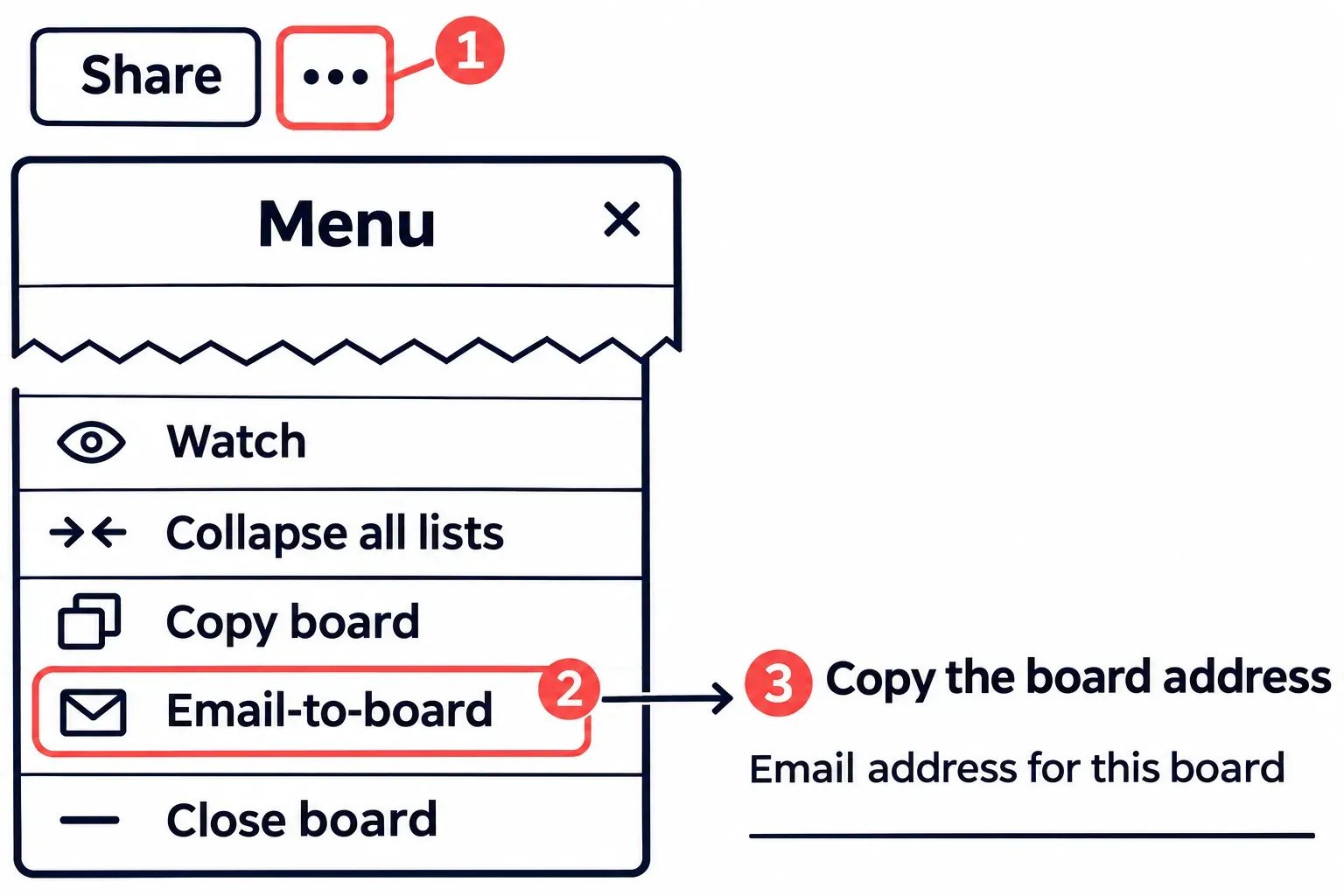
Find Email-to-board in the board menu
You need to be a member of the board, and the board open in a browser.
- Select Menu, the three dots at the right end of the board header, just after Share. The
]key opens the same panel. The Menu panel opens on the right. - Scroll to the last group, past Watch, Collapse all lists and Copy board, and select Email-to-board, just above Close board. The Email-to-board panel opens.
- Choose the list and the position, top or bottom, where emailed cards should be created. An intake list the team already checks works better than a list of finished work.
- Copy the address under Email address for this board.
Send one test message from your own mailbox. Within a few minutes the card should appear in the list you chose, at the top or the bottom, added by you.
What the subject line can set
With AI summaries off, the subject is the card title and the body is the description. Files attached to the message and images in its body become attachments. The whole email, attachments included, must stay within 10 MB. A board address also accepts these tags:
- Labels:
#labelname,#labelcoloror#labelnumber. A two-word label is written joined or with an underscore,#ClientWorkor#Client_Workfor a label named Client Work. When two labels share a name or a colour, only the first one is added. - Members:
@usernamein the subject, or on its own line in the body. A member's Trello email address in To or CC adds them as well.
So a subject such as Invoice approval for March #Finance @username puts the Finance label and that member on the new card. A date in the subject stays plain text, because Trello reads dates from card titles only for cards created in the web interface. The due date of an emailed card comes from you afterwards, or from the AI summary further down.
Replies, forwards and a card's own address
For seven days after a card is made from an email, replies in that thread that include the board address become comments on the card instead of new cards. After seven days a reply makes a new card. You can reply to the thread, forward it or BCC the board address to keep the conversation on one card. Through inbox@app.trello.com only your own replies turn into comments, so a thread with other people belongs on the unique Inbox address.
To add mail to a card that did not start as an email, use the card’s own address. Open the card, choose Share on the card back and copy Email for this card; on the current card layout, Share is in the Actions (…) menu. Mail sent there becomes a comment. This works for cards on boards, not cards still in your Inbox.
Gmail to Trello with the add-on
The Gmail add-on sends the message you have open to the board and list you choose, with a title and description you can edit first. The Marketplace lists Trello for Google Workspace by Atlassian, free of charge and built for Gmail and Google Chat. The Gmail entry in Trello’s Power-Up directory points to that Marketplace installation.
Read the consent prompt before installing. The Marketplace lists access to email messages while the add-on runs, permission to run as a Gmail add-on and connect to an external service, access to application data, and your Google Account email and personal info. An installation by a domain administrator can also grant a Chat scope that lets the app see messages, reactions and associated content in Chat on its own behalf.
- Install the add-on from the Marketplace, or from the + in Gmail's right side panel, follow the prompts that grant it access, then reload Gmail.
- Open one email. The add-on appears only while an individual email is open, not on the list of messages.
- Click the Trello logo in the right side panel to open the add-on.
- Choose the board and list, then review the card name and description. With AI summaries off, they are filled from the subject and body; AI can shorten them into summaries. Rewrite the name if the subject says little.
- Click the green Add button at the bottom. The card now sits in the list you chose; open the board to see it there.
The add-on also creates cards in the Gmail mobile app. It supports one Trello account at a time: open its three-dot menu and select Logout before connecting another. On Standard, Premium and Enterprise, Trello AI can generate the title and description; check both before clicking Add.
Outlook and other mail apps
In Outlook, Apple Mail or another mail app, send or forward to your unique Inbox address or to the board address. Save the address as a contact so you can select it without copying it each time. If you set up automatic forwarding, start with a narrow rule for one sender or project and check the first cards before widening it.
If an Outlook message arrives with a winmail.dat attachment, check its Rich Text format. Atlassian’s documented fix for Outlook 2010, 2013 and 2016 is File → Options → Mail: set Compose messages in this format to HTML, then under Message format convert Rich Text messages to HTML for Internet recipients. If the problem persists, remove the saved Trello autocomplete entry or contact and enter the address again. These menu steps apply to those Outlook versions.
Let AI turn a long email into a working card
Summarize with AI runs when the email creates a card. It can write a title and description, extract a due date and put action items in a checklist. It requires Standard, Premium or Enterprise and enabled AI. Workspace admins control AI in Workspace settings → AI on Standard and Premium; on Enterprise, Trello Enterprise admins control it in the Enterprise Dashboard’s AI section.
- For a board address: Menu, Email-to-board, then turn on Summarize with AI.
- For your Inbox, in a browser: inbox menu, Add from email, More options, then Summarize with AI. AI has to be on in your Inbox settings first.
AI does not reread replies, summarize attachments or read beyond the first 16,384 characters of an email. Short notes of one or two sentences may barely change. Use it for long requests, then check the extracted due date, checklist and summary against the original email before assigning the work: AI can omit or misread a condition.
When no card appears
Go through these in order, from the quickest check to the rarest cause.
- Sent a moment ago. A card can take a few minutes to show. Wait before sending again, or you may end up with two.
- Short address, other sender.
inbox@app.trello.comaccepts only the address you use for Trello. Forward to the unique Inbox address instead. - Forwarded from a work domain. Mail to the short address can be blocked when the sending domain does not match the domain in From. Atlassian's checklist for Inbox emails that never arrive gives two fixes: use the unique address, or ask your mail admins to check DKIM, SPF and DMARC.
- Too big. Over 10 MB with attachments, no card is made and the mail server may bounce the message. Send the email without the large files and upload them to the card afterwards, where uploads have their own per-file limit by plan, 10 MB on Free and 250 MB on Standard.
- Address reset. After a reset the old address stops working. Copy the new one into your contacts and mail rules.
- A comment instead of a card. A reply inside the seven days lands as a comment on the first card. Open that card to find it.
- Card without its labels or members. Atlassian describes the tags for board addresses only, a label name shared with another label adds only the first, and a misspelled username adds nobody.
- Attachments as winmail.dat. The Outlook Rich Text setting above.
What travels with the email, who reads it, and how to stop it
Trello keeps a copy of each email on its servers for 90 days and attaches the original email to the card. The quoted thread and signature can therefore travel with the request. Remove unrelated confidential material before forwarding, and check who can open the destination card.
- An Inbox card is yours alone until you move it to a board.
- A board card is readable by whoever can see that board. Public boards can be viewed by anyone with the link, even though search engines do not index them. Use a Private board for client mail and check its membership; Workspace visibility exposes it to the wider Workspace.
- On Enterprise, Inbox content belongs to the Enterprise when the user is both managed and licensed. Revoking that licence removes access to the existing Enterprise-owned content.
- The Gmail add-on has the account permissions granted during installation. Remove it when you no longer want that connection.
To retire your board address, open Menu → Email-to-board → Reset email address. For Inbox, open its menu → Add from email → More options → Reset email address. The old address stops working, so update any contacts and forwarding rules you still need. To remove the Gmail add-on, open Manage Apps in the Marketplace, then its three-dot menu → Remove.
A shared mailbox on a board: Power-Ups
For a team that needs to receive and answer a shared mailbox from its cards, consider an email Power-Up. That is a separate connection with its own account access and plan limits:
- Email for Trello by SendBoard: its listing describes Gmail, Outlook, Yahoo and other mailboxes connected as a shared inbox in Trello, with replies sent from cards, and mentions a free-forever option and a 14-day Pro trial without naming prices.
- Hipporello Service Desk: Hipporello says an admin can create inbound email addresses that route messages to a chosen list under conditions the admin sets.
Check each vendor’s permissions, mailbox access and price before connecting. Use a built-in address when you only need to capture requests; use a shared-mailbox Power-Up when the team needs to reply from the cards.