Yes. Trello has an ongoing $0 Free plan, separate from its 14-day Premium trial. Free allows up to 10 collaborators and 10 open boards per Workspace, unlimited cards, 10 MB uploads per file and 250 automation runs each month. I recommend starting there for personal tasks or a small shared work queue, because you can assign work, track deadlines and automate routine actions before paying for extra capacity.
The deciding question is whether the whole Workspace fits those limits. A board with three people can still be restricted because other boards, guests or outstanding invitations use the same Workspace allowance.
If you use Trello on your own, try one private board for errands, bills and household projects. Keep a short This week list and give time-sensitive cards a due date. One Workspace is enough while that setup gives you a clear place to look for the next task.
| Free allowance | What to check before relying on it |
|---|---|
| 10 collaborators per Workspace | Count Workspace members, board guests and pending invitations, including yourself. |
| 10 open boards per Workspace | Count active boards across the Workspace, rather than cards or lists inside one board. |
| 250 automation runs per month | All its boards and people share the allowance. There is also a 2,500-operation monthly limit. |
| 10 MB per uploaded attachment | This is a per-file cap, with no overall storage cap. |
| Unlimited Power-Ups per board | You can enable as many as you need. A provider may charge separately for its service. |
The official plan guide specifies open boards and per-file storage. The separate automation quotas distinguish runs from operations. Neither allowance multiplies when you add another member.
What you can do on Trello Free
On Free, you can assign cards, set due dates, add labels and ordinary checklists, and share files. Use your personal Inbox to collect work from email or Slack before moving it onto a board. AI summaries of forwarded email start on Standard.
The Slack setup guide lists paid plans for summaries, while the app overview says they’re included for all users. If you’re on Free, check Summarize with AI in the Trello app’s Home tab in Slack and save a sample message before you count on it. A managed Enterprise account loses access to Slack summaries when its Enterprise turns off AI. If your team uses the older Teams app, switch before the December 9, 2026 retirement.
Trello's Free plan and feature comparison also includes mobile apps, an activity log, two-factor authentication, Power-Ups and built-in automation. Downloading the desktop or mobile app doesn't buy a subscription: your boards retain the features of their Workspace's plan. You can use Trello in a browser instead; it's a cloud service, with no self-hosted edition.
How the 10-person limit works
A collaborator is a person invited to the Workspace itself or to one of its boards. Trello counts Workspace members, single-board guests, multi-board guests and pending board or Workspace invitations. “They're only a guest” doesn't create an extra free place.
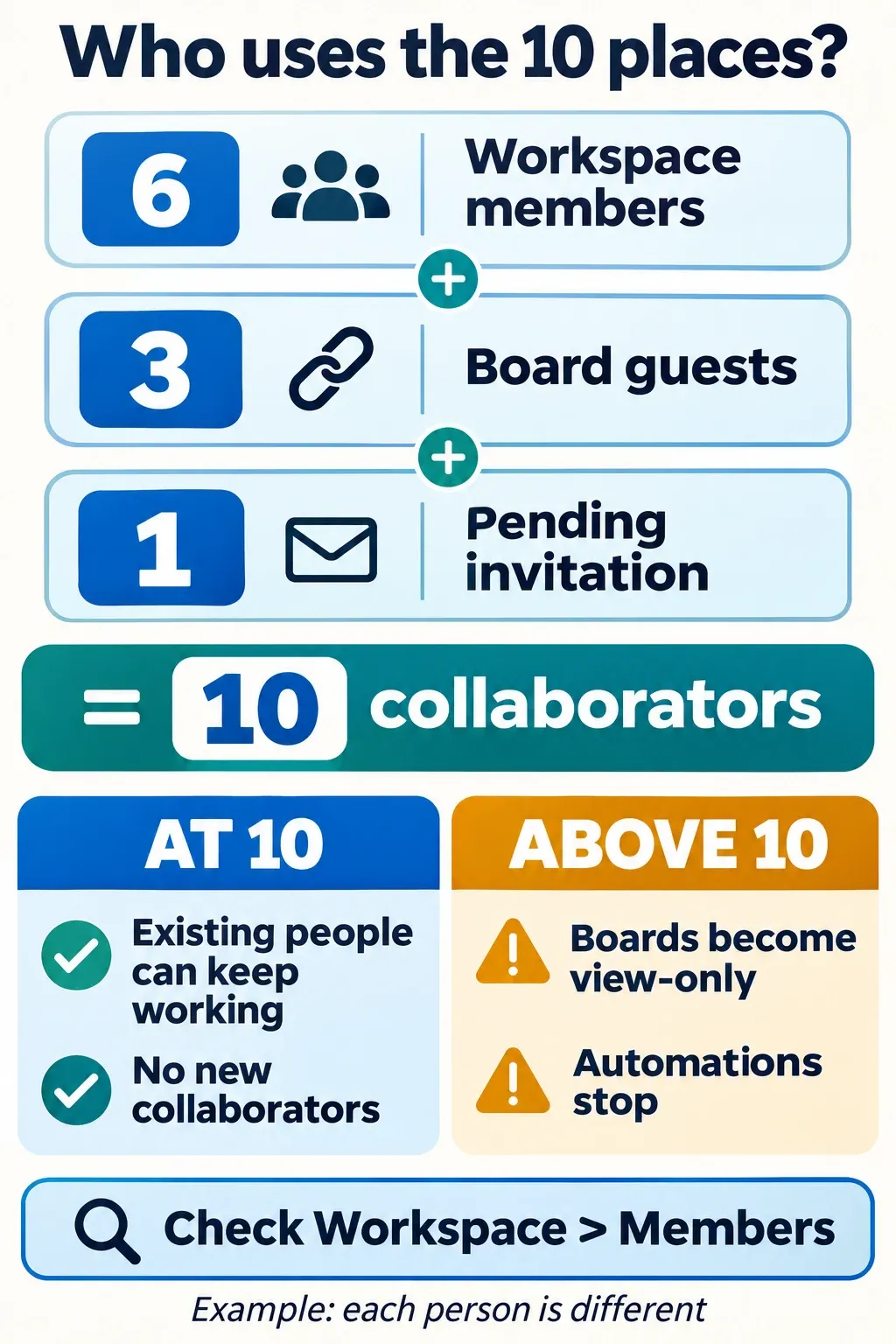
Count each person once within the Workspace, rather than adding every board's member count together. For example, six Workspace members, three different clients invited as guests and one invitation to a new contractor use all 10 places. A colleague who belongs to three of those boards is still one collaborator.
Two thresholds have different consequences:
- Exactly 10 collaborators: you can't add a new collaborator. You can still add an existing collaborator to another board in the same Workspace.
- More than 10: the Workspace's boards become view-only, so card editing stops. Automations on those boards stop running too.
Open the board’s Workspace → Members. Look for the Collaborators badge above the member and guest tabs. Ask a Workspace admin to read it if you’re a guest. Every Workspace member has that role on Free.

People who belong only to closed boards don't count. Neither do deactivated accounts or deactivated Workspace members. An unapproved request to join doesn't count until approved, provided that person isn't already a collaborator through another membership. These exclusions don't remove someone who still belongs to the Workspace itself.
Restore editing on a Workspace that went over the limit
Start in Workspace → Members. Check each active person and outstanding invitation against the work they still need. If everyone needs access, upgrade that Workspace.
- Former member. Find them under Workspace members. Choose Remove → Remove from Workspace, then check the Guests tab for any board memberships they still hold.
- Former guest. Use Guests → Remove → Remove from Workspace to remove the person from the boards. Before removing the last admin of a private board, arrange an admin handoff. Trello can close an affected private board if no eligible Workspace member remains.
- Unused invitation. Check for an Invited entry. For a stale board invitation, the board admin can remove the invited account from the Share list. Check the Workspace counter after the change.
Use Trello’s collaborator-removal rules to check remaining board access. Return to a board you normally edit and check that an ordinary card can be edited again. If the count is already under the limit, check your membership and board permissions. For a recent downgrade, follow the separate recovery condition below.
Ten open boards, unlimited cards
You don't need a new board for every task. A small team's shared request queue can use one board, lists for stages and cards for individual requests. Keep separate boards where the audience or workflow differs, especially when clients should not see each other's work.
Archiving completed cards makes a busy board easier to use, but it doesn't reduce the number of open boards. When an entire project is finished, a board admin can use board Menu > Close board. A closed board is hidden and can't be edited, but isn't deleted; it no longer uses one of the 10 open-board places.
Don't delete a project just to free a place. If you need a record first, use the board-export guide. An export gives you a separate record. To bring a project back later, reopen its closed board. For a new, separate project group, you can create another Workspace, but splitting one team's live process across Workspaces adds membership and permission work. I'd move to Standard when the team truly needs more active boards together.
Will 250 automation runs cover your workflow?
Free includes automation. All rules and boards in the Workspace draw from the same allowance. A run is one trigger firing or one automation-button press. Each action consumes at least one operation; an automation with several actions can spend several operations in a single run.
For a simple example, suppose 120 new cards each trigger one rule that adds a label and sets a due date. That uses 120 runs and 240 operations. If you instead create two separate rules that each trigger on those 120 cards, the same two actions use 240 runs and 240 operations.

Eight runs a day for 30 days would spend 240 of the 250 monthly runs. That leaves ten runs for every other automation across the Workspace. Estimate from the triggers your team uses.
Open board Menu > Automation > Activity > Workspace activity to inspect the plan, runs and operations used. The monthly quotas reset on the first day at midnight GMT. Email-sending automations have another shared Free quota of 250 emails per month, consumed per recipient, so one report to several people can use several emails.
Check usage before making automation essential to a deadline. Remove duplicate triggers and keep low-value automations from spending the budget needed by the important ones. Standard raises the allowance to 1,000 runs and 20,000 operations per month. Premium removes the cap on runs. Operations and other service limits still apply.
Files, Power-Ups and calendar features
The upload limit applies to each file
Free has no total storage cap, but an individual file uploaded from your computer must be within 10 MB. Standard and higher paid plans raise the upload cap to 250 MB per attachment. Trello's attachment rules distinguish uploaded copies from links: linking a file in Google Drive, OneDrive or another service doesn't use the upload limit.
A cloud-file link is useful for a large working document, provided every intended reader has permission in the service hosting it. Adding its link to a Trello card doesn't grant those file permissions. Keep confidential documents restricted to the people who need them.
Separate Power-Up charges
Trello lets you enable any number of Power-Ups on a board. Some partner Power-Ups require a separate subscription, even in a paid Trello Workspace. Check the provider's price, usage restrictions and requested access before making an add-on part of your workflow. A reporting or time-tracking requirement can therefore create a cost while Trello itself remains Free.
Free has calendar options, with different jobs
The pricing comparison includes Planner in view-only mode on Free. Full Planner access, including dragging cards into focus-time blocks, starts with Standard. A focus block reserves time to do the work; it doesn't change the card's due date.
For a calendar of one board's deadlines, the Calendar Power-Up shows cards with due dates and lets you move cards between days to change those dates. Its iCalendar feed can show those deadlines in an external calendar. That is a different tool from Premium's built-in Calendar view and Workspace Calendar view. Use the Trello and Google Calendar guide to choose between viewing deadlines and scheduling work.
Where Free stops being a good team fit
A small headcount doesn't guarantee that Free meets the team's needs. All Free Workspace members are admins of that Workspace, with the ability to invite people and change some Workspace settings. This doesn't automatically make them admins of every board. Board roles and Workspace roles are different.
A guest normally has permission to edit the board. Guests see every card on a board they've joined; there isn't a way to hide individual cards from them. Don't put several clients' private work on one board and expect labels or lists to separate their access.
Premium adds the Observer role for limited, read-only board participation, along with more admin controls and built-in reporting views. If those are requirements, a ten-person Free Workspace still isn't the right fit. If the issue is only an eleventh collaborator, an eleventh active board, Custom Fields or separately assigned checklist items, Standard is the smaller upgrade.
For help on Free, start with Trello’s knowledge base or the Atlassian Community. The Trello support portal accepts tickets from users on an active subscription.
Choose the smallest upgrade that solves the problem
| Your requirement | Plan to consider |
|---|---|
| Personal tasks or a shared queue within all Free limits | Free. Start with ordinary cards, due dates, labels and checklists. |
| More than 10 people or open boards; Custom Fields, advanced checklists, mirroring or full Planner | Standard: $5 per user/month billed annually, or $6 billed monthly. |
| Built-in Timeline, Dashboard and other paid views; Observers or more Workspace controls | Premium: $10 per user/month billed annually, or $12.50 billed monthly. |
Trello lists those prices in USD. On annual billing, one Standard seat costs $60 up front and one Premium seat costs $120, before tax. Ordinary checklists stay free. Advanced checklists add a member and a due date to each item. To get AI suggestions for focus time, you’ll need a paid plan with AI enabled. For a shared Workspace, calculate the seats you’ll pay for before upgrading.
Upgrade the Workspace that needs the paid features. On Standard and Premium, Workspace members and guests on two or more open boards in that Workspace are billable. A guest on just one open board remains free. Four Workspace members plus one client on two open boards make five paid seats. Standard would cost $300 for a year at the annual rate or $30 per month on monthly billing, before tax.
Use Workspace > Settings > Upgrade Workspace to preview the actual total, as described in Trello's Workspace billing guide. Separate paid Workspaces are billed separately, including people who belong to both. Educational and nonprofit groups should check the discounts linked on the pricing page before buying.
Free plan versus Premium trial: avoid an unwanted upgrade
The Premium trial adds paid features for 14 days. You can start the trial without a credit card. A team of one can keep its Free Workspace or pay for one seat.
If you add a payment method during a trial, Trello says it automatically converts to the paid plan at the end. Check the Workspace's Billing page for its trial end, selected plan and payment details before relying on a reminder. A Premium trial started on an already-paid Standard Workspace also needs attention if you don't want the Premium upgrade.
The end-of-trial controls depend on the billing system. In centralized billing, choose Billing > Change plan > Free to end the trial; without payment details, the billing admin is offered a plan choice when it ends. Under the legacy billing system, a trial without payment details returns to Free, and early trial cancellation goes through billing support. Use the instructions matching the Billing page you see.
Before returning to Free, review the 10 boards you want to work on, check the collaborator list and save any paid-feature data you need. Trello keeps the 10 most active boards open and closes the rest. Paid-feature data remains stored and becomes hidden. If the downgraded Workspace is view-only, Trello’s downgrade instructions say to bring the count below 10 to restore editing. Confirm the count in Members and check editing on a board you use.
My choice is Free for a small, trusted group with a modest automation workload. Pay when a specific capacity, view or permission requirement blocks the work. Before inviting the next person, open Members, count the open boards and inspect Workspace activity. Those checks cover the allowance you share across every board.