Trello Premium costs $10 USD per billable person per month on an annual subscription, or $12.50 billed monthly. It's worth the upgrade when a specific view, permission or export solves a recurring problem. Standard already includes Custom Fields, advanced checklists, card mirroring and full Planner access. I'd keep a small team on Standard until someone can name the Premium feature they'll use and the decision it will help them make.
Calculate the cost for the whole Workspace
The published Premium rate is a price per person, not a flat team fee. Annual billing means paying for the year in advance; the $10 figure is its monthly equivalent.
| Billing basis | Standard / Premium |
|---|---|
| Per person/month, annual subscription | $5 / $10 |
| Per person/month, monthly subscription | $6 / $12.50 |
| One person, full prepaid year | $60 / $120 |
| One person, twelve monthly payments | $72 / $150 |
The yearly totals are arithmetic from those rates, assuming unchanged seats. For Premium, annual billing saves $30 per person against twelve monthly payments. Eligible nonprofit and education teams can check the discount options on the pricing page before buying.
You upgrade a Workspace. Its boards get the paid features; other Workspaces in the same account keep their own plans. Even with centralized billing, each Workspace has a separate subscription. Someone in two paid Workspaces can therefore generate two charges.
Count people by membership, not job title:
- Active Workspace members and admins: billable.
- Guests on two or more open boards in that Workspace: billable at the same rate.
- Guests on just one open board, without Workspace membership: free.
- Invited people who haven't created a Trello account and deactivated Workspace members are non-billable.
- Observers: follow those same rules. Read-only access doesn't make a seat free.
For example, eight active Workspace members plus two multi-board guests and three single-board guests means 10 billable people. On annual billing, those ten seats cost $1,200 up front for Premium and $600 for Standard. Month to month, they cost $125 for Premium and $60 for Standard. Premium adds $600 to the prepaid year or $65 to each monthly bill, before tax.
Before paying, review Workspace → Members → Guests, then open Settings → Upgrade Workspace to preview the total. Removing a paid person frees a prepaid seat you can reassign for the rest of the billing period. If all purchased seats are in use, Trello prorates a new billable member's seat for the days left in that period. Empty seats drop out at renewal under Trello's seat-billing rules.
Premium also doesn't include every partner add-on. Some Power-Ups require a separate subscription, so add the price of any required Power-Up to the Workspace bill before comparing plans. An unlimited allowance for enabling Power-Ups doesn't pay their vendors.
Choose the view that answers a real question

Premium adds five board views and two Workspace views. These are different ways to work with existing cards, so dates, assignments and locations need to be accurate before the view can help.
| View | Useful question and limitation |
|---|---|
| Calendar | Which card and checklist deadlines fall together? Shows card dates and dated advanced checklist items; custom Date fields don't appear. |
| Timeline | Which planned periods overlap? Places cards across start and due dates, with grouping by member, list or label. Web and desktop only. |
| Table | Which card details need a weekly review? Lists cards and lets you edit names, lists, labels, members and due dates. |
| Dashboard | How many cards sit in each list or with each member? Shows board counts; it doesn't calculate effort from Custom Fields or advanced checklists. |
| Map | Where are the visits, sites or deliveries? Requires a location on each card you want to plot. |
Open the board's View Switcher and select the view. For a publishing team, I'd start with Calendar to find conflicting deadlines. Choose Timeline for overlapping date ranges; dragging a card's edge changes its dates. Timeline requires board membership and a board in an eligible Premium or Enterprise Workspace. Legacy Premium plans are excluded, and Timeline is no longer available on mobile.
The board Calendar includes checklist deadlines, while board Table is better for reviewing and editing a batch of cards. For field work, add Location from a card's Add menu before opening Map view.
Be careful with a workload claim. Eight small cards assigned to one person and two large cards assigned to another don't show who has more work. Dashboard's charts count cards; they don't support Custom Field calculations, advanced checklist data or Dashboard export. I'd use them to spot a pile-up, then open the cards before reallocating work.
Find missing Premium views
Check which Workspace owns the board, then ask that Workspace’s admin to confirm the plan under Billing. A board in a Free Workspace keeps its Free features even if you paid for Premium elsewhere. Trello documents moving the board into the upgraded Workspace if that is where the team wants it. Check who would gain access and whether any guest would be on a second open board before moving it.
If the Workspace is already on Premium, open that board on the web to check the View Switcher. For the combined calendar or table, confirm you’re a Workspace member and that the board is selected in the view’s board filter.
Workspace views combine boards, with boundaries
Workspace Calendar brings together dated cards, while Workspace Table combines card names, lists, labels, members and due dates. Each can include up to 20 boards from the same Workspace. Workspace Table doesn't add description or Custom Field columns. Workspace Calendar shows cards with due dates, not dated checklist items.
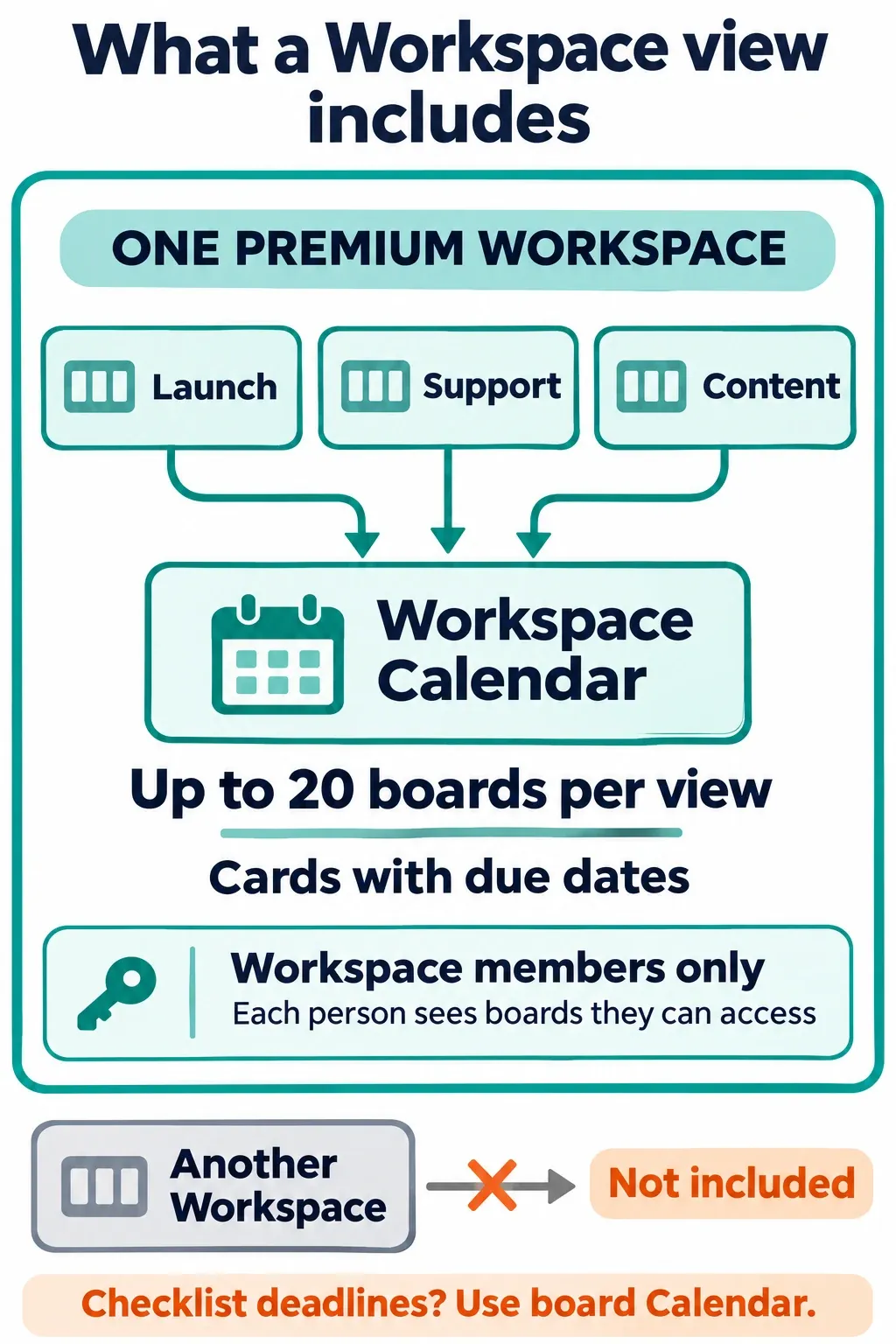
To open one, select Switch boards in the navigation bar, choose the Workspace below the search box, then select Workspace Views. Use Filter → Boards to pick the boards and filter by the person, date, list or label you need.
Workspace membership is required. Guests can use eligible views on their own boards, but a link doesn't give them access to Workspace views. Each Workspace member sees only boards and cards they're permitted to access. Adding a client as a Workspace member to use that overview also makes them billable.
Don't split related boards into separate paid Workspaces just to reduce multi-board guest charges if you need one combined calendar. Those boards can't feed the same Workspace view. Compare the total bill and the overview you would lose before changing the structure; the Workspace setup guide explains that boundary.
Planner and a board calendar solve different jobs
Standard already provides full Planner access for reserving personal focus time beside connected calendar events. A linked focus-time event doesn't change the card's due date. Premium's Calendar and Timeline are for reviewing project dates.
If all you need is a due-date calendar for one board, the Calendar Power-Up is another option, including on Free. It isn't the same as Premium Calendar or Workspace Calendar. For external calendar feeds and their limits, use the Trello and Google Calendar guide.
Unlimited runs still consume operations

Premium removes Standard's monthly run ceiling, but Automation retains separate quotas. They are shared across the Workspace's boards.
| Plan | Runs and operations |
|---|---|
| Standard | 1,000 runs; 20,000 operations |
| Premium | Unlimited runs; 150,000 operations plus 10,000 per user, capped at 250,000 per Workspace |
A trigger firing once uses one run. Each action consumes at least one operation: applying a label and setting a due date uses two. A hypothetical rule triggered 1,200 times would therefore use 1,200 runs and 2,400 operations. That exceeds Standard's run allowance even though the operations would fit.
Open any board's menu → Automation → Activity → Workspace activity to see both counters. They reset on the first day of the month at midnight GMT. Check which counter is stopping the work before paying for a higher plan.
Other service limits remain, including 20 total actions and operations per run. Premium's email allowance is 1,000 per paid user each month, capped at 100,000; an email to each recipient consumes quota. Upgrading doesn't make an oversized rule or a bulk-mail workflow unlimited.
Separate paid admin rights from Premium controls
Standard Workspace admins already have admin rights on every board in that Workspace, including private boards. Premium adds controls around who may create or delete boards at each visibility level and who may add guests. The official admin-permission comparison makes this distinction. Private doesn't hide a board from a paid Workspace's admins.
Premium's Workspace settings can restrict future membership invitations to approved email domains, limit board creation/deletion to admins or nobody at selected visibility levels, and allow only Workspace members onto boards. Domain restrictions don't remove existing outsiders; review existing membership separately.
Premium also lets an admin deactivate a Workspace member. That removes their access to the Workspace's boards while preserving visible assignments for handover. It can be useful when staff leave and their work needs a new owner.
Observers can read, download and export
An Observer can see the board and its cards, download attachments and export the board. Commenting and voting depend on the board settings. Observers can't edit or move cards, upload attachments, tick checklist items or change settings.
To change an existing person's role on the web, a board or Workspace admin opens Share, selects the dropdown beside their name and chooses Observer. Set the role separately on each board. It's a board permission, not a Workspace-wide membership type.
I'd use Observer for a client who needs the full board's progress but shouldn't change the work. It doesn't hide selected cards or prevent copies of the information. Keep unrelated client material on a different board, and remember that a multi-board guest Observer is still billable.
Premium's Workspace controls also don't include a company-wide SSO subscription. SAML SSO uses Atlassian Guard Standard, billed separately for users without a Trello Enterprise license. Organization-wide board policies are a separate Enterprise decision.
Check templates, exports and support before counting them as benefits
Private templates: Premium adds private and Workspace-visible board templates for repeatable internal processes. Public templates can be created for free. A board admin uses board menu → Make template on the web; template visibility follows the original board. Template members can still edit the template, so it isn't an immutable master.
Collections: these group and filter the Workspace's board list. They don't combine cards or create a cross-board report. Use a Collection to find a department's boards; use a Workspace view to review their cards together.
Exports: every board member can export an individual board as JSON. Premium adds board CSV exports and admin-only Workspace exports. CSV leaves out comments and normally archived cards; JSON from a single board includes the most recent 1,000 actions, including comments. A Workspace export can include all comments and, if selected, raw attachments. Neither JSON nor CSV is a built-in full-board restore format. Use the export guide to choose the right scope before downgrading.
Support: the Premium guide lists priority email support. The cloud support policy lists Premium first-response targets of one hour for an application outage, two business hours for serious degradation, one business day for moderate impact and two business days for a low-impact issue or inquiry. Trello's weekend technical support is limited to requests from Enterprise admins.
Features you may already have: Standard includes unlimited boards, 250 MB uploads per file, saved searches, Custom Fields, advanced checklists, mirroring and full Planner. Standard also includes AI board generation when Workspace AI is enabled. If the team needs AI to write or edit card descriptions and comments, Atlassian's instructions for that editor list Premium and Enterprise.
Use the 14-day trial to make one upgrade decision
The public Premium trial lasts 14 days and requires no credit card. Evaluate it in the Workspace whose boards and people you need. Choose one recurring task: a weekly review across project boards, a client Observer role, an internal template or automation that exceeds Standard's allowance.
- Name the result. For a weekly review, write down the question: “Which deadlines overlap for this team?” For an export, list the fields, comments and files the recipient needs.
- Use representative boards. Check missing dates, membership and permissions, then try the view or setting. If you need checklist dates or Custom Field totals, check those limits now.
- Repeat the task. Ask whether it replaced a real manual step and whether the people who need it can access it. Count the billable seats required for that arrangement.
- Choose the plan before the trial ends. Keep Premium when the repeated result justifies its full Workspace cost. Otherwise select Standard or Free rather than leaving the trial decision unattended.
Payment details change what happens next. With a payment method on file, the trial can automatically become paid. A Premium trial on an existing paid Standard Workspace can also upgrade automatically, so cancel the unwanted upgrade from Billing.
In centralized billing, a Workspace admin uses Workspace → Billing → Change plan to choose the intended plan. Selecting Free cancels a trial immediately and selects Free; if you want to keep Standard, confirm that plan instead. Without payment details, the billing administrator is offered a plan choice at the end. In legacy billing, use Explore plans to change plans; a trial without payment details returns to Free, and early trial cancellation goes through billing support. Use the route documented for the billing screen you have.
For an ordinary paid subscription, cancellation takes effect at the end of the prepaid period. A downgrade to Free keeps the 10 most active boards open and closes the rest without deleting them; paid-feature data is hidden rather than deleted. Trello's cancellation instructions require reducing collaborators below 10 to restore editing when the downgraded Workspace is view-only. Export what you need first.
My recommendation is to buy the smallest plan that completes that recurring task. Premium earns its extra cost when the view or control keeps getting used. A long list of available features doesn't make that decision for the team.