Open Trello's template gallery, choose a board, then select Create board from template to give your copy a name and Workspace. I'd start with a short layout whose lists match the moves your work makes, because extra stages give people more decisions to maintain. Choose a board template for a whole workflow and a template card for a task you repeat inside one board.
Choose a template you can keep moving
On the web, you can reach templates through Create > Start with a Template when signed in, or the Templates section on Trello home. The gallery includes templates from both the Trello team and the community. Its template overview shows the creator, instructions, preview and enabled Power-Ups; read those before making a copy.
Start with the job: delivering a project, publishing content, following a sale or deciding what to do this week. Then read the list names as a sequence. You should be able to explain what makes a card leave each list. A board with attractive colors but no clear next move needs more adaptation than a plain board with useful stages.
- Open a template overview and read About this template. Check which parts of the workflow depend on a Power-Up.
- Select View template to inspect the board. Look at a sample card as well as the lists: does it show the information someone needs to do the work?
- Choose Create board from template. Set a recognizable title, select the destination Workspace and decide whether to keep or discard the sample cards. Keeping them can help explain the workflow; discarding them gives you a cleaner starting board. On Free, the destination Workspace needs room under its 10 open boards; if Create is blocked, close a board you no longer use or pick another Workspace. On Premium and Enterprise, a Workspace admin can restrict who creates or copies boards there.
- Set the new board's visibility in the same flow, then select Create. The board-template instructions note that you can edit the new board while the template stays the same.
If someone sends you a Trello template link, open it and choose Create board from template. Trello can't import a board's JSON export to recreate the board.
Before inviting people, replace sample names and deadlines with your own, confirm the board's visibility setting and check any service connections. Power-Ups linked to services such as Slack or Dropbox may need setup on the new board through the Power-Ups menu in the board header. An enabled Power-Up in the preview doesn't mean its service connection works on your copy.
| Use it for | Template | Check before copying |
|---|---|---|
| Project delivery | Project Management | Keep Pending and Blocked if your team handles those states separately. |
| Content production | Editorial Calendar | Decide who moves cards from Editing to Ready For Publishing. |
| Sales follow-up | CRM Pipeline | Decide who follows up after a card reaches Proposal Delivered. |
| Personal planning | Amazing Personal Task Management | Its sample cards use the Amazing Fields Power-Up. Check which fields you need. |
Trello's team created the project, editorial and sales templates. Amazing PowerUps created the personal template.
Board examples by the move you need
These four layouts are examples to build from or to judge a gallery template against. Each uses the Trello basics: lists represent stages, and cards hold individual pieces of work.
Project delivery: Ready, Doing, Done
Use Ready → Doing → Done when one person can carry a task through to completion. Ready holds work that has enough information to begin. The person starting a card moves it to Doing; the person finishing it moves it to Done after checking the agreed result.
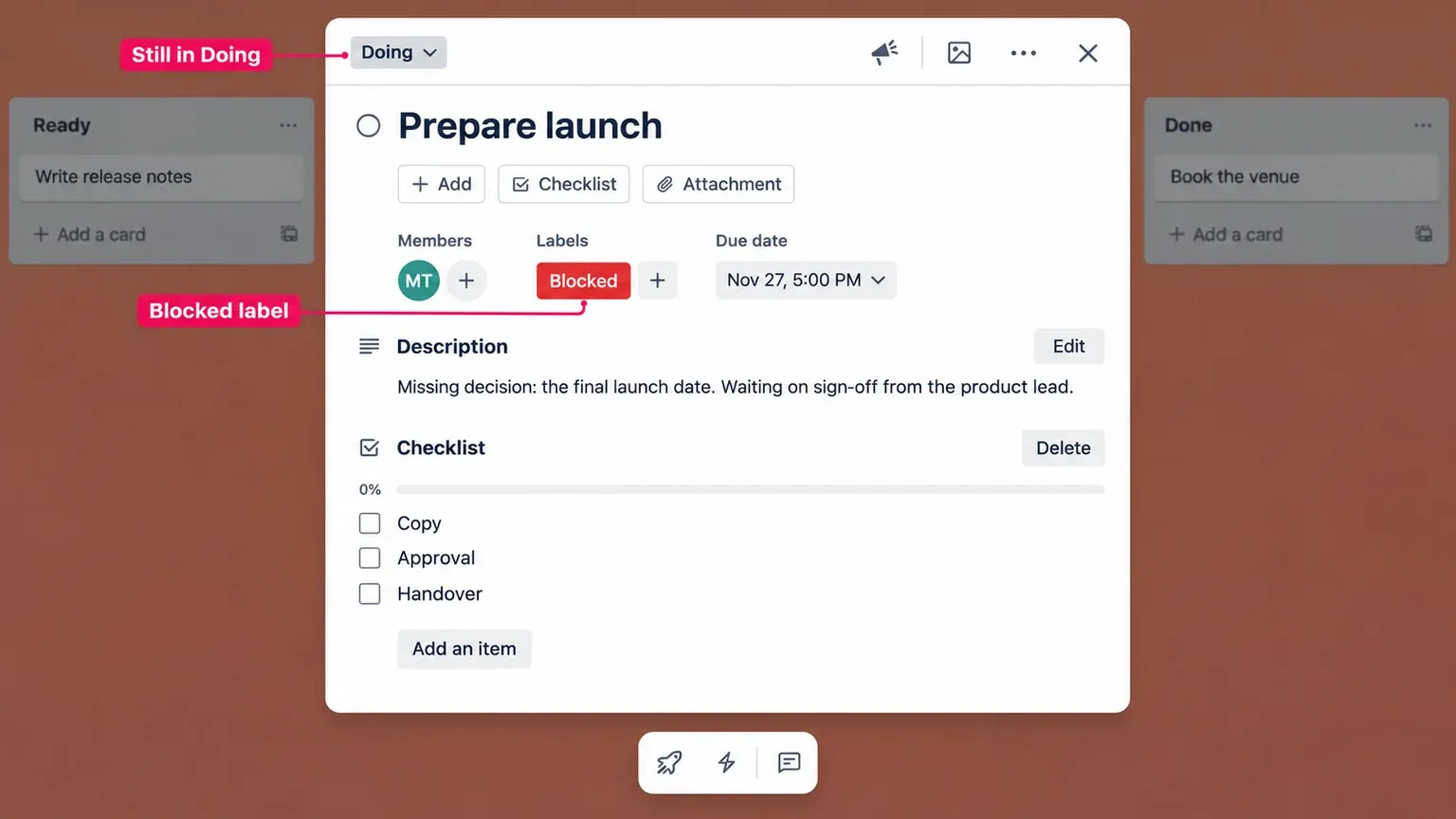
A Prepare launch card carries an assigned teammate, an agreed due date and a checklist for copy, approval and handover. Keep a named Blocked label for a task waiting on something outside the board, and write the missing decision in its description. If somebody else must approve the result, add Review between Doing and Done and agree who moves cards out of it.
At the weekly project review, start with Doing. Find the cards that have stalled and agree on who takes the next step. Set a limit for cards in Doing so the team knows when to finish work before starting another task.
Content production: Ideas, Drafting, Review, Published
Use Ideas → Drafting → Review → Published when an item needs a handoff before release. One card follows one article, video or newsletter through the board. Move it into Review only when the draft and the decision required from the reviewer are clear; move it into Published after the item is public.
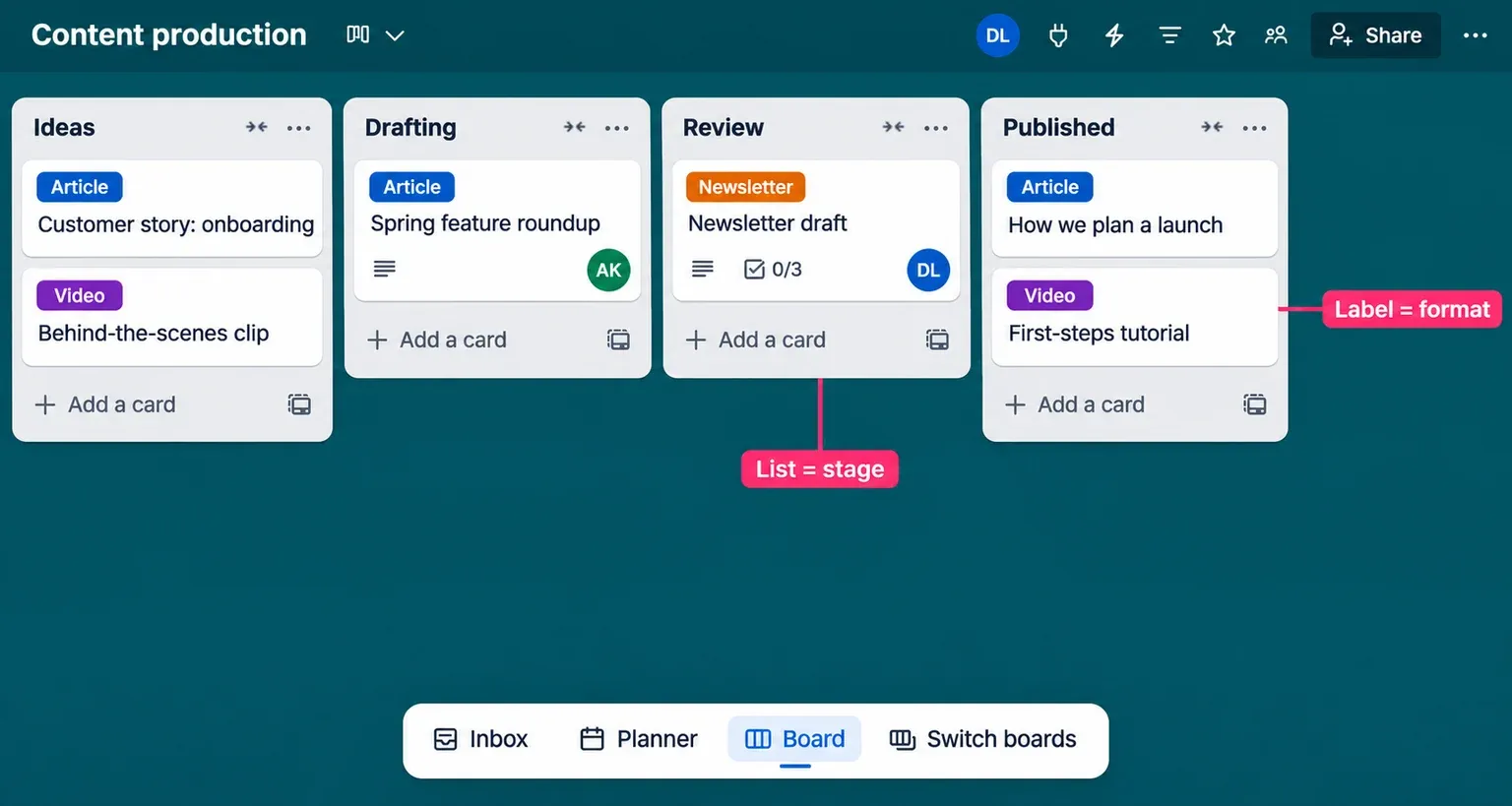
For a Newsletter draft card, put the audience and brief in the description, assign the person responsible for the next move, and add a checklist for links, final copy and approval. Labels such as Article, Video and Newsletter describe the format while the list describes the stage.
During the weekly review, look for drafts waiting for approval and planned items with no next owner. If the editorial calendar drives release planning, use the card's due date for the intended publication day. The editorial calendar guide shows when to move a card from Review to Scheduled.
Sales follow-up: New, Contacted, Proposal, Closed
Use New → Contacted → Proposal → Closed for a small pipeline where the immediate question is who needs a follow-up. Give each opportunity one card. Move it when the conversation reaches the next stage; a sent follow-up alone doesn't mean a proposal has been accepted.
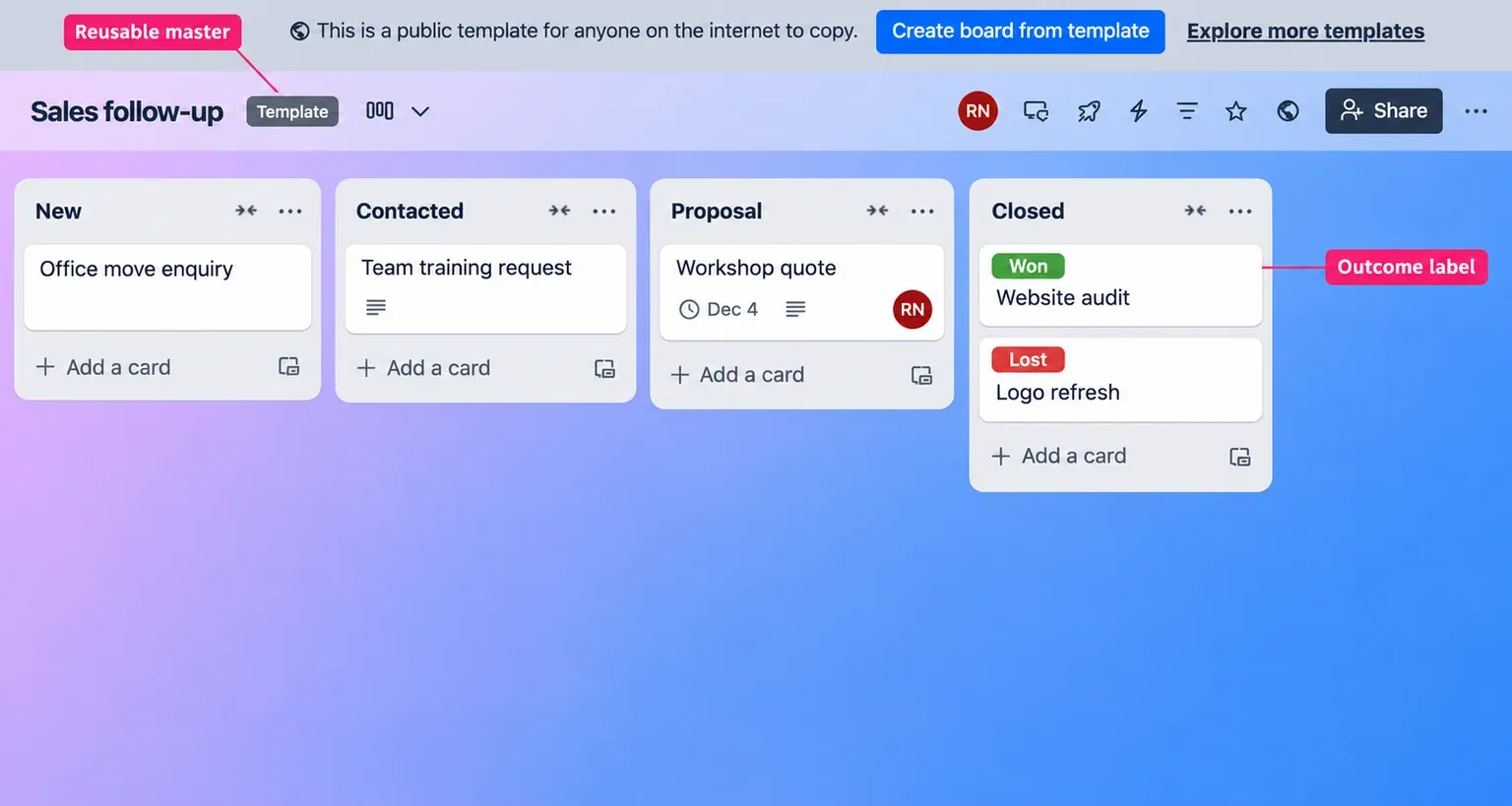
A Workshop quote card needs a responsible teammate, the next agreed action and a due date for that action. Use Won and Lost labels on closed opportunities if the team needs to distinguish outcomes. Keep contact information and client details out of any public template; the reusable master can use generic sample data.
Review Contacted and Proposal each week for cards without a next action. The Trello labels guide covers naming and filtering when those outcome labels need to answer a real question.
Personal planning: Later, This week, Today, Done
Use Later → This week → Today → Done when you need to choose what gets attention now. This is a commitment-based layout: a card moves toward Today when you decide to work on it. That differs from a production board whose lists track the work's stage.
A Renew library membership card can hold the renewal link, the required information and its deadline. At the weekly review, move a manageable selection from Later into This week. Before each day, choose from that list for Today; move unfinished work back when the plan changes so Today keeps its meaning.
Turn your own board into a reusable template
In Trello on the web, only a board admin sees Board Menu > Make template. The template visibility rules allow public templates on Free. Private and Workspace-visible templates require Premium or Enterprise. Company-visible templates require Enterprise.
Don't make a working board public to avoid a plan restriction. Anyone can view a public template via its share link. Search engines can also show it. Choose an eligible visibility setting and remove client information, credentials and other sensitive sample content before sharing a reusable board.
- Prepare the board's reusable lists, instructions and generic sample cards. Check its visibility and membership before conversion.
- Open the three-dot Board Menu and select Make template. A template banner and badge identify the result.
- Write About this template in the board menu. Explain who the layout serves, when a card moves and which optional features it expects.
- Use Share on the gallery overview or copy the public template board's address from your browser. Private templates require an explicit invitation to view and copy. Workspace-visible templates are available within the selected Premium or Enterprise Workspace.
Conversion changes how the board is used: comments and activity are hidden, members remain, and self-join is disabled. If you need to resume working together on that board, choose Board Menu > Convert to board; collaboration features return. A separate board created from the template gives the project its own editable copy.
On iOS and Android, you can view and copy board templates. Open Trello on the web to convert a board into a template or back into a board. If Make template is missing there, check that you're a board admin and that your Workspace plan supports templates at that visibility.
Use a template card for repeatable task details
Choose a template card when each new task needs the same brief or checklist on an existing board. An editorial board could use an Article brief template containing prompts for audience, angle, draft link and approval. That gives a new task its starting details without making another board.
- On the web, open the card you want to reuse, choose its ellipsis menu and select Make template.
- To make a task from it, open the template and choose Create card from template, or use Create from template at the bottom of a list.
- Give the new card its specific details and dates. Trello's card-template rules say start and due dates don't copy. A master marked complete before conversion produces cards that are already complete.
If new cards are marked complete as soon as you create them, open the template and select Template in its actions to turn it back into a regular card. Clear the completion status, then choose Make template again.
Editing a template card doesn't update cards already created from it. Keep procedure changes in the master for future tasks, and handle any necessary updates to open tasks separately.
To clear the master from a working list, use Hide from list; the template remains available for creating cards. Deleting the template also deletes the original card, so hiding is the useful choice when you want to keep reusing it.
Card templates belong to their board. To reuse the structure elsewhere, create a card from the template, move that new card to the other board, then make it a new template there. The mobile app can use templates created on the web, but template creation and editing happen on the web; the support instructions also describe editing through a mobile browser.
Use the first review to trim the layout
After the first week, read every occupied list and ask what decision its name helps you make. Combine stages that nobody uses differently. Keep a separate review stage when another person must make the next decision, and clear finished cards from the active workflow once the team no longer needs them there.
Then update the reusable instructions for the next project or task. If the layout still feels harder to understand than the work itself, start with a first Trello board and add only the stage that your next real handoff requires.