
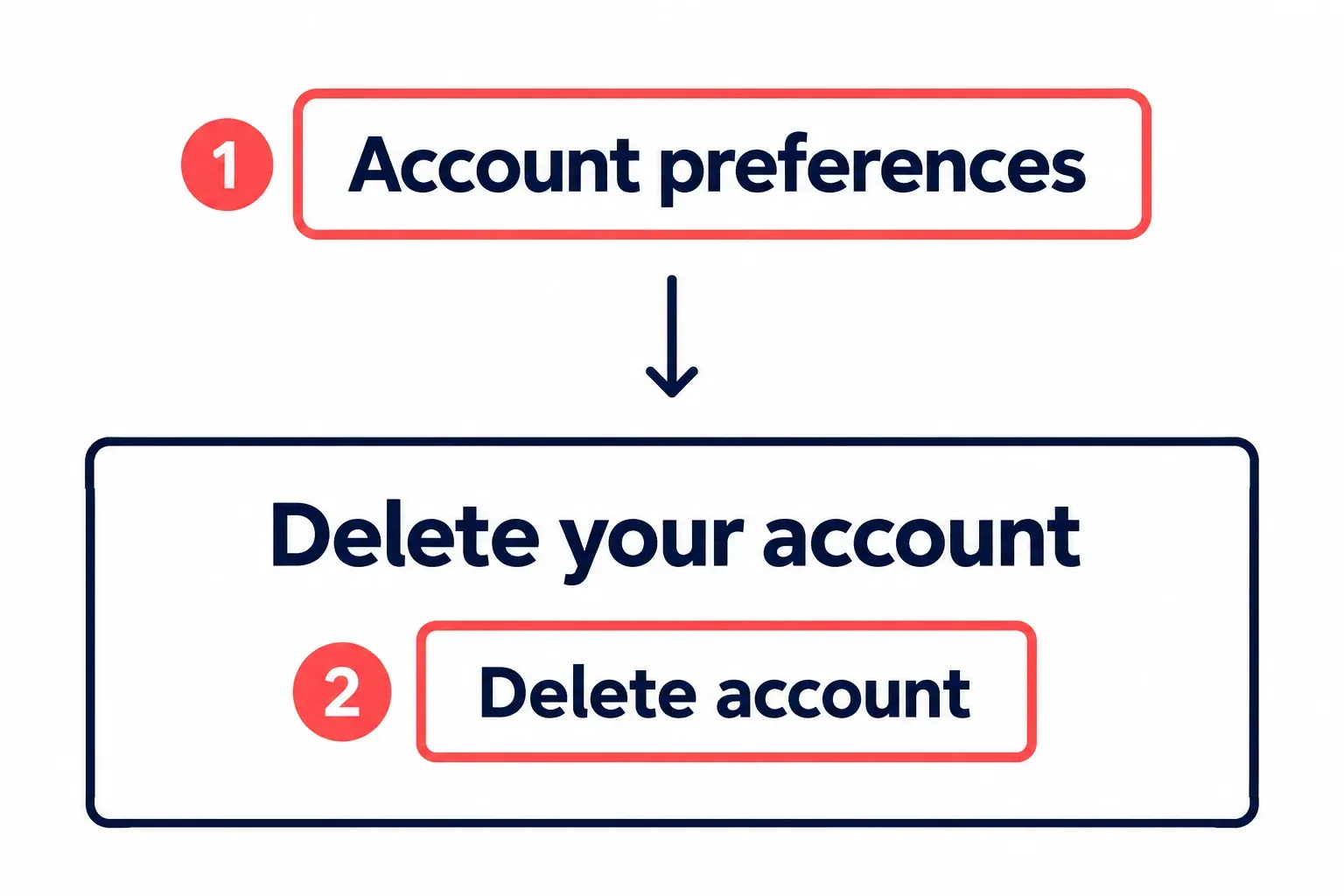
To delete your Trello account, open id.atlassian.com/manage-profile → Account preferences → Delete your account → Delete account. Read the consequences, then select Delete account again and confirm. Trello directs this request through Atlassian account settings, so it also ends access to Jira, Confluence and other Atlassian apps using that login. You have 14 days to cancel the request; after that, the deletion is permanent.
Sign in with the email you use for Trello. An account you control can use this route on any Trello plan; if Account preferences says the account is managed, your organization admin must act instead. I’d export boards and hand over admin roles first: deletion removes you from every board, and shared paid Workspaces keep billing. Use a web browser for the steps below, including on a phone.
Three ways out, and only one closes the account
Choose the smallest action that achieves what you need. Leaving a board keeps your login; closing a board keeps the work recoverable; deleting the account reaches every Atlassian app tied to it.
- Out of your own list. If some boards or a Workspace simply should not be yours anymore, leave a board or Workspace instead. Leave board sits under Share on the Board members tab, and in the board menu too; your comments stay on the cards, the board carries on for everyone else, and you can be added back like any new member. Trello will not let the only admin or the only member leave, and the only admin of a Workspace has to make someone else an admin before Leave works on its members page.
- Keep the work recoverable. Closing a board hides it from your Boards list without deleting it. It can be reopened later. Your account and other boards remain available.
- Gone. Deleting the account takes you off every board you are on. Others first see your name marked Deactivated and, 14 days later, Former user in its place. The only way back is Cancel deletion, and only inside those 14 days.
If the account you want gone is someone else's, that is removal, not deletion. A board admin removes a member from Share, through the dropdown next to that member and Remove from board, and the member's comments stay; a Workspace admin selects the Trello logo, then Members, then Remove.
Leaving the account unused has a different result. Under Trello’s dormant account policy, Atlassian may delete a Trello account after at least 2 years without activity. It emails 60 days ahead and again at least 3 days before; logging in keeps the account. That policy applies to Trello, while the manual request below deletes the Atlassian identity too.
What the deletion does to boards, Workspaces and your data
Shared boards remain; last-member boards are deleted
Deleting the account removes you from every board. What happens to each board depends on who remains:
- A board with other members and at least one other admin carries on without you.
- A board where you are the only admin but not the only member stays open with no admin. In a paid Workspace a Workspace admin can join it and add a new admin. On a Free Workspace, don't count on fixing it later: Trello support cannot change the admins of a board, and the options Atlassian lists for a missing admin start with upgrading the Workspace so its admins control every board.
- A board where you are the last member is deleted with the account.
So boards you shared live on with the people still on them, and boards only you used go. Your comments remain on the cards, and so does anything personal you typed into a card description or comment: Trello leaves deleting that to admins or to you, so clean up a phone number or address in a card back before the request rather than after.
Workspaces you administer
Whether a paid plan survives depends on who else is in the Workspace. If you are the only member of a Standard or Premium Workspace, its subscription is cancelled when the account is deleted, and a subscription on your individual account is cancelled too. If the Workspace has other members, the subscription keeps running: you are prompted to choose a new admin, and from then on only that admin can cancel it.
Keep each Workspace available until its remaining members have the boards and admin access they need. Deleting a Workspace is a separate permanent action; it isn’t a prerequisite for deleting your account.
What Atlassian erases, what it keeps and what sits elsewhere
For a self-managed request, Atlassian’s deletion page lists the profile data that goes: full name, public name, email address, job title, department, organization, profile picture, location, time zone and private Looms. After the account is deleted, personal data is removed from the Atlassian services it used within 30 days, apart from what Atlassian keeps for legal or business reasons, such as purchase records, the record that the account was deleted and data in an active lawsuit.
Some things stay or need a request of their own:
- Content you created, such as comments, stays where it is.
- Jira Align, Halp, Opsgenie and Loom accounts are not deleted with the Atlassian account; each has its own route.
- Profile information held by Marketplace apps, Power-Ups from the Marketplace among them, and by custom apps stays with those apps. Atlassian passes deletion requests to Marketplace Partners through its Personal Data Reporting API and recommends contacting the partners to confirm your data is gone.
- Access ends everywhere the login worked: no Atlassian apps, no support tickets at support.atlassian.com, no my.atlassian.com and no posts on Atlassian Community.
Before you press Delete account: five things to settle
Do these while you can still open your boards and change their permissions. Export first, settle who controls the remaining work, then request deletion.
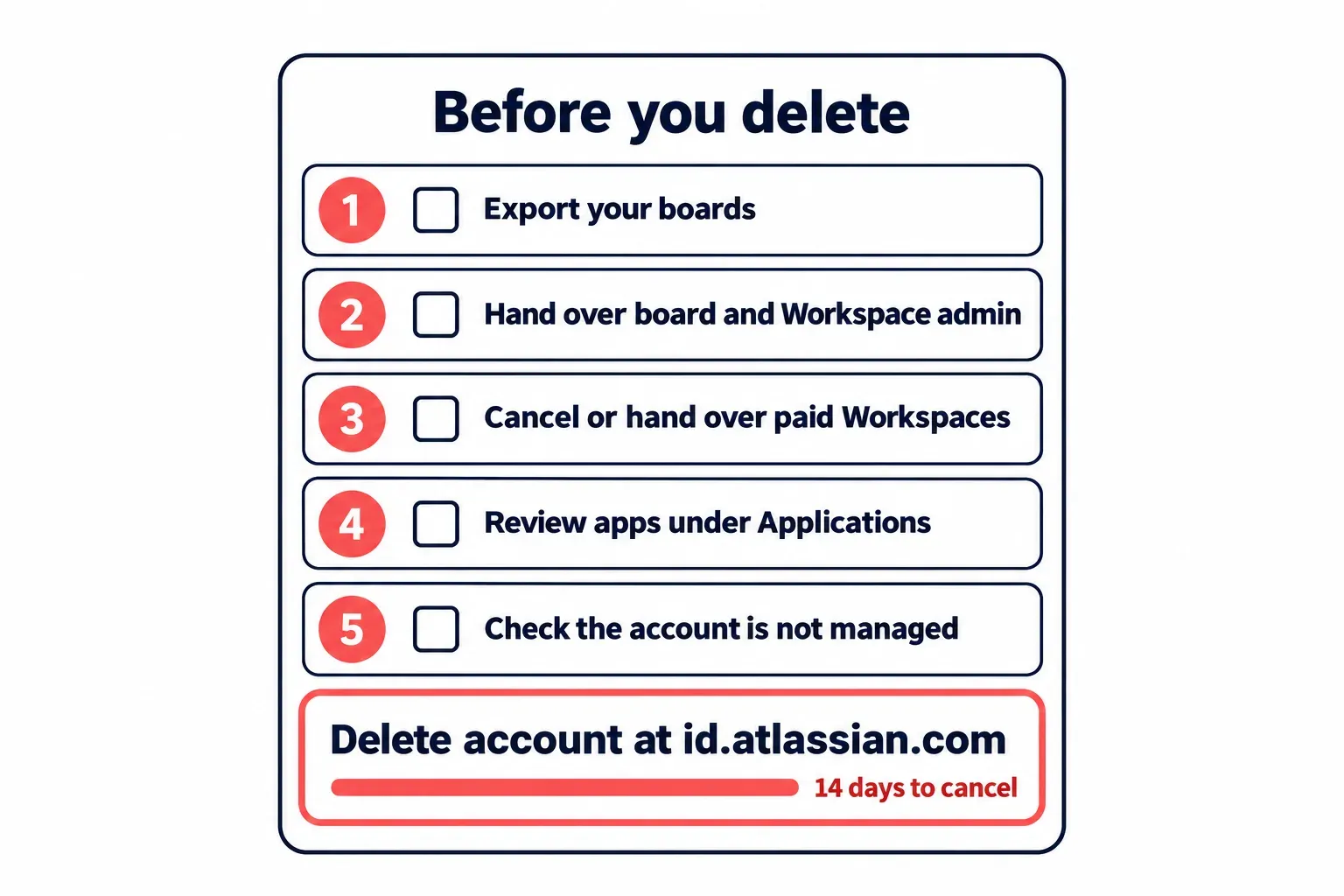
1. Export what you want to keep
Export before changing roles or memberships, because those changes can remove your access. Any board member can export a board as JSON from the board menu under Print, Export, and Share; boards in a Premium Workspace offer CSV too. JSON contains the 1000 most recent actions, including comments. CSV excludes comments and, through the normal export, archived cards; a Premium board’s .csv URL includes archived cards.
On Premium, a Workspace admin can export all its boards from the Trello logo → Workspace Settings → Export. Include raw attachments packs the attachments into a ZIP. Move cards still in Inbox to a board before exporting. Trello has no native import that turns these JSON or CSV files back into a working board, so keep them as records. Open each saved file and check that it contains the cards you need before changing access.
Your boards are one thing; what Atlassian holds about you as a person is another. To get that, request a copy of your personal data through a support request (Personal data and GDPR, then Request a copy of your personal data, then Submit support request) before deleting, since a deleted account can no longer raise tickets. A managed account asks its admin instead.
2. Hand every admin seat to someone who stays
Add another admin to every board where you hold that role alone. Open the board, select Share, open the dropdown next to the person’s name and choose Admin; a board admin can promote another member. Check that their role now reads Admin before moving to the next board.
For a Workspace, select the Trello logo → Members, then Normal next to a member → Admin. On Free, every member is already a Workspace admin, but individual board access still needs a board admin. On Standard and Premium, Workspace admins have admin access to every Workspace board, including private boards.
If you are deleting because your boards should live on another Trello login you already have, such as a personal one, the handover can go to yourself. Transfer your board memberships to another account at trello.com/support/transfer-boards, choose whether to remove the old account from the boards, and finish with Transfer Boards. The boards stay in their Workspaces, the new account needs a confirmed email, card assignments are not copied, reactions, votes and Power-Up settings may be lost, and where the old account was a board admin the new one becomes board admin.
3. Cancel or hand over paid Workspaces
Decide whether each paid Workspace ends or continues with the admin from step 2. With Trello billing, a Workspace admin selects the Trello logo → Workspace → Billing → Cancel at the bottom of the page. The plan ends after its billing period, then the Workspace becomes Free. Manage the subscription on the web; Trello’s desktop and mobile apps don’t support it. Enterprise customers contact their advocate or Trello Support.
If Billing offers Change plan, follow the centralized billing route: Change plan → Free. The downgrade takes effect at the end of the billing period. Billing is also at admin.atlassian.com/billing. Workspace admin and billing admin are separate roles: permission to change the Workspace plan doesn’t mean the same person controls its payment details.
A trial with a payment method converts to paid automatically. Without one, Trello billing downgrades it to Free, while centralized billing offers the billing admin a plan choice. To end a trial early, contact billing support for Trello billing or choose Change plan → Free for centralized billing.
After a downgrade, the 10 most active boards stay open and the rest are closed, not deleted. Paid-feature data is hidden rather than erased, and collaborator limits can leave boards view-only. Read the Workspace’s restriction banner before removing people. Jira and Confluence subscriptions are separate: their subscription deactivation guide covers both billing experiences, including Atlassian Administration for the improved experience and my.atlassian.com for the original one.
4. Review apps under Applications
Review the apps you authorized before deleting the account. The Applications section lists authorized apps and their Revoke controls at trello.com/u/{username}/account. Replace {username} with your own username. Revoke stops that app’s API access; it doesn’t erase data the provider already holds. Record which providers you need to contact about deleting stored personal data.
5. Check the account is not managed and the mailbox is yours
Open id.atlassian.com/manage-profile and select Account preferences. The Delete your account section shows whether the account is managed: an account you control shows the Delete account button, a managed one shows a note explaining that it is managed. Then make sure you can open the mailbox of the address you log in with. Atlassian cannot delete an account on anyone's behalf, the request has to come from the signed-in account, and Trello's page says it is finalised through a confirmation sent to that address; without the mailbox, recover it first.
Delete the account at id.atlassian.com
The request becomes irreversible when its 14-day grace period ends. With exports and handovers complete, follow Atlassian’s account deletion steps:
- Open
id.atlassian.com/manage-profilein a browser, signed in with your Trello email. Your Atlassian account settings open. - Select Account preferences and scroll to the Delete your account section. It shows the Delete account button; if it shows a note about a managed account instead, stop and read the work accounts section below.
- Select Delete account. Atlassian sets out what the deletion will do before anything happens; read it through.
- Select Delete account again and confirm in the dialog. Trello's page describes the request as finalised through a confirmation email to your registered address, so check that mailbox and confirm there as well if a message arrives.
To verify the request went through, sign in at id.atlassian.com again: during the grace period a screen appears offering Cancel deletion. Leave that button alone unless you mean to stop; its presence is the sign the 14 days are running.
The 14 days between the request and the end
For 14 days the account counts as temporarily deactivated, and the deletion can still be called off. Signing in at id.atlassian.com and selecting Cancel deletion on the screen that appears stops it. Other people see your name with a Deactivated lozenge during this time. When the 14 days end, the account is permanently deleted, Former user with a Deleted lozenge replaces your name, and personal data leaves Atlassian's services within 30 days, apart from the records described above.
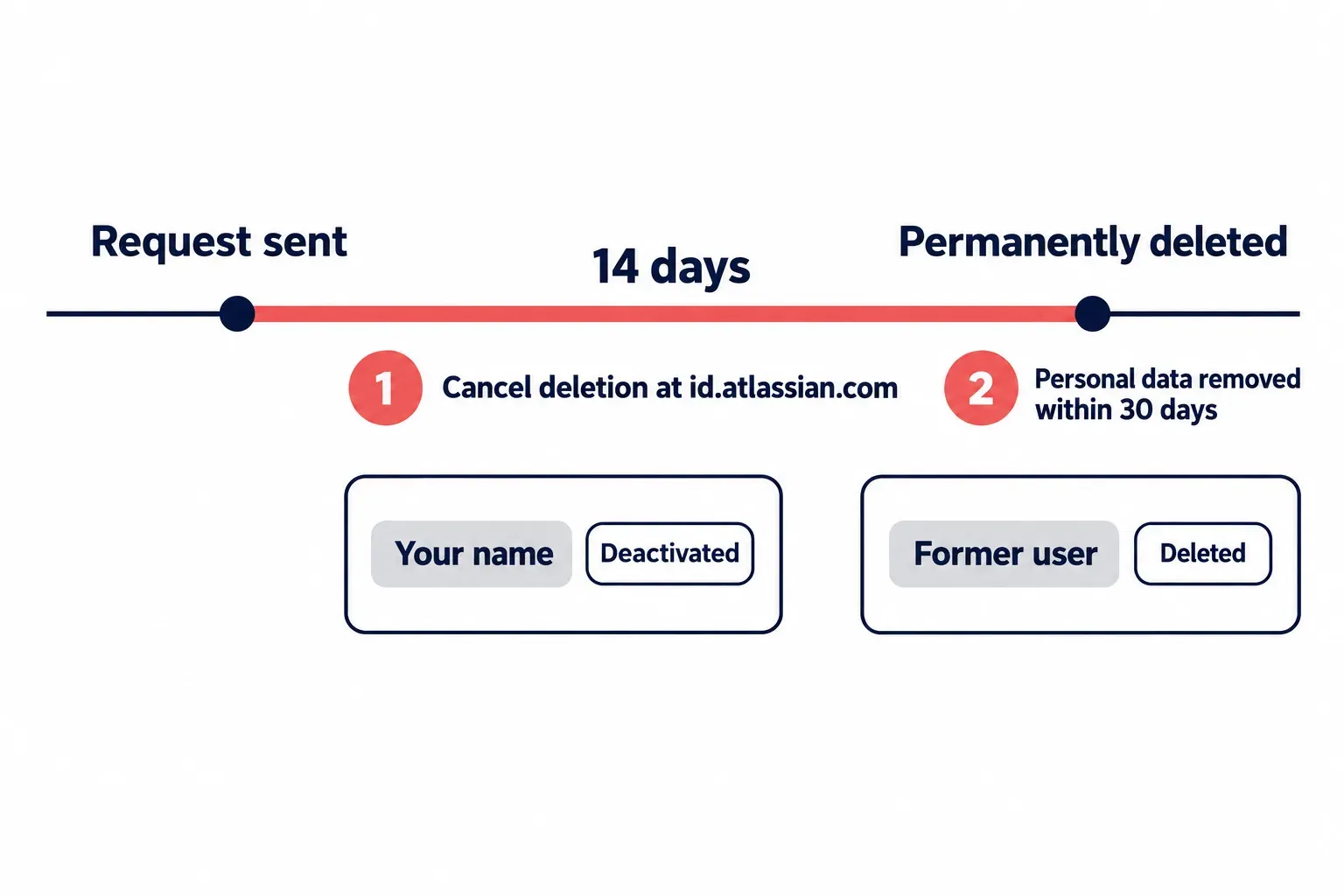
Use the window to check the handovers from step 2. If a teammate reports a board with no admin, cancel the deletion, make someone an admin, and send the request again.
Work accounts: the organization admin deactivates or deletes
A company email can be managed after the organization verifies its domain and chooses to manage the account. The email address alone doesn’t settle it: check the note in Account preferences → Delete your account. For a managed Trello account, the organization controls deletion and owns the content created with it. Ask its admin, usually through IT, for the outcome you need:
- Deactivate. An organization admin can temporarily deactivate the account without deleting personal data. Access to Atlassian services stops, billing for that user stops, and an admin can reactivate it. If users come from an identity provider, deactivate the user there. Choose this when the person may need access again.
- Delete. Follow the organization admin’s managed-account procedure. With identity-provider provisioning, remove the user from that provider first or the Atlassian account can be recreated. For Google Workspace-managed users, remove the user from Google Workspace, then contact Support to request deletion. The account is deactivated for 14 days; this grace period can’t be shortened, and only an admin can cancel it.
Workspace deactivation has a narrower reach. A paid Workspace’s admin can deactivate a member from Workspace Members → Remove → Deactivate. The person stays assigned to its cards and boards, can still access content outside that Workspace, and doesn’t consume a Standard or Premium license there. If Reactivate is missing, their whole Atlassian account may have been deactivated by the organization admin; a Workspace admin can’t restore it.
When the deletion will not go through
A few situations stop the request or leave it unfinished, and each has its own next move:
- The error mentions a billing role. Check Billing permissions at
admin.atlassian.com/billingand arrange a handover. Atlassian prevents removal of the only billing admin and recommends at least two. Add another billing admin before removing yourself; use billing support if the deletion error remains. - You can't open the login mailbox. Atlassian can't delete the account for you, and without the registered email the request can't be finalised. Regain the mailbox first; for a company address that means working with your IT team.
- The account is managed. The Delete your account section shows a note instead of the button, and the organization admin decides, as described in the section above.
- A question only Atlassian can answer. Ask it before sending the request. A deleted account can't open tickets at support.atlassian.com or post on Atlassian Community, so a billing or data question goes in while the account still works.